


CloudFloor DNS Logo
CloudFloorDNS Icon

One Year Later: The Empty DNS Record That Took Down AWS us-east-1

One Year Later: The Empty DNS Record That Took Down AWS us-east-1

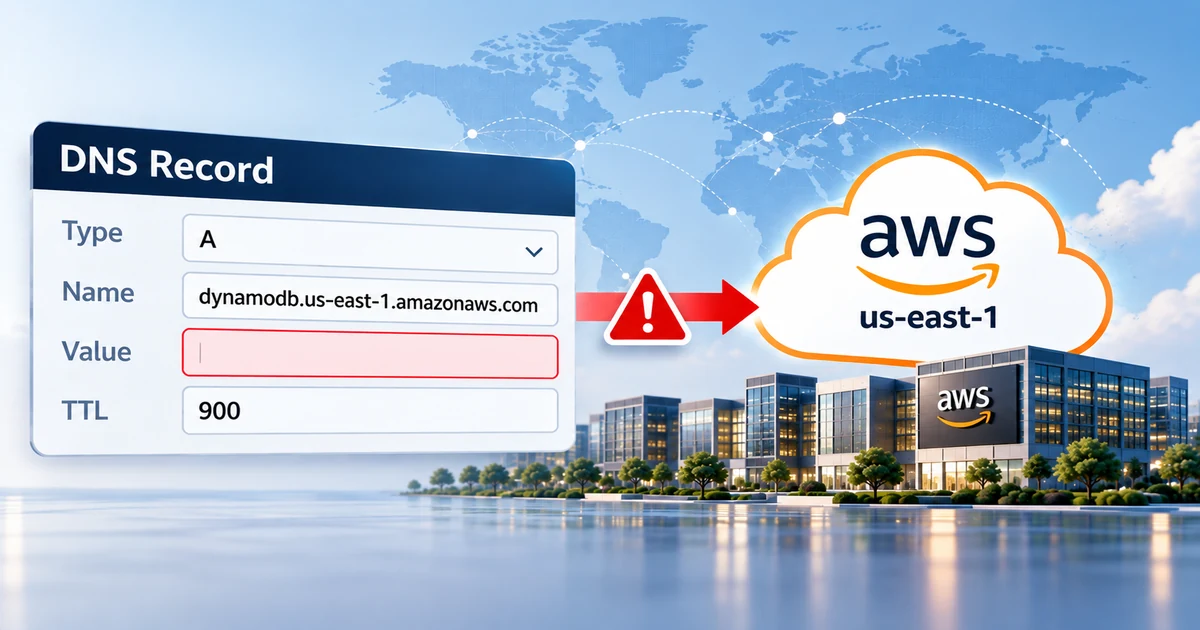
A year ago this week, one DNS record in Amazon Web Services’ busiest region came back empty. At 11:48 PM Pacific time on October 19, 2025, the name applications use to reach DynamoDB in us-east-1, dynamodb.us-east-1.amazonaws.com, stopped resolving to any address. Applications that depended on it couldn’t connect, and the failure rippled through EC2, load balancers, Lambda and more. AWS had the DNS record fixed in under three hours. Everything else took until 2:20 PM the next afternoon.

The cause wasn’t an attack, a hardware failure or a DNS provider going down. It was an automation bug: a race condition in the system AWS uses to keep that record up to date. AWS’s post-event summary is worth reading in full. Here’s what happened, which common advice wouldn’t have helped, and what’s worth doing about your own DNS.

The short version

No choice of DNS provider would have prevented this one. The record that went empty was AWS’s own, and the DNS service serving it did its job; the record it was given was empty. What you control is how your own services fail: guardrails on the automation that changes your DNS, monitoring that checks the answers rather than just the servers, a fast way to roll back, and a failover path that doesn’t depend on the thing that failed.

What happened

DynamoDB’s regional endpoint points at a large, constantly changing pool of load balancers, so AWS updates its DNS records automatically. The system that does it has a few moving parts:

DNS Planner

Watches the health and capacity of DynamoDB’s load balancers and produces a new DNS plan whenever they change.

DNS Enactors

Three of them, running independently in three Availability Zones, apply the latest plan to the endpoint’s records in Route 53.

Cleanup

After applying a plan, an Enactor deletes plans that are many generations old.

Route 53

Serves whatever was last applied. Normally, that’s a long list of healthy addresses.

On October 19, those parts lined up in exactly the wrong order:

  1. One Enactor got stuck retrying updates and fell behind, still holding an old plan.
  2. A second Enactor applied a much newer plan to every endpoint, then started its cleanup of old plans.
  3. The delayed Enactor finally wrote its old plan to the regional endpoint, overwriting the newer one. It had checked that its plan was newer, but that check was made before the delay and no longer meant anything.
  4. The cleanup then deleted that old plan for being many generations behind. Because it was now the plan in use, deleting it removed every IP address from dynamodb.us-east-1.amazonaws.com.
  5. The system was left in an inconsistent state that stopped any Enactor from applying new plans, so it couldn’t repair itself. Engineers had to fix it by hand.
Pacific time What happened
Oct 19, 11:48 PM DynamoDB’s regional endpoint stops resolving and error rates jump.
Oct 20, 12:38 AM Engineers identify the DNS state as the source.
2:25 AM All DNS information is restored.
2:40 AM DynamoDB is fully recovered as cached DNS answers expire.
5:28 AM EC2’s system for managing its physical servers finishes re-establishing its leases.
9:36 AM Engineers turn off automatic health check failover for Network Load Balancers.
1:50 PM EC2 is fully recovered.
2:20 PM The last affected services recover and the event ends.

Why one DNS record did so much damage

The DNS problem lasted under three hours. The rest of the day went to knock-on effects, and they’re the part most worth learning from:

  • Hidden dependencies. The EC2 system that manages the physical servers behind instances checks in with DynamoDB. With DynamoDB unreachable, those checks failed, server leases timed out, and new instance launches returned “insufficient capacity” errors.
  • Recovery overload. When DynamoDB came back, that system tried to re-establish its leases all at once and collapsed under the load. Engineers had to throttle it and restart hosts.
  • Health checks making it worse. New instances came up before their network configuration had propagated, so load balancer health checks flipped between failing and passing and pulled healthy capacity out of service. Automatic failover between Availability Zones removed even more, until engineers switched it off.
  • Caches. Even after the record was fixed at 2:25 AM, clients recovered only as their cached copies of the broken answer expired, over the next 15 minutes.

What wouldn’t have helped

Plenty of advice after an outage like this is aimed at a different failure. Three things that wouldn’t have made a difference:

Secondary DNS

A secondary provider copies whatever the primary publishes, empty records included. It protects you when your DNS provider can’t answer, not when the data itself is wrong. We sell secondary DNS, and that’s still true.

Moving your own DNS

The record that broke was AWS’s own service endpoint. No change to your domain’s DNS, at any provider, could have repaired it.

More Availability Zones

The regional endpoint failed for every zone in us-east-1 at once. Spreading across zones in the same region didn’t help.

Five lessons for your own DNS

1
Automation

Put guardrails on anything that changes DNS automatically

AWS’s own fix starts here. It disabled the automation worldwide until the race condition is fixed and protections stop incorrect plans from being applied. The same kind of failure can happen anywhere DNS is changed by scripts, Terraform, deployment pipelines or API integrations. A few rules catch most of it:

  • Refuse to publish an empty answer for a name that should always resolve, and refuse to delete the last record of a critical name.
  • Re-check that a change is still current at the moment you write it, not just when the job started. A stale check is exactly what let the old plan through.
  • Never let a cleanup job delete anything that’s live.
  • Limit how much can change in one run, so a bad run can only do so much damage.
  • Lock zones that rarely change. CloudFloorDNS supports zone locking alongside templates and backups.
2
Monitoring

Monitor the answers, not just the servers

During the outage, the DNS servers were up and answering. The answer was simply empty, so a check that only asks whether a nameserver responds would have passed. Check what your critical names resolve to, from more than one network, and alert when an answer is empty or changes unexpectedly:

# Does www still resolve to at least one address? Run it from more than one network.
answer=$(dig +short www.example.com A)
[ -n "$answer" ] && echo "OK: $answer" || echo "ALERT: www.example.com returned no addresses"
3
Recovery

Make rollback fast, and remember the caches

AWS’s automation left itself unable to apply new plans, so the fix had to be done by hand. Know in advance how you’d put the last good version back. CloudFloorDNS takes an automatic backup of your zone every time it changes, and you can restore a previous version from the zone’s editing page.

Bad answers also outlive the fix. A wrong address stays cached for the record’s TTL, and an empty answer for your zone’s negative-caching time, which is set in its SOA record. Keep both reasonable for names you might need to repair in a hurry.

4
Failover

Have a failover path that doesn’t share the failure

If your service can run somewhere else, DNS failover is how you send people there: it checks your service from outside and switches records to a standby when it fails. For it to help in an event like this, three things have to be true:

  • The standby doesn’t depend on the region that failed, including for sign-in, configuration or data.
  • The health checks and the DNS changes run outside the failing region, so the system deciding to fail over isn’t down too.
  • The records you’d switch have short TTLs, so the change takes effect in minutes.

CloudFloorDNS DNS Failover monitors from multiple global locations and switches A, CNAME and ALIAS records when several of them agree that something is down. You don’t have to move your DNS to use it; CNAME Failover works alongside your current provider.

Failover can make things worse

In this outage, automatic health check failover pulled healthy capacity out of service, and AWS had to turn it off. Require several monitoring locations to agree before failing over, and consider failing over and staying there instead of failing back automatically, so a flapping check can’t bounce traffic back and forth. CloudFloorDNS DNS Failover offers both options.

5
Redundancy

Keep your authoritative DNS independent

This outage wasn’t a DNS provider failure, but those happen too, from DDoS attacks to configuration mistakes. Secondary DNS on a separate network keeps your domain resolving when your primary provider can’t answer. Just be clear about what it covers: a provider that’s down, not data that’s wrong.

Which protection covers which failure

When this fails This protects you
Your DNS provider can’t answer (outage, DDoS) Secondary DNS on an independent network
Wrong or empty data gets published Guardrails on changes, monitoring the answers, fast rollback
A cloud region or data center goes down DNS failover to a standby that doesn’t depend on it
The fix is slow to reach users TTLs and negative-caching times chosen per record

Frequently asked questions

Was this a Route 53 outage?

No. Route 53 served the record it was given. The record was emptied by the separate automation that manages DynamoDB’s DNS entries.

Could the same thing happen to my DNS?

Any system that changes DNS automatically can publish bad data, including scripts and integrations you run against your own provider’s API. That’s why the guardrails, monitoring and rollback above matter more than which provider you use.

Would running in more than one region have helped?

For your own workloads, it can, but only if the other region doesn’t depend on us-east-1 for anything it needs. The only reliable way to know is to test a real failover.

What did AWS change afterwards?

It disabled the DNS Planner and Enactor automation worldwide until it fixes the race condition and adds protections against applying incorrect plans. It’s also adding a limit on how much capacity a load balancer can remove during health check failover, plus new tests and throttling for EC2’s recovery workflows.

Related

Plan for the bad day before it happens.

CloudFloorDNS gives you independent Anycast DNS with a 100% uptime SLA, DNS Failover that checks from multiple locations, and Secondary DNS, all run by a team with more than 25 years in DNS.

Want help planning failover for your own services? Email sales@cloudfloordns.com or support@cloudfloordns.com, or call +1 781 373 5823.
Amazon Web Services, AWS, Amazon DynamoDB, Amazon EC2 and Amazon Route 53 are trademarks of Amazon.com, Inc. or its affiliates. CloudFloorDNS is not affiliated with Amazon. Details of the outage are taken from AWS’s published post-event summary.

NXDOMAIN Explained: What It Means and How Attackers Abuse It

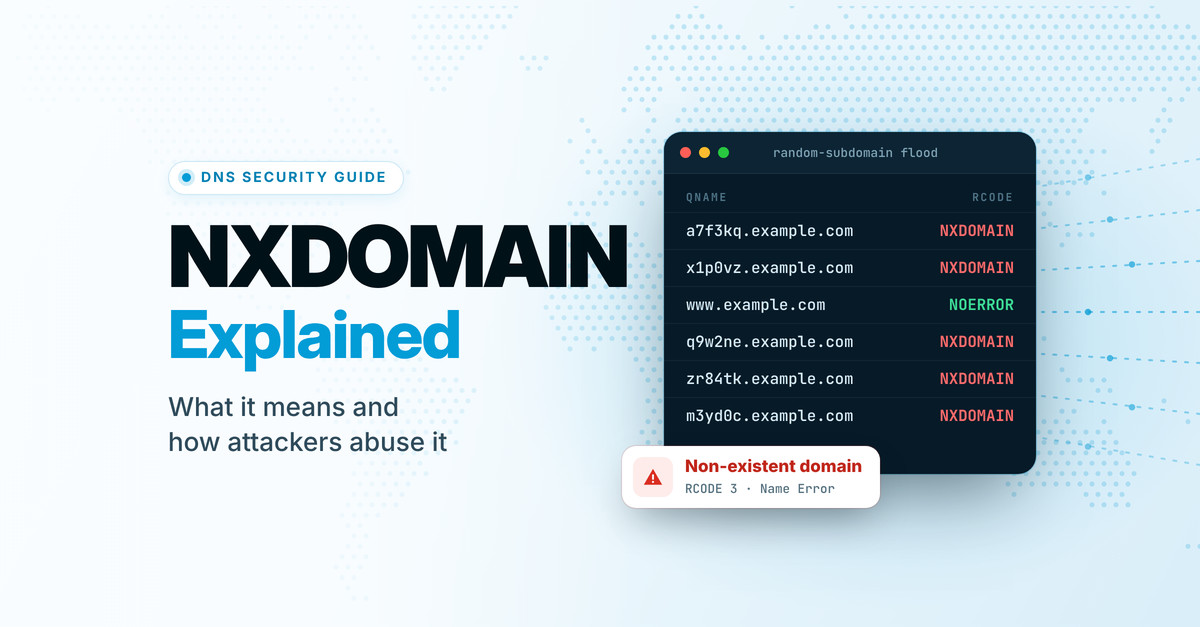
Every DNS answer carries a response code. Most of the time it’s NOERROR and nobody notices. When the name you asked about doesn’t exist at all, the answer comes back with response code 3: NXDOMAIN, short for “non-existent domain.” It’s also one of the most common answers on the Internet. When RFC 8198 was published in 2017, about 65% of the queries reaching the DNS root servers were answered with NXDOMAIN.

Most NXDOMAINs are harmless: a typo, an old link, software checking whether a name exists. But attackers have learned to use “doesn’t exist” too. They flood name servers with questions about made-up names that no cache can absorb, use the answers to map what’s in your zone, and hunt for records that still point at names nobody owns anymore, so they can register those names and take over whatever pointed at them.

This guide covers what NXDOMAIN means, why it matters, the main ways bad actors abuse it, and a checklist for defending your domains, including where CloudFloorDNS fits in.

The short version

NXDOMAIN means a name, and everything below it, doesn’t exist. Resolvers cache that answer for your zone’s negative TTL, so a mistaken “doesn’t exist” can outlive the mistake.

Attackers use non-existent names to flood DNS servers (random-subdomain or “water torture” attacks), to map your zone, and to take over records that still point at names that have lapsed. Most of the defense is hygiene: remove dangling CNAME, NS, MX and SPF references, keep registrations from lapsing, add an np= policy to DMARC, sign your zone, and host DNS on a network built to absorb floods, ideally with a second provider behind it.

What NXDOMAIN actually means

NXDOMAIN is DNS response code 3, which the core DNS specification, RFC 1035 from 1987, calls “Name Error.” It’s a statement from the name servers responsible for a zone that the name you asked about doesn’t exist, for any record type. It’s easy to confuse with a few answers that look similar from the outside but mean something quite different:

What you get back What it means Example
NOERROR with an answer The name exists and has records of the type you asked for. www.example.com A → 203.0.113.10
NOERROR, empty answer (“NODATA”) The name exists, but has no records of that type. Asking for AAAA at a host that only has an A record
NXDOMAIN The name doesn’t exist, and neither does anything below it. typo.example.com
SERVFAIL The resolver couldn’t get a trustworthy answer: an unreachable or broken name server, a lame delegation, or a failed DNSSEC check. A signed zone whose signatures have expired
REFUSED The server won’t answer, usually because it isn’t authoritative for the zone and doesn’t offer recursion. Asking a name server about a zone it doesn’t host

The difference matters in practice. An application that gets NODATA when it asks for an IPv6 address will usually try IPv4 next; one that gets NXDOMAIN knows there’s nothing to find. SERVFAIL is a failure rather than an answer, so a mail server that hits one will typically retry later, while an NXDOMAIN for a recipient’s domain bounces the message straight away. Here’s an NXDOMAIN as dig shows it:

$ dig @ns1.example.net typo.example.com A

;; ->>HEADER<<- opcode: QUERY, status: NXDOMAIN, id: 41823
;; flags: qr aa rd; QUERY: 1, ANSWER: 0, AUTHORITY: 1, ADDITIONAL: 1

;; QUESTION SECTION:
;typo.example.com.        IN  A

;; AUTHORITY SECTION:
example.com.  1800  IN  SOA  ns1.example.net. hostmaster.example.com. 2026101401 3600 1200 1209600 3600

Three things to notice: the status line says NXDOMAIN, the answer section is empty, and the authority section carries the zone’s SOA record. That SOA isn’t decoration. Its TTL tells resolvers how long they may remember that the name doesn’t exist, which is the subject of the next section.

Nothing underneath, either

Because DNS names form a tree, a name that doesn’t exist can’t have anything below it. RFC 8020 made that explicit in 2016: once a resolver has cached an NXDOMAIN for old.example.com, it may answer NXDOMAIN for anything.old.example.com without asking again.

The flip side is that a name with no records of its own but records below it, known as an empty non-terminal, has to answer NODATA rather than NXDOMAIN. _domainkey.example.com is the classic case when your only DKIM key lives at selector1._domainkey.example.com. Resolvers that use QNAME minimization ask about the shorter name first on their way down, and a name server that wrongly answers NXDOMAIN there can make your DKIM keys vanish for some of them.

How long “doesn’t exist” lasts

Resolvers cache negative answers just as they cache positive ones, following RFC 2308. The cache time comes from your zone’s SOA record: it’s the lower of the SOA record’s own TTL and its last field, which originally meant “minimum TTL” and since 1998 has meant “how long to cache a negative answer.” In the example above, that’s the lower of 1800 and 3600: 30 minutes. Resolvers can also apply a cap of their own; RFC 2308 suggests a default maximum of one to three hours.

That has two practical consequences:

  • A mistaken NXDOMAIN outlives the mistake. If a record goes missing briefly, because it was deleted and re-added or a deployment published a zone without it, every resolver that asked during the gap keeps answering “doesn’t exist” until its cached copy expires. Fixing the record doesn’t fix the caches.
  • Asking too early can delay a launch. If anything looks up a hostname before you create it (a monitoring check, a certificate validator, a colleague testing), resolvers that cached the NXDOMAIN won’t see the new record until the negative TTL runs out.

A negative TTL somewhere between five minutes and an hour is a reasonable middle ground: short enough that mistakes heal quickly, long enough to keep repeated lookups for missing names off your name servers. Step 4 of the checklist below shows how to check yours, and our guide to making DNS changes covers how to avoid creating gaps during edits.

Why NXDOMAIN matters beyond “site not found”

Visitors hit a dead end.

Chrome shows “This site can’t be reached” with the code DNS_PROBE_FINISHED_NXDOMAIN, and other browsers have their own version of the same dead end. There’s no fallback: as far as the browser is concerned, the site doesn’t exist.

Email bounces, or never gets in.

Mail to a domain that returns NXDOMAIN bounces immediately, and mail from one is widely refused. The SPF specification itself notes that many mail servers have long rejected mail from non-existent domains.

A lapsed domain disappears completely.

When an expired registration is put on hold, the TLD stops publishing it, and every name under it, from www to mail to your API, returns NXDOMAIN. If it’s never renewed, it’s eventually released and anyone can register it.

It’s an early warning.

A sudden rise in NXDOMAIN answers is often the first visible sign of something else: malware on a network, a broken deployment, or someone probing or flooding a domain. The patterns are covered below.

How attackers abuse NXDOMAIN

The attacks that involve non-existent names fall into five rough groups. Some use NXDOMAIN as a weapon, some use it to see inside your zone, and some exploit the moment a name stops existing. The rest leave NXDOMAIN trails behind them or tamper with the answers themselves.

Flood

Make name servers and resolvers answer junk until they can’t answer anything else.

Map

Use “exists” versus “doesn’t exist” to discover the names in your zone.

Take over

Register the names your records still point to after they lapse.

Hide

Find command servers or smuggle data out, leaving NXDOMAIN trails.

Forge

Fake or rewrite “doesn’t exist” answers to poison caches or redirect users.

1
Flood

Random-subdomain floods (“water torture”)

The attacker picks your domain and sends a stream of queries for names that have never existed: a7f3kq.example.com, x1p0vz.example.com, each one new. No resolver has those names cached, so every query travels all the way to your authoritative name servers. The bots usually send their queries through their own ISPs’ resolvers, so what reaches your name servers comes from legitimate resolvers you can’t simply block, and the resolvers in the middle suffer too.

These pseudo-random subdomain (PRSD) attacks are hard to filter because every packet is a well-formed DNS question. Researchers have pointed to the 2016 Mirai botnet attack on DNS provider Dyn, which left many major websites unreachable for hours, as a prominent example. Other domains on the same name servers can go down with the target.

What helps: A large anycast network that spreads the load, filtering that recognizes the pattern, enough headroom to keep answering real queries, and a second DNS provider so one overwhelmed network can’t take your domain offline. DNSSEC can help a little too; see the FAQ.

2
Flood

Resolver exhaustion: NXNSAttack and expensive proofs

Some attacks recruit the resolvers in the middle to do the flooding. In 2020, researchers at Tel Aviv University and IDC Herzliya disclosed NXNSAttack: an attacker’s name server answers with referrals listing many made-up name server names inside a victim’s domain, and resolvers look up each one, sending a burst of queries for non-existent names to the victim’s DNS. The researchers measured packet amplification of more than 1,620 times. BIND, Unbound, PowerDNS Recursor and Knot Resolver all shipped fixes.

A second family abuses the work involved in checking a DNSSEC “proof of non-existence.” CVE-2023-50868, published in February 2024, showed that NSEC3 records with many extra hash iterations could exhaust a validating resolver’s CPU during a random-subdomain flood. Resolver vendors patched it, and RFC 9276 (2022) tells zone operators to use no extra iterations and no salt. Validating resolvers are allowed to treat anything more as insecure, or to fail it outright.

What helps: If you run resolvers, keep them patched. If your zone uses NSEC3, follow RFC 9276 so your own answers aren’t the expensive ones.

3
Map

Mapping your zone

Because NXDOMAIN and NOERROR answer a yes-or-no question (does this name exist?), brute-forcing subdomains is easy: run a wordlist of likely names (vpn, dev, staging, legacy-mail) and keep whatever doesn’t come back NXDOMAIN. Empty non-terminals give away a little more: if _tcp.example.com answers NODATA instead of NXDOMAIN, something exists below it.

DNSSEC adds its own wrinkle. A zone signed with NSEC proves a name doesn’t exist by naming the existing names on either side of it, so by following that chain, anyone can list every name in the zone at about one query per name. NSEC3 hashes those names, which slows enumeration but doesn’t stop offline guessing against the hashes. Signers that generate minimally covering records on the fly, including the compact denial method standardized as RFC 9824 in 2025, avoid the disclosure.

What helps: Assume your hostnames will be discovered and protect every host they point to. Keep secrets out of names, and delete records for retired services rather than leaving them as signposts.

4
Take over

Dangling CNAMEs and subdomain takeover

A CNAME is a promise that another name will answer for yours. When the thing behind it is deleted (a cloud app, a storage bucket, a campaign landing page) or its domain expires, the target stops existing but your CNAME still points at it. If an attacker can claim that target, by creating a resource with the same name at the cloud provider or by registering the expired domain, your subdomain starts serving their content under your name and reputation.

This happens at scale. In February 2024, Guardio Labs described a campaign it called SubdoMailing that had hijacked more than 8,000 domains and 13,000 subdomains belonging to well-known brands and institutions, active since at least September 2022. In one case, an MSN subdomain still pointed by CNAME at an expired promotional domain. Once the attackers registered that domain, the subdomain inherited whatever SPF policy they published there, so mail sent in the subdomain’s name could pass SPF.

What helps: When you retire a service, delete the DNS record first and the resource second. Audit your CNAMEs regularly for targets that return NXDOMAIN (the script in Step 1 of the checklist below does this), and treat any CNAME to a third-party service you no longer use as suspect, because some providers keep answering for deleted resources.

5
Take over

Abandoned domains in SPF records

SPF records name other domains, mostly through include: but also in a: and mx: mechanisms, usually for mail vendors. When one of those domains lapses, two things happen. First, RFC 7208 treats an include of a domain that doesn’t exist as a permanent error, so as soon as an SPF check reaches it, evaluation stops with a permerror and receivers can’t use your record to vouch for your legitimate mail. Second, and worse, whoever registers the abandoned domain controls what it publishes: an SPF record or address records listing their own servers, which your record will then authorize to send as you. SubdoMailing abused exactly this weakness, re-registering abandoned domains named in brands’ SPF records, alongside its CNAME takeovers.

What helps: Review your SPF record whenever you drop a vendor, and confirm every domain it names still resolves. Do the same for MX hosts and for DKIM records that are CNAMEs to a vendor.

6
Take over

Orphaned name servers and lame delegations

Your NS records are the most powerful references in your zone: whoever answers for those name server names answers for your domain. If your delegation lists name servers under a domain that has been allowed to expire, such as a former provider’s or an old in-house name server domain, anyone who registers it can stand up those name servers and, unless your zone is DNSSEC-signed, answer some or all queries for your domain however they like.

A close relative is the lame delegation: your domain still delegates to a DNS provider that no longer hosts the zone. In 2024, Infoblox and Eclypsium documented “Sitting Ducks” attacks, in which criminals claim such domains at DNS providers that don’t verify ownership. Eclypsium estimated about a million exploitable domains and confirmed more than 30,000 hijacks since 2019. It also noted that domains using the same provider for registration and DNS aren’t at risk from this attack.

What helps: Remove a provider’s name servers from your delegation as soon as you leave it, make sure every NS name resolves, and keep the name servers at your registrar in step with the NS records in your zone.

7
Take over

Lapsed domains that are still trusted

When a domain you used to own is deleted, everything that still trusts it becomes an opening: old email addresses that receive password resets, partners’ allow-lists, SPF and CNAME records in other people’s zones, links in documents, scripts loaded by web pages. Attackers and drop-catching services watch for valuable names to be released and register them the moment they are.

What helps: Auto-renew every domain you depend on, including name server, mail, redirect and retired brand domains, and keep registrations consolidated so a renewal can’t fail on an expired card in an account nobody watches.

8
Hide

Malware trails: DGAs and DNS tunneling

Some malware finds its command servers with a domain generation algorithm (DGA): it computes a long list of pseudo-random domain names every day and tries them until one answers. The attacker registers only a few, so an infected machine leaves bursts of NXDOMAIN answers behind. Conficker’s later variant generated 50,000 candidate domains a day.

DNS tunneling hides data in the questions instead. A compromised host encodes stolen data as labels under a domain the attacker controls, and the attacker’s name server simply logs each query, often answering NXDOMAIN. The answers don’t matter; the questions carry the data.

What helps: Watch NXDOMAIN rates per client on your resolvers. A workstation producing hundreds of NXDOMAINs for random-looking names, or long unique labels under a single domain, deserves a closer look. Threat-intelligence feeds loaded into your resolvers (for example as RPZ) can block known-bad domains outright.

9
Forge

Forged and rewritten NXDOMAINs

Non-existent names also help attackers tamper with answers. In 2008, Dan Kaminsky showed that by asking a resolver about random names that don’t exist, an attacker gets endless fresh chances to race a forged reply into its cache, because there’s never a cached answer in the way. The emergency fix was source-port randomization; the lasting one is DNSSEC. A forged NXDOMAIN is harmful on its own, too: RFC 8020 warns that on a resolver that doesn’t validate, one fake NXDOMAIN can make an entire branch of your domain disappear, and that the only real solution is DNSSEC.

Others rewrite NXDOMAIN on purpose. Some ISP resolvers, and rogue resolvers planted by malware, replace “doesn’t exist” with the address of a search or advertising page. In 2003 the registry for .com and .net did it for every unregistered name with its Site Finder service, until ICANN forced it to stop about three weeks later. Rewriting breaks anything that depends on a clean NXDOMAIN, from mail servers checking sender domains to software probing for internal names.

What helps: Sign your zone so validating resolvers can tell a real NXDOMAIN from a fake one, and use resolvers you trust. Our free DNS Scanner can test a resolver for NXDOMAIN hijacking.

Attack vectors at a glance

Attack What it exploits Who gets hurt Main defense
Random-subdomain flood Unique names no cache can answer Your name servers, the resolvers in between, other zones on the same servers Anycast capacity, edge filtering, a second provider
NXNSAttack, NSEC3 exhaustion Resolvers chasing referrals or costly proofs Resolvers, then the victim’s DNS Patched resolvers; NSEC3 per RFC 9276
Zone mapping Yes-or-no answers; NSEC chains Hosts you hoped were obscure Hardened hosts; no secrets in names
Dangling CNAME Targets that no longer exist Your subdomains and your brand Delete records before resources; regular audits
Abandoned SPF domain Lapsed vendor domains Your email authentication Prune SPF; check every domain resolves
Orphaned NS, lame delegation Name servers nobody controls Your whole domain Clean delegations; DNSSEC
Lapsed domain Trust that outlives the registration Your users and partners Auto-renew; consolidated registrations
DGAs, tunneling NXDOMAIN noise as cover Your network Per-client NXDOMAIN monitoring
Forged or rewritten NXDOMAIN Unsigned answers; untrustworthy resolvers Anyone resolving your names DNSSEC; resolvers you trust

Your NXDOMAIN hygiene checklist

Most of the defense against NXDOMAIN abuse is housekeeping. Work through these once, then make them part of how you add and retire services.

1
Records

Find records that point at nothing

This script checks every name your domain’s DNS points at: its name servers, its mail servers, every domain its SPF record names (following nested includes) and its CNAME targets. It prints each one with its result, so you can see exactly what was checked. Save it as nx-audit.sh, make it executable with chmod +x nx-audit.sh, and give it your domain:

#!/usr/bin/env bash
# nx-audit.sh: check whether a domain's DNS records point at names that don't exist
#
# Usage:  ./nx-audit.sh example.com [hosts.txt]
#   hosts.txt  optional: hostnames to check for dangling CNAMEs, one per line
#              (bare labels like "promo" mean promo.example.com). Without it,
#              common hostnames and DKIM selectors are checked instead.
#   RESOLVER=1.1.1.1 ./nx-audit.sh example.com   queries a specific resolver
# Exit status: 0 nothing dangling, 1 something needs attention, 2 couldn't run

set -f                                    # never glob-expand DNS data
D=${1%.}; HOSTS=${2:-}; AT=${RESOLVER:+@$RESOLVER}
total=0; bad=0; warn=0; seen=" "
[ -n "$D" ] || { echo "Usage: $0 example.com [hosts.txt]" >&2; exit 2; }
command -v dig >/dev/null 2>&1 ||
  { echo "dig not found: install bind9-dnsutils, bind-utils or dnsutils" >&2; exit 2; }

ask()   { dig ${AT:+"$AT"} +short +time=3 +tries=2 "$@" 2>/dev/null | grep -v '^;'; }
rcode() { dig ${AT:+"$AT"} +noall +comments +time=3 +tries=2 "$1" "${2:-A}" 2>/dev/null |
          awk '/HEADER/ { for (i = 1; i < NF; i++) if ($i == "status:") {
                 s = $(i + 1); gsub(/[,;]/, "", s); print s; exit } }'; }
row()   { printf '%-6s %-32s %-36s %s\n' "$1" "$2" "$3" "$4"; }
check() {                                 # type, record, target, [query type]
  local rc; rc=$(rcode "$3" "${4:-A}"); total=$((total + 1))
  case $rc in
    NOERROR)  row "$1" "$2" "$3" "ok" ;;
    NXDOMAIN) row "$1" "$2" "$3" "NXDOMAIN  <-- dangling"; bad=$((bad + 1)) ;;
    "")       row "$1" "$2" "$3" "no answer (timed out)"; warn=$((warn + 1)) ;;
    *)        row "$1" "$2" "$3" "$rc (couldn't check)"; warn=$((warn + 1)) ;;
  esac
  [ "$rc" = NOERROR ]
}

# Self-test: a made-up name must come back NXDOMAIN, or nothing below can be trusted
probe="nx-audit-selftest-$RANDOM$RANDOM.mtgsy.net"
st=$(rcode "$probe")
if [ "$st" != NXDOMAIN ]; then
  echo "Self-test failed: $probe returned ${st:-no answer}, not NXDOMAIN." >&2
  echo "Your resolver may be rewriting or blocking answers. Try: RESOLVER=1.1.1.1 $0 $D" >&2
  exit 2
fi
case $(rcode "$D" SOA) in
  NOERROR) ;;
  NXDOMAIN) echo "$D itself doesn't exist (NXDOMAIN). Check the spelling, or whether"
            echo "the registration has lapsed."; exit 1 ;;
  *) echo "Couldn't look up $D. Check your network or resolver." >&2; exit 2 ;;
esac
echo "Auditing $D (resolver: ${RESOLVER:-system default}; self-test passed)"
echo
row TYPE RECORD TARGET RESULT

# Name servers and mail servers
n=0; for t in $(ask NS "$D"); do n=$((n + 1)); check NS "$D" "$t"; done
[ $n -gt 0 ] || row NS "$D" "-" "no NS records found"
n=0
for t in $(ask MX "$D" | awk '{print $2}'); do
  n=$((n + 1))
  if [ "$t" = "." ]; then row MX "$D" "." "null MX (accepts no mail)"; else check MX "$D" "$t"; fi
done
[ $n -gt 0 ] || row MX "$D" "-" "no MX records"

# SPF: every domain named in include:, redirect=, a: and mx:, following nested includes
spf() {                                   # domain, depth
  local d=$1 depth=$2 recs t kind
  recs=$(ask TXT "$d" | sed 's/" "//g; s/"//g' | tr '[:upper:]' '[:lower:]' |
         grep -E '^v=spf1( |$)')
  if [ -z "$recs" ]; then
    if [ "$depth" -eq 0 ]; then row SPF "$d" "-" "no SPF record"
    else row SPF "$d" "-" "no SPF record here (SPF permerror)"; warn=$((warn + 1)); fi
    return
  fi
  if [ "$(printf '%s\n' "$recs" | grep -c .)" -gt 1 ]; then
    row SPF "$d" "-" "more than one SPF record (SPF permerror)"; warn=$((warn + 1))
  fi
  for t in $recs; do
    t=${t#[-+~?]}
    case $t in
      include:*)  kind=include;  t=${t#include:} ;;
      redirect=*) kind=redirect; t=${t#redirect=} ;;
      a:*)        kind=a;        t=${t#a:} ;;
      mx:*)       kind=mx;       t=${t#mx:} ;;
      *) continue ;;
    esac
    t=${t%%/*}
    case $t in *%*) row SPF "$d $kind" "$t" "skipped (SPF macro)"; continue ;; esac
    check SPF "$d $kind" "$t" TXT || continue
    case $kind in include|redirect) ;; *) continue ;; esac
    case $seen in *" $t "*) continue ;; esac
    seen="$seen$t "
    [ "$depth" -lt 9 ] && spf "$t" $((depth + 1))
  done
}
spf "$D" 0

# CNAMEs: hostnames from hosts.txt, or common hostnames and DKIM selectors
if [ -n "$HOSTS" ]; then
  [ -r "$HOSTS" ] || { echo "Can't read $HOSTS" >&2; exit 2; }
  names=$(tr -d '\r' < "$HOSTS" | sed 's/#.*//' | awk 'NF {print $1}'); src="in ${HOSTS##*/}"
else
  names="www mail webmail autodiscover autoconfig smtp shop store blog news promo go email
         click links track cdn static assets media app api portal login status support help
         docs dev staging test beta demo vpn remote ftp selector1._domainkey selector2._domainkey
         google._domainkey k1._domainkey s1._domainkey s2._domainkey"; src="common hostnames"
fi
wild=$(ask CNAME "nx-audit-wildcard-$RANDOM$RANDOM.$D" | head -n 1)
[ -z "$wild" ] || check CNAME "*.$D (wildcard)" "$wild"
n=0; c=0
for h in $names; do
  case $h in *.*) ;; *) h="$h.$D" ;; esac
  case $h in *_domainkey) h="$h.$D" ;; esac
  n=$((n + 1))
  t=$(ask CNAME "$h" | head -n 1)
  [ -n "$t" ] && [ "$t" != "$wild" ] || continue
  c=$((c + 1)); check CNAME "$h" "$t"
done
row CNAME "$n $src" "-" "$c had their own CNAME"

w=targets; [ "$total" -eq 1 ] && w=target
echo
if [ $bad -gt 0 ] || [ $warn -gt 0 ]; then
  echo "$total $w checked: $bad dangling, $warn to look at more closely."
  exit 1
fi
echo "$total $w checked: nothing is dangling."

It starts with a self-test: it looks up a made-up name and stops if the answer isn’t NXDOMAIN, which catches resolvers that rewrite NXDOMAIN answers and would otherwise hide every problem. On its own it checks the CNAMEs of about 40 common hostnames and DKIM selectors. For a complete check, add a file listing your hostnames, one per line; a zone file export works too: ./nx-audit.sh example.com hosts.txt. A run looks like this:

$ ./nx-audit.sh example.com
Auditing example.com (resolver: system default; self-test passed)

TYPE   RECORD                           TARGET                               RESULT
NS     example.com                      ns1.example.net.                     ok
NS     example.com                      ns2.example.net.                     ok
MX     example.com                      mail.example.com.                    ok
SPF    example.com include              _spf.mailvendor.example              ok
SPF    example.com include              mailer.oldvendor.example             NXDOMAIN  <-- dangling
CNAME  shop.example.com                 shops.saas.example.                  ok
CNAME  promo.example.com                spring-campaign.cloudhost.example.   NXDOMAIN  <-- dangling
CNAME  selector1._domainkey.example.com s1.dkim.mailvendor.example.          ok
CNAME  42 common hostnames              -                                    3 had their own CNAME

8 targets checked: 2 dangling, 0 to look at more closely.

Anything marked NXDOMAIN needs attention now, and rows showing SERVFAIL, a timeout or an SPF permerror deserve a closer look. The script exits with status 1 whenever it finds either, so it also works as a scheduled check.

A clean result isn’t a clean bill of health, though. Some cloud services keep answering for deleted resources, so a dangling CNAME can still resolve. Review every CNAME that points at a service you no longer use.

2
Delegation

Clean up your delegation

Make sure every name server listed for your domain is one you actually use, at a provider that still hosts your zone, and that the list at your registrar matches the NS records in your zone:

# Name servers your TLD delegates to (swap com. for your own TLD)
dig +noall +authority NS example.com @$(dig +short NS com. | head -n1)

# Name servers your own zone lists; the two sets should match
dig +short NS example.com

Remove a provider from both places the day you stop using it. The free DNS Auditor at dnsscanner.net checks parent and child agreement, lame delegation and glue for you.

3
Registrations

Keep every domain you depend on from lapsing

Turn on auto-renew for every domain anything depends on, not just your main one: domains used for name servers, mail, redirects, link shorteners and old brands. Keep payment details current, keep registrations in as few accounts as you can, and send renewal notices to a shared mailbox rather than one person’s inbox.

4
Caching

Check your negative TTL

# Ask one of your own name servers; a resolver would show the time left in its cache
$ dig +noall +answer example.com SOA @$(dig +short NS example.com | head -n1)
example.com.  1800  IN  SOA  ns1.example.net. hostmaster.example.com. 2026101401 3600 1200 1209600 1800

# Negative TTL = the lower of the SOA's TTL and its last field: here 1800 seconds

If yours works out to many hours, consider lowering it. And when you change records, edit them in place rather than deleting and re-adding them, so resolvers never see a gap to cache.

5
Email

Add an np= policy to DMARC

RFC 9989, the updated DMARC standard published in May 2026, standardizes the np= tag: a policy for subdomains that don’t exist. Nobody legitimately sends mail from a subdomain that doesn’t exist, so it’s usually safe to set np=reject even while your main policy is still p=none:

_dmarc.example.com.  TXT  "v=DMARC1; p=none; np=reject; rua=mailto:dmarc-reports@example.com"

Three things worth knowing:

  • Receivers that haven’t adopted RFC 9989 fall back to sp= if you’ve set it, then p=. Once your main policy reaches quarantine or reject, keep sp= at least as strict as np=.
  • It only applies when a receiver gets a genuine NXDOMAIN. Some providers answer DNSSEC queries for missing names in signed zones with compact denial (RFC 9824), which returns NOERROR instead; the RFC lists Cloudflare, NS1 and Amazon Route 53 among early implementers. Receivers may then treat those names as existing and apply your subdomain or main policy instead.
  • Every subdomain you send mail from needs at least one DNS record of its own; otherwise it counts as non-existent too.
6
DNSSEC

Sign your zone, and keep NSEC3 cheap

DNSSEC is what lets a resolver tell a genuine NXDOMAIN from a forged one. If your zone is signed with NSEC3, RFC 9276 says to use zero extra iterations and no salt. The free DNSSEC Checker at dnsscanner.net validates your proofs of non-existence against a random missing name and warns about extra iterations and NSEC3 opt-out.

7
Monitoring

Watch for NXDOMAIN spikes, and for names that should exist

On your own resolvers, track NXDOMAIN rates per client to catch DGA malware and tunneling. On the authoritative side, watch for sudden jumps in query volume for names that don’t exist. And monitor the hostnames that matter (www, mail, VPN, APIs) from outside your network, so you hear about an accidental NXDOMAIN before your customers do.

8
Resilience

Host DNS where a flood can’t sink it

Random-subdomain floods are aimed at authoritative name servers, so where yours live matters. Use an anycast DNS provider with DDoS protection rather than a server in your office or at your web host, and add a second provider so a flood, or an outage, at one doesn’t take your domain offline.

How CloudFloorDNS helps

We’ve run managed DNS for more than 25 years. Here’s where our platform fits into the checklist above:

Anycast built to absorb floods

Your zones are served from more than 15 anycast locations on four continents with built-in DDoS protection, so a random-subdomain flood is spread across the network instead of landing on one site. Each node runs a DNS-aware traffic layer in front of the name servers that can filter and rate-limit abusive query patterns, and it’s all backed by a 100% uptime SLA.

A second network behind your first

Use Secondary DNS to back up your current provider, or run us as primary with a secondary elsewhere. Transfers are TSIG-authenticated and kept in sync by NOTIFY, so a flood or outage at one provider doesn’t take your domain offline.

One-click DNSSEC

Signing your zone lets validating resolvers tell a genuine NXDOMAIN from a forged one, which RFC 8020 calls the only real fix for fake “doesn’t exist” answers. Turn it on with a single click.

Domains and DNS under one roof

Our domain portfolio platform registers and renews domains in more than 250 TLDs alongside your DNS, with bulk tools, an API and consolidated invoicing, so renewals don’t slip through the cracks between registrar accounts. And as Eclypsium noted, domains registered and hosted with the same provider aren’t at risk from Sitting Ducks hijacks.

Know when your zone changes

Lock zones against edits and get an email whenever a zone file changes, so a rogue or accidental record doesn’t go unnoticed. Accounts support Okta SSO, Google Auth and SMS two-factor authentication, with per-user permissions for teams.

Monitoring and query statistics

Netmon uptime monitoring includes DNS checks among its 19-plus test types, run from multiple locations, with alerts by email or, on paid plans, SMS. There’s a free plan to start, and Enterprise DNS accounts get up to 365 days of query statistics for spotting unusual spikes.

Free checks, no account needed

Run your domain through the DNS Auditor at dnsscanner.net for a graded review of your delegation (including lame-delegation and glue checks), email authentication and DMARC policy strength, plus a bounded subdomain-takeover sweep. The DNSSEC Checker validates your proofs of non-existence and flags RFC 9276 problems, and the DNS Scanner tests name servers and resolvers for issues such as NXDOMAIN hijacking.

Frequently asked questions

Is every NXDOMAIN a problem?

No. Most are harmless: typos, software checking whether a name exists, devices appending search domains to short names. What deserves attention is a pattern: a sudden spike, NXDOMAIN for a name that should exist, or a record in your zone that points at a name that returns NXDOMAIN.

What’s the difference between NXDOMAIN and SERVFAIL?

NXDOMAIN is an answer: the name doesn’t exist. SERVFAIL means the resolver couldn’t get a trustworthy answer at all, because of an unreachable or misconfigured name server or a failed DNSSEC check. Software treats them differently: a SERVFAIL usually leads to a retry, an NXDOMAIN to an error page or a bounce.

I just created a record. Why do I still get NXDOMAIN?

Something looked the name up before it existed, and a resolver cached the NXDOMAIN. It clears on its own within your zone’s negative TTL. Google Public DNS and Cloudflare’s 1.1.1.1 also let you flush a name from their caches, and our guide to making DNS changes covers how to avoid the gap in the first place.

Should I add a wildcard record so nothing returns NXDOMAIN?

Usually not. A wildcard makes every made-up name exist, so typos and junk land on your server, dangling-record problems get harder to spot, and DMARC’s np= policy stops applying because no subdomain is ever “non-existent.” It doesn’t stop random-subdomain floods either: in most cases each unique name still has to be answered by your name servers.

Does DNSSEC stop random-subdomain attacks?

It can blunt them, but don’t count on it. Validating resolvers that support RFC 8198 can answer many random names straight from cached NSEC or NSEC3 records, without asking your name servers. That doesn’t work for ranges covered by NSEC3 opt-out, for zones signed with minimally covering records or compact denial, or for resolvers that don’t validate. DNSSEC’s real value here is integrity: it stops forged NXDOMAINs.

Related guides

Sources and further reading

Keep your DNS clean, signed and hard to knock over.

CloudFloorDNS has run managed DNS for more than 25 years, on a global anycast network with built-in DDoS protection and a 100% uptime SLA. Moving your zones, your registrations or both? Free onboarding makes it a good moment to clear out dangling records, and our support team can help.

Questions about NXDOMAIN, dangling records or DNSSEC? Email support@cloudfloordns.com or sales@cloudfloordns.com, or call +1 781 373 5823.
Cloudflare, NS1, Amazon Route 53, Chrome and other product and company names are trademarks of their respective owners. CloudFloorDNS is not affiliated with, sponsored by or endorsed by the companies or researchers mentioned. Standards, research findings and figures are cited as published as of October 2026; see the linked sources for updates.

Making DNS Changes: Best Practices

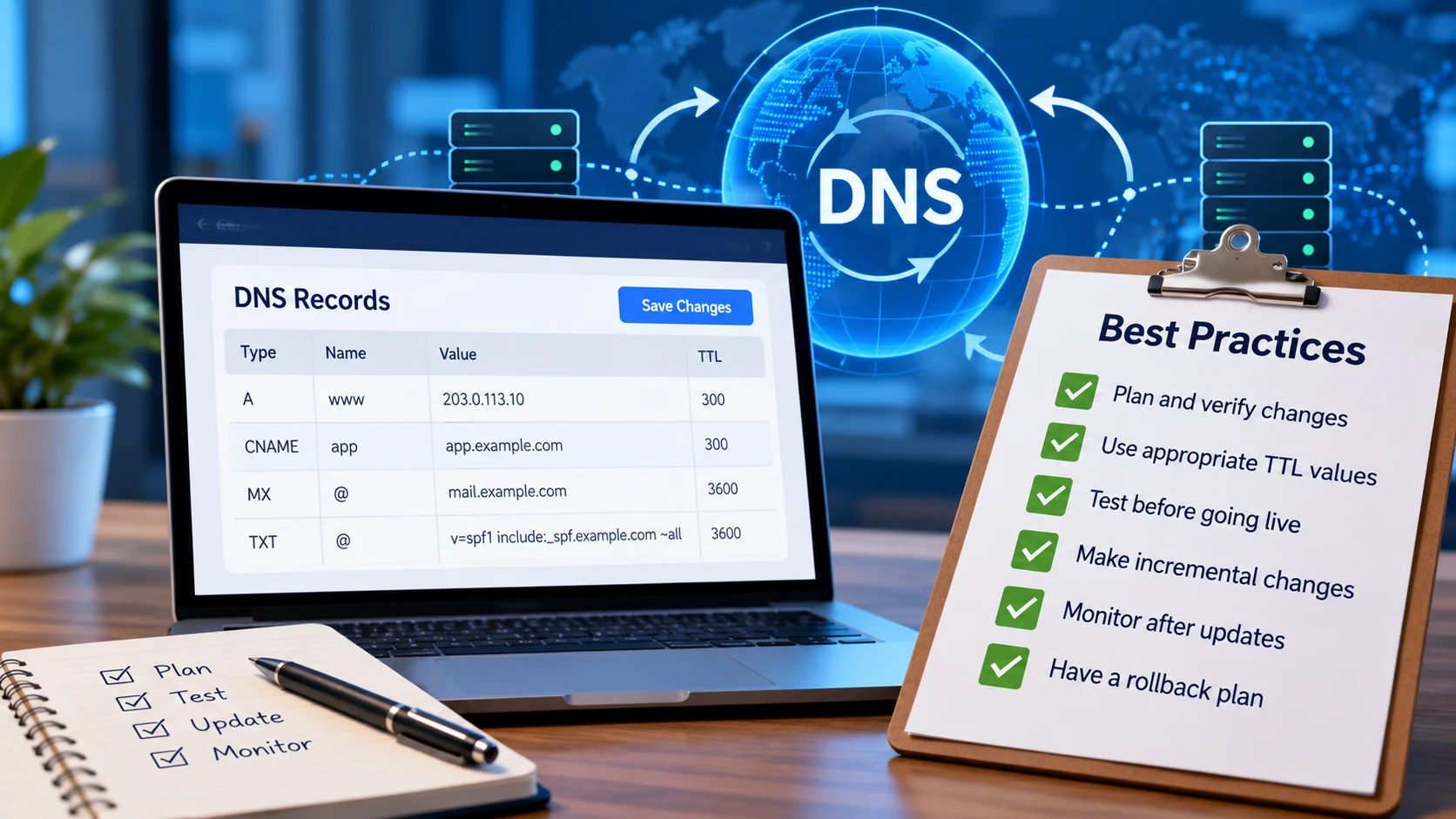
Most DNS outages don’t start with an attack or a hardware failure. They start with a change: two digits swapped in an IP address, a record deleted because nobody remembered what used it, a nameserver switch made at 4:45 on a Friday.

DNS makes those mistakes unusually expensive, because you can’t take an answer back once it’s been handed out. Every resolver that cached the old (or broken) record keeps serving it until its TTL runs out, however quickly you fix things on your end. The good news is that almost any DNS change can be made safely with a little planning. Here’s the process we recommend after more than 25 years of running authoritative DNS, including the parts that usually get skipped.

The short version: lower the TTL at least one full TTL period before you change anything, change one thing at a time, verify against your authoritative nameservers instead of your own computer, keep the old destination running until caches expire, and write down how you’ll undo the change before you make it.

Why DNS changes don’t really “propagate”

You’ll often hear that DNS changes take 24 to 48 hours to propagate. That isn’t quite what happens. When you save a record, your authoritative nameservers start serving the new answer almost immediately, and nothing gets pushed out to the rest of the internet after that. What takes time is caching.

Recursive resolvers (the DNS servers run by ISPs, companies and public services such as Google Public DNS) keep every answer they receive for as long as the record’s TTL, or time to live, allows. A record with a TTL of 86400 seconds can be served from a cache for up to 24 hours after you’ve changed it. Each resolver cached the record at a different moment, so each copy expires at a different moment. That’s why a change appears to spread gradually.

Here’s the detail that catches people out: the TTL that matters is the one resolvers saw before your change, not the one you set during it. Lowering a TTL from 86400 to 300 and changing the IP address five minutes later doesn’t help. Every resolver that cached the record during the previous day is still holding the 24-hour version.

Record TTLs aren’t the only clocks running, either. These are the caches that decide how long an old answer can linger:

Cache Who sets it Typical value What it delays
Record TTL You 5 minutes to 1 day Any change to an existing record
Negative-caching TTL (set by your SOA record) You Usually 5 minutes to 3 hours New records for names someone already looked up, because resolvers cache “this name doesn’t exist” too
Nameserver delegation at the TLD The registry 48 hours for .com and .net Moving to a new DNS provider
DS records at the TLD The registry 24 hours for .com Turning DNSSEC off, changing keys, or moving a signed zone
Device, browser and app caches Operating systems and software Seconds to “until restart” The one laptop that still sees the old site after everyone else has moved on
Open connections Clients and applications Minutes to days VPNs, connection pools, and mail and database clients, which won’t look the name up again until they reconnect

A few resolvers also bend the rules. Some enforce a minimum TTL and many cap very long ones, so plan for the occasional straggler rather than assuming every cache expires on schedule.

Before you change anything

Ten minutes of preparation prevents most of the problems we see. For anything beyond a routine edit, work through these steps first.

1

Write down the current values

Copy the exact record you’re about to change (name, type, value and TTL) and keep it somewhere you can find under pressure. That’s your rollback plan. For bigger changes, export the zone file or save a full copy of every record so you can put things back exactly as they were.

2

Find out what depends on it

Records rarely stand alone. Before you change or delete one, check for:

  • CNAME records elsewhere that point at it
  • Mail flow: MX records, SPF includes and DKIM selectors
  • Verification TXT records for services such as Microsoft 365 or Google Workspace
  • Certificate automation: _acme-challenge records and any CAA policy
  • Firewall rules, allowlists and applications with the old IP address hard-coded

If you’re deleting a record and your plan includes DNS query statistics, check whether anything is still looking it up.

3

Lower the TTL early

Drop the TTL on the records you’re about to change to something short (300 seconds is a good working value), then wait at least one full old TTL before you make the change. If the record had a 24-hour TTL, lower it a day ahead. Adding new names? Check the negative-caching TTL too, and don’t test a hostname before you’ve created it, or your resolver will cache the “doesn’t exist” answer. For nameserver changes, the TTL that matters belongs to the TLD and you can’t lower it; more on that below.

4

Pick the right window

Make changes when traffic is light and the people who can fix a problem are awake and reachable. Avoid Friday afternoons, the night before a holiday and the hour before your own vacation. If you have a helpdesk, tell them what’s changing so the first odd ticket reaches the right person.

5

Get a second set of eyes on risky changes

Nameserver changes, email records, anything at the zone apex, DNSSEC and deletions all deserve a quick review by someone else. A second reader will spot the swapped digit you’ve already looked at five times.

Making the change

Change one thing at a time. If you’re moving a website, switching email providers and turning on DNSSEC, make those three separate changes with time to verify in between. When something breaks after a combined change, you won’t know which part to undo.

Beyond that, the same handful of mistakes come up again and again:

Mistake What actually happens
Leaving off the trailing dot in a zone file (mail.example.com instead of mail.example.com.) BIND-style zone files treat a name without a trailing dot as relative, so the record ends up pointing at mail.example.com.example.com. Web control panels usually handle this for you; zone files don’t.
Publishing two TXT records that start with v=spf1 SPF returns a permanent error, and SPF stops passing for the whole domain. Merge them into one record.
Adding a CNAME at the zone apex, or next to other records with the same name A CNAME can’t share a name with any other record, and the apex always has SOA and NS records. Use A and AAAA records at the apex, or an ALIAS record if your provider offers one.
Deleting the old record before the new one exists Anyone who looks up the name in the gap gets “doesn’t exist”, and resolvers cache that for your negative-caching TTL. Add the new record before you remove the old one wherever you can.
Editing a zone file on a primary server without increasing the SOA serial Secondary nameservers compare serials to decide whether to transfer the zone. No increase, no transfer, and your nameservers quietly hand out different answers.
Retyping an IP address or hostname One wrong character breaks everything that uses the name for up to the TTL, even after you fix it. Copy and paste values instead.

Keep the old destination running. When you move a site or service to a new IP address, leave the old server up (serving the same content, or redirecting to the new one) until well after the old TTL has passed. Some resolvers, devices and long-lived connections will keep using the old address for a while, and a working old server turns that from an outage into a non-event.

Verify from the source outward

Your own computer is the worst place to check a DNS change, because it’s sitting behind at least two caches. Check in this order: your authoritative nameservers first, then public resolvers, then the service itself.

# Ask every authoritative nameserver directly (no caches involved)
for ns in $(dig +short NS example.com); do
  echo "$ns $(dig +short @$ns www.example.com A +norecurse)"
done

# Windows PowerShell: the same check, one nameserver at a time
Resolve-DnsName www.example.com -Server ns1.example.net -NoRecursion

# Every nameserver should report the same SOA serial
for ns in $(dig +short NS example.com); do
  echo "$ns $(dig +short @$ns example.com SOA +norecurse | awk '{print $3}')"
done

# What a public resolver has cached, and how many seconds it has left
dig @8.8.8.8 www.example.com A +noall +answer

# Test a website on its new IP before DNS points there
curl -sI --resolve www.example.com:443:203.0.113.10 https://www.example.com/

No terminal handy? Our free Support Utilities include a DNS lookup that can query a specific nameserver and a propagation check that polls public resolvers for A records.

What to expect: your authoritative nameservers should show the new answer right away, and all of them should agree. Public resolvers may keep showing the old answer until the TTL in that dig output counts down to zero. That’s normal, not a failed change.

Need a resolver to let go sooner? Google Public DNS and Cloudflare’s 1.1.1.1 both have free cache-flush pages (Google, Cloudflare). To clear your own computer’s cache, run ipconfig /flushdns on Windows, sudo dscacheutil -flushcache followed by sudo killall -HUP mDNSResponder on macOS, or resolvectl flush-caches on Linux systems that use systemd-resolved. Browsers keep a short cache of their own, so restart the browser if a page still won’t update.

Finally, test the thing you actually changed. Load the website. Send a message to an outside mailbox and check its headers for SPF, DKIM and DMARC passes. If you touched CAA or _acme-challenge records, confirm that certificate renewal still works.

After the change

  • Watch it for a while. Keep an eye on your monitoring, the old server’s logs (traffic there should taper off as caches expire) and your mail logs. Checks that run from outside your network will spot problems your own caches hide.
  • Put the TTL back. Once you’re confident the change is good, raise the TTL to its normal value. Permanently low TTLs mean more queries, slower lookups for your visitors and less protection if your nameservers are ever unreachable, because cached answers keep working when nothing else does. Records behind DNS failover are the exception: their short TTL is what lets a failover take effect quickly.
  • Retire the old destination, and its records. Shut down the old server only once the old TTL has long passed. When you decommission anything (a cloud instance, a storage bucket, a SaaS account), remove the DNS records that point at it first, then release the resource. A CNAME left pointing at something you no longer control is how subdomain takeovers happen.

Changes that deserve extra care

Most records are forgiving. These aren’t.

Moving to a new DNS provider

Nameserver changes have the longest tail of any DNS change, because the delegation lives in the TLD’s zone rather than yours. For .com and .net, those records carry a 48-hour TTL that you can’t shorten, so some resolvers will keep asking your old provider for two days or more after you switch.

  1. Recreate the zone at the new provider exactly: every record, not just the ones you remember. Importing a zone file, or setting the new provider up as a secondary so it pulls a copy by zone transfer (if your current provider allows it), beats retyping.
  2. Query the new provider’s nameservers directly, using the same dig @nameserver checks shown above, and compare their answers with the old provider’s for every important name.
  3. If the zone is signed with DNSSEC, deal with that first (see below).
  4. Change the nameservers at your registrar.
  5. Keep the old provider running with identical records for at least a few days; we suggest a week. If you must change a record during the overlap, change it at both providers.
  6. Then cancel the old service.

Moving your DNS to CloudFloorDNS? Talk to a DNS expert before you switch and we’ll help you plan the cutover, including DNSSEC if your zone is signed.

DNSSEC

DNSSEC mistakes are the least forgiving kind. When a zone is signed, the TLD holds a DS record that tells validating resolvers which key to expect. If that DS record and the keys your nameservers publish stop matching, validating resolvers (including the big public ones) return SERVFAIL and your domain disappears for their users. The registry sets the DS record’s TTL, 24 hours for .com, so a mistake can take a day to clear however fast you fix it.

  • Turning DNSSEC on: sign the zone, confirm the signatures validate, and only then add the DS record at your registrar.
  • Turning it off, or moving to a provider that will sign with new keys: remove the DS record first, wait at least the DS TTL (two days is a safe margin), then stop signing or make the move.
  • Changing keys: follow your provider’s rollover procedure and don’t shortcut the waiting periods. They exist because of caches.
  • Checking your work: run the zone through a validating tool such as DNSViz or delv after every step, before you move on to the next.

Running DNSSEC across two providers at once takes careful key handling, so talk to us before you set it up.

A real-world example. In September 2021, Slack’s third attempt to enable DNSSEC on slack.com ran into trouble soon after the DS record was published. The team rolled back by pulling the DS record from .com and then un-signing the zone, but resolvers had already cached the DS record for 24 hours, a value domain owners can’t change. Validating resolvers kept expecting signatures that were no longer there, and some users couldn’t reach Slack for about a day. Slack’s engineers wrote up what happened, and it’s worth reading before any DNSSEC change.

Email records: MX, SPF, DKIM and DMARC

Email problems caused by DNS changes tend to be quiet. Messages bounce or drift into spam folders, and nobody notices for days.

  • MX: sending servers keep retrying for days if your mail server is briefly unreachable, but an MX that points at a hostname that doesn’t exist often causes immediate bounces. When you move mail providers, set up the new service first and keep the old one receiving until the old MX TTL has passed.
  • SPF: publish exactly one v=spf1 record per name, add a new sending service before you start using it, and stay under the 10-DNS-lookup limit. Every include: counts, and so do the includes nested inside it.
  • DKIM: publish the new selector before the new service starts signing, and leave the old selector in place for a while after you stop using it, since mail already in transit was signed with it.
  • DMARC: tighten the policy in stages (p=none, then quarantine, then reject) and read the aggregate reports at each stage. Jumping straight to p=reject is how legitimate mail from a forgotten sender ends up rejected.

CAA and certificate records

A CAA record limits which certificate authorities can issue certificates for your domain. Add one without listing the CA you actually use and your next renewal will fail, often weeks later, when nobody connects it to the change. Leave _acme-challenge records (and any CNAMEs that delegate them) alone unless you know what renews certificates through them.

Wildcard records

A wildcard such as *.example.com answers for every name that doesn’t otherwise exist. Adding one can make typos look like working hostnames, and removing one can break services that quietly depended on it, so check what relies on a wildcard before you add or remove one.

Guardrails worth putting in place

Good habits for individual changes go further with a little structure around them.

Named logins, with 2FA

Give everyone who can change DNS their own login, protected by two-factor authentication or single sign-on (CloudFloorDNS supports Okta SSO). Shared passwords make every change anonymous.

A change log

Record what changed, when, who made the change and why. Six months from now, “why does this record exist?” should have an answer.

Registrar lock and auto-renew

Lock important domains against unauthorized transfers, keep auto-renew on and keep contact details current. The most damaging DNS change is often one nobody made: an expired domain.

Scripts for repeat work

If you make the same change across many zones, use bulk edits or the API instead of clicking through each one; CloudFloorDNS offers both. A script can be reviewed and rerun. A hundred clicks can’t.

Monitoring from outside

Check critical names and services from outside your own network, where local caches can’t hide a problem. Uptime monitoring tells you when something stops answering, and DNS failover can move traffic automatically.

Secondary DNS isn’t an undo button

Secondary DNS protects you from an outage at one provider, but it copies your mistakes just as faithfully: a bad record reaches every nameserver within seconds. Redundancy doesn’t replace careful changes.

A checklist you can reuse

Copy this into your runbook, or keep it next to the screen the next time you make a change.

Before

Current values recorded
Dependencies checked
TTL lowered one full TTL ahead
Window picked, people available
Risky changes reviewed

During

One change at a time
Values pasted, not retyped
New records added before old ones removed
SOA serial increased (zone files)
Old destination still running

After

Every nameserver gives the same answer
Service tested end to end
Monitoring watched
TTL restored
Old records and resources retired
Change logged

Frequently asked questions

How long does a DNS change take to take effect?

Your authoritative nameservers serve it almost immediately. The rest of the internet catches up as cached copies expire, which takes up to the TTL the record had before the change. Nameserver changes for .com and .net domains can take up to 48 hours because of the TLD’s own TTL.

What TTL should I use?

For records that rarely change, an hour to a day is reasonable. Drop to around 300 seconds ahead of a planned change and raise it again afterwards. Records behind DNS failover are the exception, since a short TTL is what makes failover fast.

Can I make a DNS change take effect faster?

Not after the fact; you can’t recall answers that are already cached. You can ask Google Public DNS and Cloudflare to drop their copies and flush your own computer’s cache, but every other resolver will wait out the TTL. The only reliable way to make a change fast is to lower the TTL well before you make it.

Make your next DNS change a boring one

CloudFloorDNS has run authoritative DNS for more than 25 years: a global anycast network with a 100% uptime SLA, one-click DNSSEC, secondary DNS, DNS failover, and support staff who know DNS, 24/7/365.

Questions? Email sales@cloudfloordns.com or support@cloudfloordns.com, or call +1 781 373 5823.
Google Public DNS, Cloudflare, 1.1.1.1, Slack, Microsoft 365 and Google Workspace are trademarks of their respective owners. CloudFloorDNS is not affiliated with, or endorsed by, any of them.

The DNS Root Key Changed This Weekend: What It Means for Your Resolvers

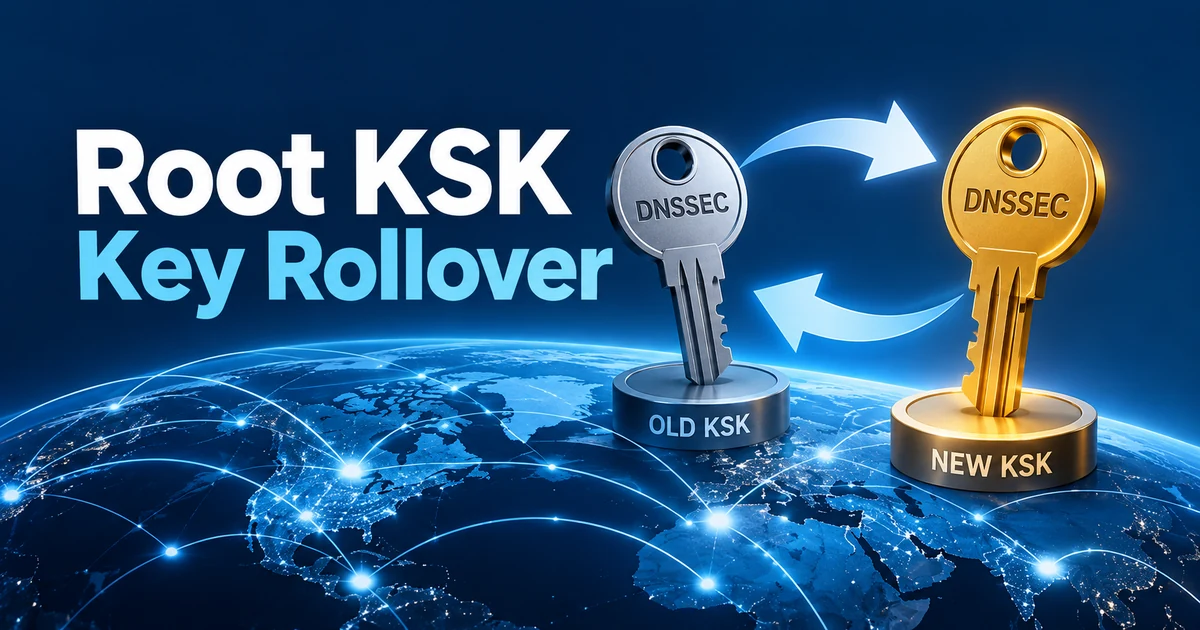
On Sunday, October 11, 2026, the DNS root zone started signing its keys with a new key-signing key, known as KSK-2024. That key is the starting point for every DNSSEC validation on the Internet, and it has changed only once before, in October 2018.

For most networks the switch passed unnoticed: ICANN reported in July that more than 95 percent of reporting resolvers had already recognized the new key. For the rest it is anything but quiet. A validating resolver that doesn’t trust KSK-2024 can no longer validate anything, and every lookup through it fails.

The short version

If you host DNS, at CloudFloorDNS or anywhere else: nothing to do. Your zone’s keys and the DS record at your registry didn’t change.

If you run a resolver with DNSSEC validation turned on (an office DNS server, a firewall, a Pi-hole, an Unbound or BIND box): make sure it trusts the new key, key tag 38696. Resolvers can keep using a cached copy of the root’s old key set for up to 48 hours, so one that isn’t ready may only be failing now. The check below takes about a minute.

What changed on October 11

DNSSEC works as a chain of signatures. A validating resolver starts from one key it already trusts, the root zone’s key-signing key, which is configured in the resolver as a trust anchor. That key vouches for the rest of the root zone’s keys, the root vouches for each top-level domain, and each top-level domain vouches for the domains under it.

1 · Trust anchor

Built into or configured on your resolver. Since October 11 it has to include KSK-2024, key tag 38696.

2 · Root zone

The root’s key set is now signed only by KSK-2024. Its predecessor, KSK-2017 (key tag 20326), no longer signs it.

3 · Top-level domain

The root vouches for .com, .net and every other signed TLD through DS records. Unchanged.

4 · Your domain

Your TLD vouches for your zone’s keys through the DS record your registrar published. Unchanged.

A resolver whose only trust anchor is KSK-2017 can no longer verify the root’s key set, so it can’t verify anything beneath it either. It doesn’t quietly fall back to resolving without DNSSEC. It fails every lookup, for signed and unsigned domains alike.

When What happened
July 2010 The root zone is signed with DNSSEC for the first time, using KSK-2010.
October 2018 The first rollover: KSK-2017 replaces KSK-2010.
January 11, 2025 KSK-2024 is published in the root zone alongside KSK-2017. Resolvers that update their anchors automatically (RFC 5011) start trusting it after watching it for 30 days.
October 11, 2026 The root’s key set is signed only by KSK-2024.
2027 ICANN plans to revoke KSK-2017 and remove it from the root zone.

Who’s affected, and who isn’t

Not affected: authoritative DNS

The zones you host, signed or unsigned, at CloudFloorDNS or anywhere else. Authoritative servers don’t validate anything, and your own keys and DS records didn’t change. No action needed.

Possibly affected: validating resolvers

Any recursive resolver with DNSSEC validation turned on. Large public and ISP resolvers prepared well ahead. The risk sits with resolvers someone manages by hand, or that nobody manages at all.

The usual suspects:

  • Resolvers that couldn’t save the new key. Automatic updates need write access to the trust anchor file. A read-only filesystem or the wrong permissions stops the update without much fuss.
  • Static trust anchors. A key pasted into a configuration file, such as BIND’s old trusted-keys or a static-key entry, never updates itself.
  • dnsmasq and Pi-hole with DNSSEC turned on. They read the root key from fixed trust-anchor= lines in their configuration.
  • Firewalls, routers and other appliances that validate DNS with a key list baked into their firmware.
  • Old images and long-offline machines. A VM template, container image or restored backup that only knows KSK-2017 can’t learn the new key through DNS any more, because the old key no longer signs anything.
  • Windows Server DNS, but only if someone added a trust anchor for the root. Without one, it doesn’t validate the root’s chain and wasn’t affected.

What it looks like when it breaks

Everything fails at once. A validating resolver that doesn’t trust KSK-2024 answers SERVFAIL for every name, signed or not, so it looks as if the Internet is down. Devices with a second resolver configured may limp along on it, which can make the problem look slow or intermittent rather than total.

Check a resolver in a minute

The root’s keys are now signed only by KSK-2024, so the test is simple: a resolver that can validate a signed domain trusts the new key (with one caveat for this week, below). Run these from any machine with dig, replacing 192.0.2.53 with your resolver’s address:

# Ask for a DNSSEC-signed name; look at the status and for "ad" in the flags
dig @192.0.2.53 icann.org A +dnssec | grep -E 'status:|flags:'

# If that returns SERVFAIL, ask again with validation switched off
dig @192.0.2.53 icann.org A +cd | grep 'status:'
What you see What it means
NOERROR with ad in the flags It validates DNSSEC and trusts KSK-2024. You’re done.
NOERROR without ad It doesn’t validate DNSSEC, so the rollover didn’t affect it.
SERVFAIL, but NOERROR with +cd Validation is failing, almost certainly because of the trust anchor. See the fixes below.
SERVFAIL even with +cd Not a DNSSEC problem. Check the resolver’s connectivity and upstream servers.

One caveat this week

Resolvers keep the root’s key set in cache for up to 48 hours, so one that doesn’t trust KSK-2024 can keep working on its cached copy until that copy expires. From Wednesday, October 14, a passing test is conclusive. Until then, also check the trust anchor directly using the table below.

To look at the trust anchors themselves, check for key tag 38696:

Resolver Where to look What you want to see
BIND 9 rndc managed-keys status keyid: 38696 with a “trusted since” date
Unbound grep 38696 /var/lib/unbound/root.key (the path is set by auto-trust-anchor-file) A matching line marked VALID
PowerDNS Recursor rec_control get-tas An entry for the root (.) with key tag 38696
Windows Server DNS PowerShell: Get-DnsServerTrustAnchor -Name . Nothing listed (the server doesn’t validate against the root), or key tag 38696 in the Valid state
dnsmasq / Pi-hole The trust-anchor= lines in the dnsmasq configuration A line beginning trust-anchor=.,38696

For anything else, including appliances, the dig test above is the reliable check.

Fixing a resolver that’s failing

  • Update the software or firmware first. Current releases of the major resolvers include KSK-2024, and an update is usually the cleanest fix.
  • Unbound: run unbound-anchor -a /var/lib/unbound/root.key (use your own file path). It fetches the current anchor from IANA’s published file and verifies it. Many distributions already run it whenever Unbound starts, so a restart may be all it takes.
  • PowerDNS Recursor: it doesn’t follow root key changes on its own, because it has no RFC 5011 support. It uses the root key built into the release unless dnssec.trustanchorfile in its configuration points to a trust anchor file, such as /usr/share/dns/root.key from the dns-root-data package on Debian and its derivatives. A root key in that file overrides the built-in one, so a stale file can break even an up-to-date recursor. Check both:

    # Root keys the running recursor trusts (look for 38696)
    rec_control get-tas
    
    # If dnssec.trustanchorfile is set, check the file too (use your path)
    grep 38696 /usr/share/dns/root.key

    If 38696 is missing, update pdns-recursor and dns-root-data, or replace the file with IANA’s current anchors. Then restart the recursor so it loads the file right away; otherwise it only re-reads the file every 24 hours.

  • BIND: replace any static anchor in named.conf by hand. If you use dnssec-validation auto;, make sure the keys built into your BIND version include 38696 (upgrade if they don’t), then run rndc managed-keys destroy so BIND reloads its trust anchors from them.
  • dnsmasq and Pi-hole: update to a release that includes the new anchor, or add a trust-anchor= line for key tag 38696 using the DS values in IANA’s root anchors file.
  • Appliances: apply the vendor’s firmware update. If there isn’t one, turn validation off on the device and let it forward to a validating resolver you control.
  • Make the fix stick. Give the resolver write access to its trust anchor file so the next rollover happens automatically.
  • Turning validation off is a stopgap, not a fix. If you have to do it to get people working, turn it back on once the trust anchor is right.

If your DNS is hosted with CloudFloorDNS

Nothing changed for your zones. If you sign them with our one-click DNSSEC, we manage your zone’s keys, and the root’s key change touches neither them nor the DS record at your registry. Unsigned zones are unaffected too.

Where it may show up is support. If someone tells you this week that your site, along with everything else, stopped loading on one network while it still works over mobile data, ask what resolver that network uses. A resolver that fails on the new key breaks every domain, not just yours.

And if your zones aren’t signed yet, they aren’t part of the chain of trust this rollover protects. CloudFloorDNS Managed DNS offers one-click DNSSEC signing, with the key management handled for you.

What happens next

The rollover isn’t finished. In 2027, ICANN plans to revoke KSK-2017 and remove it from the root zone. Resolvers that already trust KSK-2024 need nothing more; the revocation simply tells resolvers that track the root’s keys automatically to stop trusting the old one.

This won’t be the last root key change, either. Keep automatic trust anchor updates working and resolver software current, and the next one should pass without anyone noticing.

Frequently asked questions

Do I need to change my DS records or re-sign my zones?

No. The rollover changed the key at the very top of the chain. Your zone’s keys, and the DS record that links your zone to its top-level domain, are separate and didn’t change.

We don’t use DNSSEC. Are we affected?

Not as a domain owner. But if your network’s resolver validates DNSSEC, and many do by default, it needed the new key to keep resolving anything at all, including domains that aren’t signed.

Can I see the change for myself?

Yes. Run dig . DNSKEY +dnssec +short | awk '$1=="DNSKEY" {print $7}'. It prints the key tag of the key that signs the root’s key set: 20326 before October 11, 38696 since.

Will this happen again?

Yes. The root key is designed to be replaced over time. Resolvers that update their trust anchors automatically, and can write to their trust anchor file, handle it without help.

Related

DNSSEC without the key management.

CloudFloorDNS signs your zones with one click and handles the keys, on a DDoS-protected Anycast network backed by a 100% uptime SLA and more than 25 years of DNS operations.

Questions about DNSSEC or the root key change? Email support@cloudfloordns.com or sales@cloudfloordns.com, or call +1 781 373 5823.
Product names mentioned are trademarks of their respective owners. CloudFloorDNS is not affiliated with ICANN or IANA. Dates and plans reflect ICANN’s published information as of October 2026.

How to Proxy Only www Through Cloudflare While Keeping CloudFloorDNS as Your DNS

Cloudflare’s reverse proxy is a popular way to put a CDN, a web application firewall and DDoS protection in front of a website. The catch is the onboarding: Cloudflare’s standard setup asks you to move your nameservers, which hands over your entire DNS zone — mail, verification records, VPN and API hostnames included — just to protect one website.

You don’t have to. On its Business and Enterprise plans, Cloudflare supports a CNAME setup (its documentation also calls it a partial setup): your authoritative DNS stays where it is, and you point only the hostnames you want proxied at Cloudflare. This guide walks through doing that for www, with CloudFloorDNS staying in charge of everything else.

The short version

Add your domain to Cloudflare on a Business or Enterprise plan and convert it to a CNAME setup. Prove ownership with a TXT record at CloudFloorDNS, create a proxied www record in Cloudflare and get its certificate validated, then turn www at CloudFloorDNS into a CNAME pointing at www.example.com.cdn.cloudflare.net. Your nameservers never change.

Why keep your DNS at CloudFloorDNS?

Cloudflare is good at what it does, and so is a dedicated DNS provider. Splitting the jobs gets you a few things an all-Cloudflare setup can’t:

  • Everything else keeps resolving from the network you chose for it. MX, SPF, DKIM, DMARC, VPN, VoIP and API records never pass through Cloudflare.
  • You keep your DNS tooling. DNS Failover, GeoDNS, Secondary DNS, one-click DNSSEC and our API keep working for everything you don’t send to Cloudflare.
  • The off switch isn’t inside the thing you’re switching off. If Cloudflare’s proxy has a bad day, you can send visitors straight to your server with one record change at CloudFloorDNS — more on that below.
  • Leaving is easy. Dropping Cloudflare later is a single DNS edit, not a nameserver migration.

How a Cloudflare CNAME setup works

1 · Lookup

A visitor’s resolver asks CloudFloorDNS for www.example.com. We answer with a CNAME to www.example.com.cdn.cloudflare.net.

2 · Cloudflare edge

That name resolves to Cloudflare’s anycast network, where the request meets the cache, the WAF and Cloudflare’s DDoS protection.

3 · Your server

Anything Cloudflare can’t serve from cache is fetched from your origin, at the address you give Cloudflare in Step 4.

Everything else

The bare domain, mail and every other hostname are answered by CloudFloorDNS as usual and go direct. Cloudflare never sees them.

Things worth knowing before you start

The details a sales page usually leaves out:

It needs Cloudflare Business or Enterprise.

The CNAME setup isn’t offered on Free or Pro — the conversion option simply doesn’t appear. Cloudflare lists Business at $200/month billed annually or $250/month billed monthly (current plans).

The bare domain can’t be a CNAME.

DNS doesn’t allow a CNAME at the zone apex, so example.com can’t point at Cloudflare the way www does. You’ll send it to www instead; Step 8 covers the options.

Only what you point at Cloudflare is proxied.

Cloudflare handles exactly the hostnames you CNAME to it. That includes DNS itself: Cloudflare’s DNS-layer DDoS protection only applies when it runs your nameservers, so here your DNS stays on CloudFloorDNS’s DDoS-protected network.

Your origin address moves into Cloudflare.

After the switch, the www record in Cloudflare’s dashboard decides where traffic goes. When you move servers, update it there, not at CloudFloorDNS.

Some records are permanent.

Cloudflare’s cloudflare-verify TXT record has to stay in your zone for as long as you use the setup, and so does the _acme-challenge CNAME if you choose delegated certificate validation in Step 5.

Cloudflare Registrar domains are excluded.

Domains registered at Cloudflare can’t use a CNAME setup. Registered with us or with any other registrar? You’re fine.

Step-by-step: proxy www through Cloudflare

Throughout this guide, example.com stands in for your domain and 203.0.113.10 for your web server’s IP address. Each step is labeled with where you’ll be working.

1
At CloudFloorDNS

Note your current www record and lower its TTL

Open the zone for example.com in the CloudFloorDNS control panel and find the www record. Write down its value: that’s your origin, and it’s also your way back. Then lower its TTL to 600 seconds (10 minutes) and wait at least as long as the old TTL before you continue, so the change in Step 7 takes effect quickly.

If www is already a CNAME to a hosting provider (something like yoursite.hostingco.net), note that hostname instead. You’ll use it as the origin in Step 4.

2
In Cloudflare

Add the domain and convert it to a CNAME setup

Add example.com to your Cloudflare account and choose the Business (or Enterprise) plan. Cloudflare scans your existing records and then tells you to change your nameservers. Ignore the nameserver instructions.

On the domain’s Overview page, select Convert to CNAME DNS Setup and confirm with Convert. Cloudflare then shows a Verification TXT Record. Copy it; if you lose it, it’s also listed on the DNS Records page.

3
At CloudFloorDNS

Prove you own the domain

Add the verification record to your zone:

Name Type Data TTL
cloudflare-verify TXT The value Cloudflare shows you, e.g. 966215192-518620144 3600

Type just cloudflare-verify in the name column; the panel adds your domain for you. Cloudflare checks for the record and emails you when the zone is active, which can take up to a few hours. To confirm the record is being served:

dig +short TXT cloudflare-verify.example.com

Leave this record in place permanently. Cloudflare uses it to keep confirming you control the zone.

4
In Cloudflare

Create the proxied www record

Go to DNS → Records and make sure there’s a record for www pointing at your origin, with the proxy turned on (orange cloud, Proxied):

Type Name Content Proxy status
A www 203.0.113.10 Proxied
AAAA (only if your server has IPv6) www 2001:db8::10 Proxied

If your host gives you a hostname rather than an IP address, create a proxied CNAME for www pointing at that hostname instead. Don’t point it at anything that resolves back through Cloudflare, such as your bare domain.

Then delete everything else the scan imported. Cloudflare isn’t answering DNS for your domain in this setup, so those copies do nothing for visitors, and if a proxied CNAME ever points at one of them, Cloudflare uses its own stale copy instead of asking CloudFloorDNS. Keep this zone to the hostnames you proxy.

5
In Cloudflare and at CloudFloorDNS

Get the edge certificate issued before you switch

Cloudflare includes a free Universal SSL certificate, but on a CNAME setup it can’t validate the certificate automatically until traffic is already flowing through Cloudflare — unless you add validation records at your DNS provider first. Switch DNS before the certificate is active and HTTPS visitors can see certificate errors until it completes; Cloudflare’s own documentation says HTTP validation is only for sites that can tolerate a few minutes of downtime. For a live site, validate through DNS first. There are two ways:

Recommended for live sitesAdvanced certificate with delegated validation

Add Advanced Certificate Manager (listed at $10/month) and order an advanced certificate for example.com and *.example.com, choosing TXT as the validation method. Then, on SSL/TLS → Edge Certificates, find DCV Delegation for Partial Zones, copy the validation URL and add one record at CloudFloorDNS:

Name Type Data
_acme-challenge CNAME example.com. followed by the validation URL Cloudflare shows, ending in a dot

From then on Cloudflare validates and renews on its own, and the wildcard covers any other hostname you proxy later. Two things to know: remove any existing _acme-challenge TXT records first, because they block delegation; and since only one provider can hold the delegation, DNS-based certificate validation for the same names elsewhere (a certbot DNS plugin on your server, for example) stops working. HTTP-based validation isn’t affected.

No extra costUniversal SSL, validated with a TXT record

Check SSL/TLS → Edge Certificates. If a pending Universal certificate for www lists a certificate validation TXT name and value, add that TXT record at CloudFloorDNS (the name will look like _acme-challenge.www). If it’s set to a different method, switch it to TXT; for Universal certificates Cloudflare only allows that through its API. You’ll need your zone ID (on the Overview page) and an API token with the SSL and Certificates: Edit permission for the zone:

CF_API_TOKEN="your-api-token"
ZONE_ID="your-zone-id"
API="https://api.cloudflare.com/client/v4/zones/$ZONE_ID"

# 1. Find the Universal certificate pack that covers www
curl -s "$API/ssl/certificate_packs?status=all" \
  -H "Authorization: Bearer $CF_API_TOKEN" \
  | jq '.result[] | {id, type, hosts, status}'

# 2. Switch that pack to TXT validation
CERT_PACK_ID="id-from-step-1"
curl -s -X PATCH "$API/ssl/verification/$CERT_PACK_ID" \
  -H "Authorization: Bearer $CF_API_TOKEN" \
  -H "Content-Type: application/json" \
  --data '{"validation_method":"txt"}'

Once the certificate shows Active, you can delete the TXT record. At renewal time (30 days before expiry) Cloudflare tries HTTP validation automatically; if that can’t complete, it falls back to TXT and you’ll need to add fresh values from Edge Certificates. The delegated route above avoids that chore entirely.

If no certificate is listed at all, Cloudflare issues it after traffic starts arriving. In that case, make the Step 7 switch at a quiet hour and expect a few minutes of certificate errors for HTTPS visitors.

6
In Cloudflare

Use Full (strict) and test before you switch

Under SSL/TLS → Overview, make sure the encryption mode is Full (strict), so Cloudflare connects to your server over HTTPS and checks its certificate. If the zone uses Automatic SSL/TLS, it picks the most secure mode your origin supports; choose Custom to set it yourself. Avoid Flexible: it leaves the Cloudflare-to-server leg unencrypted and causes redirect loops on sites that already force HTTPS.

You can now send a request through Cloudflare without touching DNS:

# Pin www.example.com to a Cloudflare edge address for this one request
CF_IP=$(dig +short www.example.com.cdn.cloudflare.net | head -n1)
curl -sI --resolve www.example.com:443:$CF_IP https://www.example.com \
  | grep -iE '^(HTTP|server|cf-ray)'

You’re looking for a normal status code, server: cloudflare and a cf-ray header. A TLS error means the edge certificate isn’t active yet (on the quiet-hour route from Step 5, add -k to test everything else). A 5xx error means Cloudflare can’t reach your server, so check the address from Step 4 and your firewall.

7
At CloudFloorDNS

Point www at Cloudflare

Change the www record from its A/AAAA value into a CNAME:

Name Type Data TTL
www CNAME www.example.com.cdn.cloudflare.net. 600

Keep the trailing dot: the target is outside your zone, so it’s entered as a full name ending in a dot. A CNAME can’t share its name with other records, so remove anything else at www too, such as an AAAA record or an old TXT verification record.

Make it one edit, not two.

Turn the existing www row into the CNAME (or add the CNAME and remove the old records in the same save) rather than deleting first and coming back later. A resolver that asks while www doesn’t exist can cache “no such name” for your zone’s negative-caching time.

Within roughly the TTL you set in Step 1, visitors to www are flowing through Cloudflare.

8
At CloudFloorDNS

Send the bare domain to www

Because example.com can’t be a CNAME, decide what happens when someone types it. In order of preference:

  • Redirect it at CloudFloorDNS. Add an REDIRECT:// record with the name left blank and https://www.example.com as the data. Our forwarding servers answer for the bare domain and send visitors to www, so your server’s IP doesn’t appear on the bare domain at all. An aux value of 10 keeps the path (example.com/pricing → www.example.com/pricing); once you’ve tested it, 12 makes it a permanent 301. For visitors who type https:// in front of the bare domain, the forwarder also needs a certificate for it: our Secure Branding and Forwarding plans include automatic Let’s Encrypt certificates, or ask support what your plan covers.
  • Proxy it through Cloudflare too. Cloudflare can proxy the apex in a CNAME setup when your DNS provider can flatten it, which is what an ALIAS record does. Add an ALIAS record with the name left blank pointing to example.com.cdn.cloudflare.net., add a proxied example.com record in Cloudflare, and create a Redirect Rule there that sends it to www. Make sure your edge certificate covers example.com as well.
  • Redirect on your own server. Keep the apex A record pointing at your server and redirect to www there. It’s the simplest option, but it publishes your server’s IP, sends bare-domain visitors around Cloudflare, and stops working if you lock your server down to Cloudflare’s addresses in Step 10.
9
From any terminal

Verify everything

# Ask your authoritative nameservers directly
NS=$(dig +short NS example.com | head -n1)
dig +short www.example.com CNAME @$NS   # expect www.example.com.cdn.cloudflare.net.
dig +short MX example.com @$NS          # unchanged

# Requests to www should come back from Cloudflare
curl -sI https://www.example.com | grep -iE '^(server|cf-ray)'

# The bare domain should redirect to www
curl -sI https://example.com | grep -i '^location'

Then check mail flow and any other hostnames you care about. They should behave exactly as before, because nothing about them changed.

10
On your server

Lock down the origin and log real visitor IPs

Cloudflare only protects traffic that goes through it. Anyone who learns your server’s address can still reach it directly, so finish with three checks:

  • Accept web traffic only from Cloudflare. Restrict ports 80 and 443 to Cloudflare’s published IP ranges, or turn on Authenticated Origin Pulls so your server only accepts connections that present Cloudflare’s client certificate.
  • Look for records that give the address away. Hostnames such as ftp, cpanel or direct that point at the same server publish its IP. Move those services or accept the exposure knowingly.
  • Restore visitor IPs in your logs. Your server now sees Cloudflare’s addresses. Cloudflare passes the original visitor IP in the CF-Connecting-IP header; configure mod_remoteip (Apache) or the real_ip module (nginx) to trust that header from Cloudflare’s ranges only.

Your escape hatch when Cloudflare has a bad day

This is the quiet advantage of keeping DNS at CloudFloorDNS. On November 18, 2025, Cloudflare’s network failed to deliver core traffic for roughly three hours, and for parts of the incident most customers couldn’t log in to the Cloudflare dashboard (Cloudflare’s postmortem). When your nameservers are at Cloudflare, the controls you’d use to route visitors around it are part of the same platform. With CloudFloorDNS, it’s one record:

Situation Name Type Data
Normal www CNAME www.example.com.cdn.cloudflare.net.
Cloudflare outage www A 203.0.113.10

For that switch to work when you need it:

  • Your server needs a publicly trusted certificate, such as one from Let’s Encrypt. A Cloudflare Origin CA certificate is only trusted by Cloudflare, so browsers would reject it the moment you bypass.
  • Your firewall has to let visitors in. If you limited ports 80 and 443 to Cloudflare in Step 10, keep a ready-made rule to open them.
  • Keep the www TTL modest. Somewhere around 10 to 30 minutes balances DNS query volume against how quickly the switch takes hold.
  • Your server will be on its own, with no CDN cache and no Cloudflare WAF until you switch back, so make sure it can carry the load.

Rather not make that change by hand in the middle of the night? Our DNS Failover service can monitor the site and switch records for you; ask us about setting it up for a Cloudflare-fronted hostname.

Records at a glance

When you’re done, this is where everything lives:

Where Name Type Value Notes
CloudFloorDNS cloudflare-verify TXT From Cloudflare Keep permanently
CloudFloorDNS www CNAME www.example.com.cdn.cloudflare.net. Replaces the old A/AAAA
CloudFloorDNS _acme-challenge CNAME example.com. plus Cloudflare’s validation URL Delegated validation only; keep permanently
CloudFloorDNS _acme-challenge.www TXT From Cloudflare Universal + TXT only; delete once issued
CloudFloorDNS (blank) REDIRECT:// or ALIAS https://www.example.com or example.com.cdn.cloudflare.net. See Step 8
CloudFloorDNS MX, SPF, DKIM, DMARC, everything else — Unchanged Never touches Cloudflare
Cloudflare www A / AAAA, proxied 203.0.113.10 Your origin; update it here when you move servers

Frequently asked questions

Does my email go through Cloudflare?

No. MX, SPF, DKIM and DMARC records stay at CloudFloorDNS and resolve directly. Only hostnames you CNAME to Cloudflare are proxied.

Can I proxy other hostnames later?

Yes. Repeat Steps 4 through 7 for each one (shop or app, say): add a proxied record in Cloudflare, make sure the certificate covers it, then CNAME it to shop.example.com.cdn.cloudflare.net. at CloudFloorDNS. The wildcard advanced certificate from Step 5 covers new subdomains automatically.

What happens to DNSSEC?

Nothing changes. Your zone stays signed at CloudFloorDNS, and the www CNAME is signed along with everything else. Cloudflare doesn’t need your keys or a DS record in a CNAME setup.

I’m on Cloudflare Free or Pro. What are my options?

Cloudflare only offers the CNAME setup on Business and Enterprise, so on Free or Pro the proxy comes with moving your nameservers. If you go that way, plan for redundancy: a classic secondary behind Cloudflare depends on Cloudflare’s outgoing zone transfers, which it limits to Enterprise. We can talk you through a dual-primary alternative.

How do I undo it?

Change www at CloudFloorDNS back to an A record pointing at your server. Once the TTL passes, traffic goes direct again, and you can remove the domain from Cloudflare along with the cloudflare-verify and any _acme-challenge records.

Related guides

Keep your DNS independent. Put Cloudflare where it helps.

CloudFloorDNS is run by a team with more than 25 years in DNS, on a DDoS-protected network backed by a 100% uptime SLA. Keep your zone with us, proxy the hostnames that benefit, and keep control of everything else.

Questions about a Cloudflare CNAME setup? Email support@cloudfloordns.com or sales@cloudfloordns.com, or call +1 781 373 5823.
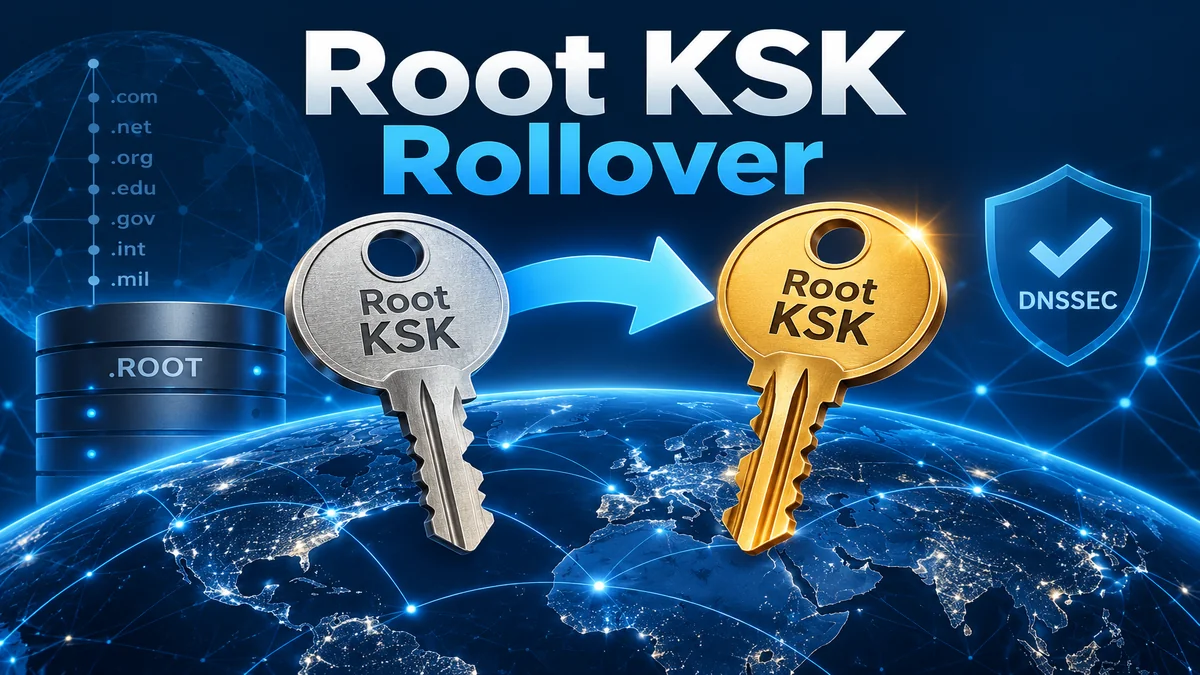
Cloudflare is a trademark of Cloudflare, Inc. CloudFloorDNS is not affiliated with, sponsored by or endorsed by Cloudflare. Plan names, prices and dashboard steps reflect Cloudflare’s published documentation as of October 2026 and may change; check Cloudflare’s docs before you start.

Super Intelligent DNS with CloudFloorDNS

Ordinary DNS is a phone book. Ask it for www.yourcompany.com and every visitor gets the same address, every time, whether that server is healthy, overloaded, or on the other side of the planet. Super Intelligent DNS is our name for DNS that checks before it answers: it knows which of your servers are up, where each visitor is coming from, and which server will serve them best.

“Intelligent” gets attached to a lot of products right now, so this post stays concrete: how the decision is made, what happens when a server dies at 2 a.m., how we compare with Route 53, Cloudflare, NS1 and Azure, and the trade-offs a sales page usually leaves out. All of it runs on our network today.

What makes DNS intelligent?

A plain DNS record answers one question: what is the address? Super Intelligent DNS asks four more first.

Health
Is the server up?

Netmon tests each server from up to seven locations, using the protocol your users use: HTTPS for a website, SIP for a phone system, SMTP for mail.

Location
Where is the visitor?

Geo DNS Director maps each query to a country or a region you define, using the visitor’s own subnet when the resolver shares it.

Load
Which server is best?

Load balancing spreads visitors across a pool of servers by rotation, by weight, by geography or by measured latency.

Recovery
What if it isn’t up?

When three or more monitoring nodes agree a server has failed, DNS Failover moves its traffic to your backup in as little as 60 seconds.

None of these ideas is new. The intelligence is in combining them, so each answer reflects the live state of your infrastructure rather than whatever someone typed into a zone file last spring. The industry calls this global server load balancing (GSLB) or DNS traffic steering.

What happens inside a single lookup

Here’s the path one query takes, from the moment a visitor’s resolver asks for your hostname.

1

The query reaches the nearest node. Our dual-stack, DDoS-protected anycast network has 15+ points of presence on four continents.

2

We work out where the visitor is. We use the visitor’s subnet if the resolver sent an EDNS Client Subnet hint, or the resolver’s own address if not, and match it to a country or one of your region groups.

3

We pick that region’s pool. For example, Europe gets your London and Frankfurt servers, North America gets Virginia and Dallas, and everyone else gets your default pool.

4

Failed servers are already out. Netmon has been testing every pool member all along, and any server that three or more monitoring nodes agree is down has already been switched out. The answer never waits on a live test.

5

We choose among the healthy servers by round-robin, by weight or by latency, depending on how you’ve set up the pool.

6

The answer goes out with a short TTL, so resolvers check back soon and the next change, a failure or a recovery, reaches visitors quickly.

Nobody has to be awake for any of it. That’s the point.

What it looks like in practice

Your main site goes down overnight

Netmon checks your web server every minute. When three or more monitoring nodes confirm the failure, the record switches to your standby server or a maintenance page, and Netmon alerts you by email or SMS. Nobody has to log in to make it happen.

Overseas customers say the site is slow

Put a server in Europe or Asia and let Geo DNS Director send visitors there by country while everyone else stays on your main site. Geo pools support failover too, so if the overseas server goes down, its visitors can be sent to a working server instead of an error.

You’re rolling out a new server

Add it to the pool with a small weight so it takes, say, one visitor in ten. Watch your logs, then raise the weight. If it starts failing health checks, it drops out of the pool on its own.

Your phone system has to stay up

Geo DNS Director can serve location-specific SRV records, so softphones and SIP trunks register with the nearest gateway, and Netmon’s SIP checks can fail a dead gateway over to a working one. Our VoIP failover page has the details.

Under the hood

For the engineers, here’s each building block and the numbers behind it.

Building block What it does Details
Anycast DNS network Answers from the node closest to the visitor 15+ PoPs on four continents, IPv4 and IPv6 at every node, built-in DDoS protection, 100% uptime SLA
Geo DNS Director Chooses answers by visitor location Country or custom region groups, EDNS Client Subnet, A, CNAME and SRV records, plus geo URL and path forwarding
Netmon monitoring Tests every server, continuously 20+ test types including HTTP(S), TCP and UDP connect, ping, SSH, SIP, SMTP, IMAP, POP3, DNS and SSL expiry; every 10 seconds to every hour, from up to 7 monitoring locations, depending on plan
DNS Failover Swaps failed servers out of the answer A, CNAME and ALIAS records; acts when 3 or more monitoring nodes agree; in as little as 60 seconds
DNS Load Balancing Spreads traffic across a pool Round-robin (free on every plan), weighted, geographic and latency-based; Netmon adds and removes pool members

Why we wait for a quorum

One monitoring node can be fooled by a routing problem between it and your server, and failing over on a false alarm is an outage of its own. Requiring three or more nodes to agree stops one bad network path from moving your traffic. The big platforms make the same call in their own way: Route 53 marks an endpoint unhealthy when 18% or fewer of its checkers say it’s healthy, and Cloudflare goes by a majority of regions.

Nearest isn’t always fastest

A server 500 miles away on a congested link can lose to one 2,000 miles away on a clean one. That’s why our pools can balance on measured server latency, not just geography, and why Geo DNS Director can fail a pool over on latency as well as on downtime.

Location accuracy depends on the resolver

We see the visitor’s resolver, not the visitor, and ISP resolvers usually sit close to their customers. Google Public DNS also passes a shortened copy of the visitor’s subnet (EDNS Client Subnet) to nameservers that support it, as ours do. Cloudflare’s 1.1.1.1 deliberately doesn’t, for privacy, so its users are placed by the 1.1.1.1 node that asked, which is normally nearby. That’s true for every GeoDNS provider, not just us, and it’s why country and region rules work better than trying to be city-precise.

Setting it up

1

Create your account and add your zone

Sign up at panel.cloudfloordns.com, or send us your zones and we’ll import them. Steered hostnames must be answered by our nameservers, so point your domain at CloudFloorDNS at your registrar once your records are in place.

2

Add a Netmon check for every server

Match the test to the service: HTTPS against a real page for a website (a ping only proves the machine is on), SIP for phones, SMTP or IMAP for mail. One minute is a sensible interval.

3

Build your pools

On each hostname you want to steer, create a failover pair or a load-balanced pool and attach each member’s Netmon check. Give bigger servers bigger weights.

4

Add geography

In Geo DNS Director, map countries or groups of countries to pools, and always set a default pool for everyone else.

5

Set TTLs on purpose

Use 60 to 300 seconds on steered records, and leave records that never move at their usual longer values.

6

Test it before you need it

Query our nameservers directly and simulate visitors from other countries. Then stop the web service on a test server (not the whole machine) and watch the answer change.

# What are we answering right now?
dig +short www.example.com @<your-cloudfloordns-nameserver>

# Simulate a visitor in the UK (EDNS Client Subnet)
dig +short www.example.com @<your-cloudfloordns-nameserver> +subnet=81.2.69.0/24

# Confirm the TTL resolvers will cache
dig www.example.com @<your-cloudfloordns-nameserver> +noall +answer

What it costs

There’s no separate price tag. The pieces are built into our Managed DNS plans:

  • Round-robin load balancing is free on every plan.
  • DNS Failover is an option on the $8/month Developer plan and included from Bronze ($50/month, two one-minute failovers) up to Platinum ($300/month, eight).
  • GeoDNS is an option on Developer and Bronze, with one GeoDNS host included on Silver ($80/month), two on Gold ($120/month) and four on Platinum.
  • Standalone monitoring for other servers and services is free for one hourly check, with paid Netmon plans from $5/month. The $60/month Enterprise monitoring plan checks every 10 seconds from all seven locations.
  • Larger portfolios get custom yearly pricing. Ask us for a quote.

How it compares

Every major cloud platform sells some form of DNS traffic steering. Here’s how the best-known options line up for a typical setup: a few hostnames, two or three servers each, with health checks and geographic routing.

Provider Steering methods Health checks Pricing (list) Worth knowing
CloudFloorDNS Geo (country or custom regions, with EDNS Client Subnet), failover, round-robin, weighted, latency; geo SRV and URL forwarding 20+ test types; every 10 s to 1 h, depending on plan; 3 or more monitoring nodes must agree before failover Flat monthly plans: failover included from $50/mo, GeoDNS hosts from $80/mo, round-robin free Pure DNS, so no proxy in your traffic path; works with any host, cloud or registrar
AWS Route 53 Failover, geolocation, geoproximity, latency (by AWS Region), weighted, IP-based, multivalue; Traffic Flow for chained policies Every 10 s or 30 s; unhealthy when 18% or fewer of checkers report healthy Pay per use: $0.50 per zone/mo, $0.70 per million geo queries, $0.75/mo per non-AWS health check plus $2/mo per optional feature, $50/mo per Traffic Flow policy record Very capable, but costs grow with queries, checks and features. Simplest when your servers already live in AWS
Cloudflare Load Balancing Failover order, weighted random, geo, dynamic (latency), proximity, least outstanding requests HTTP(S), TCP, ICMP, UDP-ICMP, SMTP; 60 s by default, faster checks depend on plan; all-region checks are Enterprise-only Add-on starting at $5/mo, rising with the options you add Load balancers live inside a Cloudflare zone; keeping your DNS elsewhere needs a CNAME setup (Business or Enterprise) or a secondary setup
IBM NS1 Connect Filter chains (geo, ASN, health, weighted and more); Pulsar real-user-measurement steering Monitors included per plan: 2 on Essentials, 2 to 100 on Standard Essentials from $99/mo (1 filter chain), Standard from $349/mo, Premium by quote; Pulsar is a paid add-on Highly programmable and aimed at large enterprises; entry plans cap filter chains and monitors
Azure Traffic Manager Priority, weighted, performance, geographic, multivalue, subnet; nested profiles to combine methods HTTP, HTTPS, TCP; every 30 s, or 10 s with fast probing; HTTPS probes don’t validate the certificate Pay per use: $0.54 per million queries, $0.54/mo per external endpoint check, plus $2/mo each for fast or HTTPS probing Reached by CNAME to a trafficmanager.net name, so using it on an apex domain means hosting that domain in Azure DNS
List prices from each provider’s public pricing and documentation pages, October 2026, before taxes, discounts and support plans.

The short version: AWS and Azure make sense when everything already runs there, NS1 when you need deep programmability and have an enterprise budget, and Cloudflare when you already proxy your sites through it. If you want steering at the DNS layer that works with any host, cloud or registrar, at a flat monthly price, with people who pick up the phone, that’s what CloudFloorDNS is built for.

Things worth knowing before you turn it on

DNS steering is only as fast as caching allows. We can switch a record in about a minute, but resolvers that cached the old answer keep it until its TTL runs out, and some applications hold on to answers even longer. Keep steered TTLs short and expect a small tail of stragglers after any change.

  • Test what users actually use. A server can answer ping while its application throws errors. Point HTTPS checks at a page that touches your database.
  • Make sure the backup can carry the load. Failing over to half the capacity, or to yesterdays data, swaps one problem for another.
  • Plan the trip back. Know what has to be true before the primary takes traffic again, and test the return as well as the failover.
  • Zone transfers copy records, not decisions. If you also run a secondary DNS provider (here’s why you might), it serves your zone’s static records, not our geo and failover logic, so set those static values to a sensible default.

Frequently asked questions

Is Super Intelligent DNS a separate product?

No. It’s Geo DNS Director, DNS Failover, Load Balancing and Netmon monitoring working together on our anycast network. You switch on the pieces you need, on the hostnames that need them.

Do I have to move my DNS to CloudFloorDNS?

The hostnames you steer have to be answered by our nameservers. Your domain can stay at its current registrar, and we’ll import your existing zones for you.

How fast is failover, really?

As little as 60 seconds after three or more monitoring nodes confirm a failure, plus the time resolvers take to drop their cached copy. With a 60-second TTL, most visitors reach the backup within a few minutes.

Is this AI?

No. Every decision follows rules you set and can read: health checks, location, weights and measured latency. When traffic moves, you can see exactly why.

Make your DNS think before it answers

Start with a free account and put a Netmon check on your most important server, or send us your domain list and we’ll import your zones and help you build your first geo and failover pools.

Prefer to talk it through? Call +1 781 373 5823 or email sales@cloudfloordns.com. Existing customers can reach support@cloudfloordns.com.

Related reading: Why CloudFloorDNS for Managed DNS, Website & Infrastructure Monitoring Guide and Why Should I Use Secondary DNS?

CloudFloorDNS is an independent company and is not affiliated with Amazon Web Services, Cloudflare, IBM or Microsoft. Route 53, Cloudflare, NS1 and Azure Traffic Manager are trademarks of their respective owners. Competitor features and list prices come from each provider’s public pricing and documentation pages as of October 2026 and change often, so confirm current terms with the provider before you buy.

Root KSK Rollover on October 11, 2026: Who Needs to Act (and Who Doesn’t)

On Sunday, October 11, 2026, the key at the very top of the DNS changes. The root zone will start signing its key set with a new Key Signing Key, KSK-2024 (key tag 38696), and stop using the key it has relied on since 2018. It’s only the second time the root key has ever been replaced.

For most people, nothing will happen. But any DNSSEC-validating resolver that doesn’t trust the new key will stop resolving everything (every website, mail server and API) within about two days. Here’s who needs to check, how to check in a few minutes, and what to do if something breaks. The short version for our customers: if your domains are hosted with CloudFloorDNS, there is nothing to change on your zones.

At a glance

  • When: Sunday, October 11, 2026. Any problems show up over the following 48 hours, as resolvers’ cached copies of the old key set expire.
  • What changes: The root’s key set will be signed only by KSK-2024 (key tag 38696). KSK-2017 (key tag 20326) stops signing.
  • Who must check: Anyone running their own DNSSEC-validating resolver: BIND, Unbound, PowerDNS Recursor, Knot Resolver, Windows Server DNS with trust anchors, dnsmasq or Pi-hole, or a firewall with DNSSEC validation switched on.
  • Who doesn’t: Domain owners. Your zones, DNSSEC keys and DS records stay exactly as they are, wherever they’re hosted.

What actually changes on October 11

DNSSEC is a chain of signatures. Your domain’s keys are vouched for by its TLD (.com, .org, .us and so on), the TLD’s keys are vouched for by the root, and the root’s own keys are signed by one key at the top: the root Key Signing Key, or KSK. Every validating resolver carries a copy of that key, called a trust anchor, and checks every signed answer back to it.

Trust anchor · changing October 11
The root zone ( . )
Its key set is signed by the root KSK. Every validating resolver keeps a copy of this key.
↓ vouches for, with a DS record
The TLD ( .com, .org, .us … )
Signed with the registry’s own keys. Not changing.
↓ vouches for, with a DS record
Your domain ( example.com )
Signed with your zone’s keys, if you use DNSSEC. Not changing.

Replace the key at the top and every validating resolver on the internet needs the new one. That’s why ICANN published KSK-2024 in the root zone on January 11, 2025, nearly two years ahead of time. Resolvers that update their trust anchors automatically (the RFC 5011 process) have been able to learn it since February 2025.

Outgoing key Incoming key
Name KSK-2017 KSK-2024
Key tag 20326 38696
Algorithm RSA/SHA-256 (8) RSA/SHA-256 (8)
In the root zone since July 11, 2017 January 11, 2025
Signs the root key set October 11, 2018 to October 11, 2026 From October 11, 2026
What happens next Revoked, then removed, in early 2027 Becomes the only root KSK

If you ever need to add the new key by hand, this is its DS record. Check it against IANA’s published trust anchors before relying on it. Trust anchors shouldn’t come from a blog post, including this one.

. IN DS 38696 8 2 683D2D0ACB8C9B712A1948B27F741219298D0A450D612C483AF444A4C0FB2B16

The timeline

Date What happens
July 15, 2010 The root zone is signed with DNSSEC for the first time, under KSK-2010.
October 11, 2018 The first root KSK rollover, from KSK-2010 to KSK-2017. It was planned for 2017 and postponed a year because too many resolvers weren’t ready.
January 11, 2025 KSK-2024 is published in the root zone alongside KSK-2017.
February 2025 Resolvers that update automatically finish their 30-day waiting period and start trusting KSK-2024.
Sunday, October 11, 2026 KSK-2024 becomes the only key signing the root key set.
October 11 to 13, 2026 Cached copies of the old key set expire (their TTL is 48 hours). Resolvers without KSK-2024 start failing.
Early 2027 KSK-2017 is revoked, then removed from the root zone.
2027 to 2030 ICANN has proposed moving the root KSK from RSA to ECDSA P-256 in a separate, multi-year algorithm rollover.

Who needs to do something

Only software that validates DNSSEC answers uses the root key. In practice that mostly means recursive resolvers: the servers that look up names on behalf of your computers and phones. Authoritative DNS, where your zones live, never touches the root trust anchor.

If you… Affected? What to do
Host your domains with CloudFloorDNS (or any DNS provider) No Nothing. Your zones are served exactly the same way before and after.
Have DNSSEC-signed zones No Nothing. Your keys and the DS records at your registrar don’t change.
Use your ISP’s resolvers or a public one (Google 8.8.8.8, Cloudflare 1.1.1.1, Quad9 9.9.9.9) Very unlikely Nothing. Large operators have had nearly two years to prepare.
Run your own validating resolver (BIND, Unbound, PowerDNS Recursor, Knot Resolver, Windows Server DNS) Check now Confirm that key tag 38696 is trusted. Steps below.
Have DNSSEC validation switched on in a firewall, router or appliance (pfSense, OPNsense, Pi-hole and others) Check now Update the firmware or package. Some ship a fixed key list and never update it on their own.
Run a resolver in a container, a golden image or a VM restored from an old snapshot Highest risk Rebuild from current software and give it persistent, writable key storage.

The case that catches people out: resolvers that never stay up for 30 days

Automatic updates (RFC 5011) only work if a resolver runs long enough to watch the new key for 30 days and can save what it learned to disk. A container that starts fresh on every deploy, or a VM rebuilt from an old image, only knows the keys built into its software version. If that version predates KSK-2024, it will work fine on Saturday and fail by Tuesday.

How to check a resolver in about five minutes

1

Run two quick tests

First, ask the resolver for dnssec-failed.org, a domain that’s broken on purpose. Replace 192.0.2.53 with your resolver’s address:

dig @192.0.2.53 dnssec-failed.org A

If the reply says status: SERVFAIL, something in the path validates DNSSEC (this resolver or one it forwards to), so keep going. If you get an IP address back, nothing validates and the rollover won’t affect it. On Windows, Resolve-DnsName dnssec-failed.org -Server 192.0.2.53 should return a server failure.

Second, ask whether it trusts the new key. BIND, Unbound and Knot Resolver answer RFC 8509 “sentinel” queries by default, and Cloudflare’s 1.1.1.1 added them on September 24:

dig @192.0.2.53 root-key-sentinel-is-ta-38696.dnstest.dev A
dig @192.0.2.53 root-key-sentinel-not-ta-38696.dnstest.dev A

An answer to the first and SERVFAIL on the second means it trusts KSK-2024. The reverse means it doesn’t, and it will fail after October 11. Answers to both mean the resolver doesn’t support sentinels (or doesn’t validate), so use step 2.

2

Confirm key tag 38696 in the configuration

The tests show what the resolver does today. Its trust anchor store tells you whether that survives a restart. Look for 38696 marked as trusted or valid:

BIND 9

rndc managed-keys status
# look for "keyid: 38696" followed by "trusted since"

Unbound (also the resolver inside pfSense and OPNsense)

grep 38696 /var/lib/unbound/root.key
# look for "id = 38696" and ";;state=2 [  VALID  ]"
# the path varies by OS: it's auto-trust-anchor-file in unbound.conf

PowerDNS Recursor

rec_control get-tas
# look for a line containing 38696

Recursor doesn’t roll keys on its own. Version 5.2.0 and later have KSK-2024 built in, but root trust anchors set in your own configuration override the built-in ones, so check both.

Windows Server DNS (PowerShell)

Get-DnsServerTrustAnchor -Name .
# look for key tag 38696 with state Valid
# no root trust anchors at all means this server isn't validating

dnsmasq, Pi-hole and many small routers

grep -r "trust-anchor" /etc/dnsmasq.conf /etc/dnsmasq.d /etc/pihole 2>/dev/null
# you need a line containing 38696

dnsmasq never updates its keys by itself. If 38696 is missing, add it (see “If something breaks” below).

Knot Resolver updates the root key automatically as long as its root.keys file is writable. Run trust_anchors.summary() on its control socket to see what it currently trusts.

3

Make sure it can keep learning

  • Use automatic trust anchors, not static ones: dnssec-validation auto; in BIND, and auto-trust-anchor-file rather than trust-anchor-file in Unbound.
  • Make sure the resolver can write to its key storage (BIND’s managed-keys directory, Unbound’s root.key). ICANN calls this out specifically.
  • In containers, keep that storage on a persistent volume and build from a current image.
  • While you’re in there, make sure TCP on port 53 isn’t blocked. DNSSEC answers are often too big for a single UDP packet.
4

Watch it from October 11 to 13

Trouble won’t start at a set minute. It shows up as each resolver’s cached copy of the root keys (48-hour TTL) expires, which could easily be Monday morning. If users say “nothing loads,” compare a normal query with one that skips validation using +cd:

dig @192.0.2.53 example.com A        # SERVFAIL?
dig @192.0.2.53 example.com A +cd    # works with checking disabled?

If normal queries fail for every domain but +cd works, it’s a trust anchor problem. If your resolver supports Extended DNS Errors, dig also prints an EDE line that names the DNSSEC error.

If something breaks

ICANN’s advice is the same for every resolver: restore service first, then fix the key. Temporarily turn off DNSSEC validation, or add a negative trust anchor for the root (RFC 7646), and lookups work again right away. Then install KSK-2024 and turn validation back on. Don’t leave it off.

Unbound: fetch the current root anchor from IANA, then restart

sudo -u unbound unbound-anchor -a /var/lib/unbound/root.key
sudo systemctl restart unbound

Windows Server DNS: pull the current root trust anchors from IANA

Add-DnsServerTrustAnchor -Root

PowerDNS Recursor: add it at runtime, then make it permanent in your configuration or upgrade to 5.2.0 or later

rec_control add-ta . 38696 8 2 683D2D0ACB8C9B712A1948B27F741219298D0A450D612C483AF444A4C0FB2B16

dnsmasq and Pi-hole: add this line to the dnsmasq configuration, then restart

trust-anchor=.,38696,8,2,683D2D0ACB8C9B712A1948B27F741219298D0A450D612C483AF444A4C0FB2B16

BIND: upgrade to a current release, whose built-in bind.keys includes KSK-2024, and use dnssec-validation auto;.

A reminder from May: what a DNSSEC failure looks like

On May 5, 2026, Germany’s .de registry hit a bug during a routine key rollover. DENIC’s signing software generated a separate key pair for each of its three hardware security modules instead of one shared pair, all with the same key tag, so only about a third of the zone’s signatures could be verified. For roughly three hours, people behind validating resolvers increasingly couldn’t reach .de sites, from amazon.de to bahn.de.

Three details from DENIC’s final report and Cloudflare’s write-up are worth knowing before October 11:

  • It wasn’t only signed domains. The broken signatures included the records that prove a .de domain isn’t signed, so unsigned .de domains failed too.
  • It got worse gradually. Cached answers kept things working at first, and failures climbed as TTLs expired. A missed root key will play out the same way over its 48-hour window.
  • The alarms fired, but nobody acted on them. DENIC’s validation tools spotted the errors, but the notifications weren’t processed in time. Monitoring only helps if the alert reaches a person. Our monitoring guide covers how to set that up.

Cloudflare restored .de on 1.1.1.1 by temporarily treating the zone as unsigned, the same “negative trust anchor” lever ICANN suggests as a stopgap for the root.

What this means if you’re a CloudFloorDNS customer

Nothing to do

Your zones

Our authoritative servers answer exactly the same way before and after October 11. If your zones are DNSSEC-signed, your keys and DS records stay as they are.

Check this week

Your resolvers

If you or your IT provider run validating resolvers for an office or for clients, work through the four steps above before Sunday the 11th.

Worth setting up

Your monitoring

CloudFloorDNS Netmon runs DNS, HTTP(S), SMTP and other checks from up to seven locations and alerts by email, SMS or webhook, so you know quickly whether your names still resolve and your services still answer.

Thinking about signing your own zones? DNSSEC is included with our Gold, Platinum and Custom Managed DNS plans.

What comes after October 11

  • Early 2027: KSK-2017 is revoked, then removed from the root zone. Resolvers that update automatically handle this on their own.
  • Certificates now depend on DNSSEC. Since March 15, 2026, public certificate authorities must validate DNSSEC when they check your CAA and domain-validation records (CA/Browser Forum ballot SC-085v2). If your zone is signed and a signature breaks, certificate renewals stop.
  • A new algorithm for the root. ICANN has proposed moving the root KSK from RSA to ECDSA P-256, with the work running from 2027 to 2030.
  • Post-quantum DNSSEC is being tested. On September 10, 2026, Cloudflare’s 1.1.1.1 began validating ML-DSA-44 signatures, which are about 38 times larger than today’s ECDSA signatures.

None of this is a reason to avoid DNSSEC. It’s a reason to run it with people who watch it closely.

Quick answers

Will my website or email stop working on October 11?

Almost certainly not. Your zones don’t change. The only people affected are users behind a validating resolver that missed the new key, and for them everything fails, not just your site. The big public resolvers have had nearly two years to prepare.

Do I need to change my DS records or DNSSEC keys?

No. The rollover changes only the key at the very top of the chain. The DS record at your registrar and your zone’s own keys stay exactly as they are.

How many resolvers aren’t ready?

Nobody knows precisely. ICANN reports that more than 95% of the resolvers that report their trust anchors have adopted KSK-2024. APNIC’s Geoff Huston measured far lower numbers using a different method, and puts the gap down to measurement uncertainty. About 35% of the world’s internet users sit behind validating resolvers, so even a small miss reaches a lot of people. Check your own rather than assume.

Why change the root key at all?

Cryptographic keys shouldn’t live forever, and the only way to keep a rollover process reliable is to use it. The first root rollover was in 2018. This is the second, and ICANN is already planning the next change.

Questions about the rollover?

CloudFloorDNS has run authoritative DNS for more than 25 years on a global anycast network. If your zones are with us, you’re covered on October 11. If you run resolvers for your office or your clients and aren’t sure what your test results mean, send them to support@cloudfloordns.com and we’ll help you read them.

Prefer to talk? Call +1 781 373 5823 or email sales@cloudfloordns.com.

CloudFloorDNS is an independent company and is not affiliated with ICANN, IANA, Verisign, DENIC, Google, Cloudflare, Inc., Quad9, Microsoft or the makers of the resolver software mentioned here. Dates, figures and commands come from public documentation as of October 1, 2026 and may change; check your vendor’s documentation before making changes. Trademarks belong to their respective owners.