


Blog
Making DNS Changes: Best Practices
October 14, 2026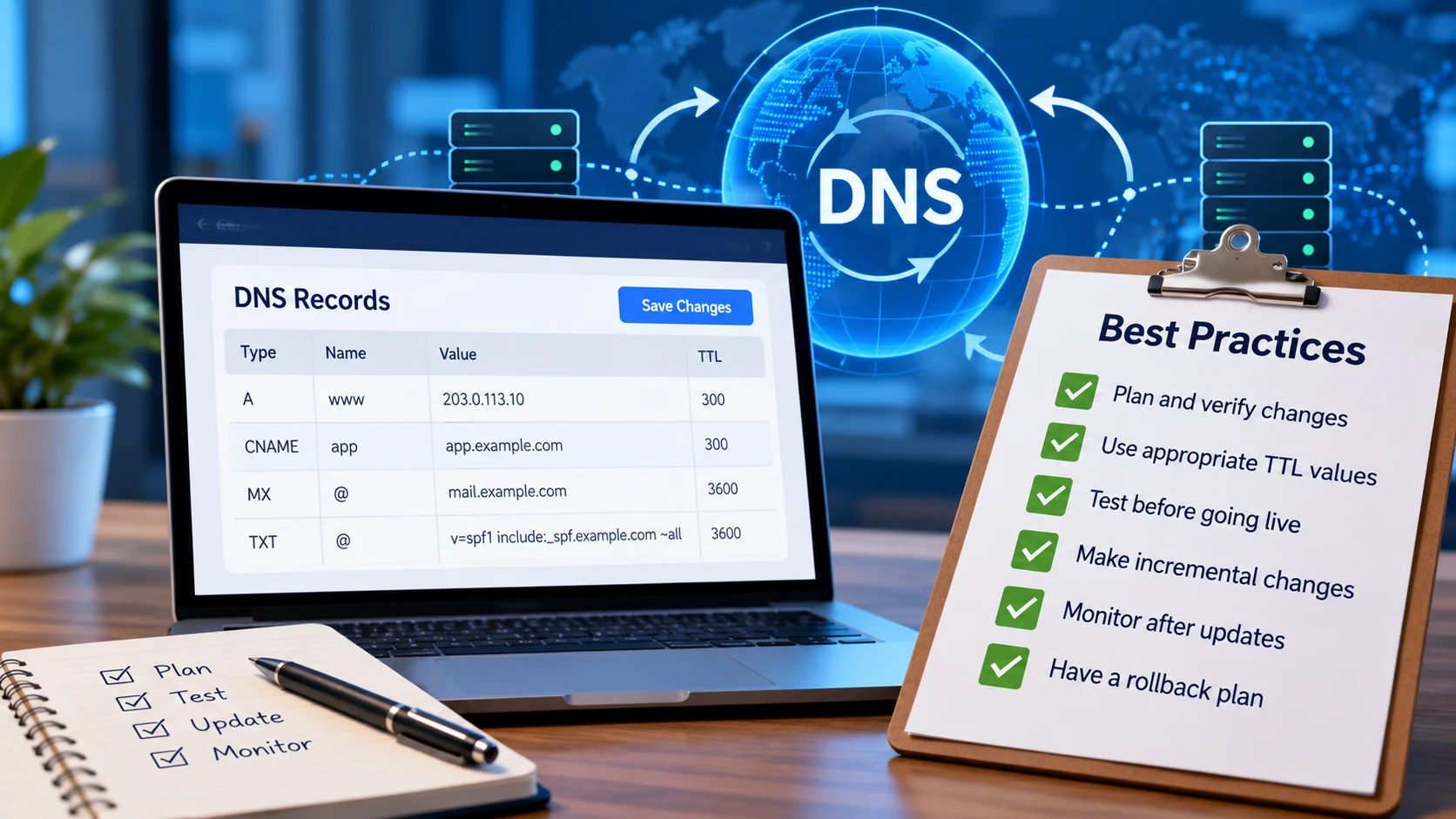
Most DNS outages don’t start with an attack or a hardware failure. They start with a change: two digits swapped in an IP address, a record deleted because nobody remembered what used it, a nameserver switch made at 4:45 on a Friday.
DNS makes those mistakes unusually expensive, because you can’t take an answer back once it’s been handed out. Every resolver that cached the old (or broken) record keeps serving it until its TTL runs out, however quickly you fix things on your end. The good news is that almost any DNS change can be made safely with a little planning. Here’s the process we recommend after more than 25 years of running authoritative DNS, including the parts that usually get skipped.
The short version: lower the TTL at least one full TTL period before you change anything, change one thing at a time, verify against your authoritative nameservers instead of your own computer, keep the old destination running until caches expire, and write down how you’ll undo the change before you make it.
Why DNS changes don’t really “propagate”
You’ll often hear that DNS changes take 24 to 48 hours to propagate. That isn’t quite what happens. When you save a record, your authoritative nameservers start serving the new answer almost immediately, and nothing gets pushed out to the rest of the internet after that. What takes time is caching.
Recursive resolvers (the DNS servers run by ISPs, companies and public services such as Google Public DNS) keep every answer they receive for as long as the record’s TTL, or time to live, allows. A record with a TTL of 86400 seconds can be served from a cache for up to 24 hours after you’ve changed it. Each resolver cached the record at a different moment, so each copy expires at a different moment. That’s why a change appears to spread gradually.
Here’s the detail that catches people out: the TTL that matters is the one resolvers saw before your change, not the one you set during it. Lowering a TTL from 86400 to 300 and changing the IP address five minutes later doesn’t help. Every resolver that cached the record during the previous day is still holding the 24-hour version.
Record TTLs aren’t the only clocks running, either. These are the caches that decide how long an old answer can linger:
| Cache | Who sets it | Typical value | What it delays |
|---|---|---|---|
| Record TTL | You | 5 minutes to 1 day | Any change to an existing record |
| Negative-caching TTL (set by your SOA record) | You | Usually 5 minutes to 3 hours | New records for names someone already looked up, because resolvers cache “this name doesn’t exist” too |
| Nameserver delegation at the TLD | The registry | 48 hours for .com and .net | Moving to a new DNS provider |
| DS records at the TLD | The registry | 24 hours for .com | Turning DNSSEC off, changing keys, or moving a signed zone |
| Device, browser and app caches | Operating systems and software | Seconds to “until restart” | The one laptop that still sees the old site after everyone else has moved on |
| Open connections | Clients and applications | Minutes to days | VPNs, connection pools, and mail and database clients, which won’t look the name up again until they reconnect |
A few resolvers also bend the rules. Some enforce a minimum TTL and many cap very long ones, so plan for the occasional straggler rather than assuming every cache expires on schedule.
Before you change anything
Ten minutes of preparation prevents most of the problems we see. For anything beyond a routine edit, work through these steps first.
Write down the current values
Copy the exact record you’re about to change (name, type, value and TTL) and keep it somewhere you can find under pressure. That’s your rollback plan. For bigger changes, export the zone file or save a full copy of every record so you can put things back exactly as they were.
Find out what depends on it
Records rarely stand alone. Before you change or delete one, check for:
- CNAME records elsewhere that point at it
- Mail flow: MX records, SPF includes and DKIM selectors
- Verification TXT records for services such as Microsoft 365 or Google Workspace
- Certificate automation:
_acme-challengerecords and any CAA policy - Firewall rules, allowlists and applications with the old IP address hard-coded
If you’re deleting a record and your plan includes DNS query statistics, check whether anything is still looking it up.
Lower the TTL early
Drop the TTL on the records you’re about to change to something short (300 seconds is a good working value), then wait at least one full old TTL before you make the change. If the record had a 24-hour TTL, lower it a day ahead. Adding new names? Check the negative-caching TTL too, and don’t test a hostname before you’ve created it, or your resolver will cache the “doesn’t exist” answer. For nameserver changes, the TTL that matters belongs to the TLD and you can’t lower it; more on that below.
Pick the right window
Make changes when traffic is light and the people who can fix a problem are awake and reachable. Avoid Friday afternoons, the night before a holiday and the hour before your own vacation. If you have a helpdesk, tell them what’s changing so the first odd ticket reaches the right person.
Get a second set of eyes on risky changes
Nameserver changes, email records, anything at the zone apex, DNSSEC and deletions all deserve a quick review by someone else. A second reader will spot the swapped digit you’ve already looked at five times.
Making the change
Change one thing at a time. If you’re moving a website, switching email providers and turning on DNSSEC, make those three separate changes with time to verify in between. When something breaks after a combined change, you won’t know which part to undo.
Beyond that, the same handful of mistakes come up again and again:
| Mistake | What actually happens |
|---|---|
Leaving off the trailing dot in a zone file (mail.example.com instead of mail.example.com.) |
BIND-style zone files treat a name without a trailing dot as relative, so the record ends up pointing at mail.example.com.example.com. Web control panels usually handle this for you; zone files don’t. |
Publishing two TXT records that start with v=spf1 |
SPF returns a permanent error, and SPF stops passing for the whole domain. Merge them into one record. |
| Adding a CNAME at the zone apex, or next to other records with the same name | A CNAME can’t share a name with any other record, and the apex always has SOA and NS records. Use A and AAAA records at the apex, or an ALIAS record if your provider offers one. |
| Deleting the old record before the new one exists | Anyone who looks up the name in the gap gets “doesn’t exist”, and resolvers cache that for your negative-caching TTL. Add the new record before you remove the old one wherever you can. |
| Editing a zone file on a primary server without increasing the SOA serial | Secondary nameservers compare serials to decide whether to transfer the zone. No increase, no transfer, and your nameservers quietly hand out different answers. |
| Retyping an IP address or hostname | One wrong character breaks everything that uses the name for up to the TTL, even after you fix it. Copy and paste values instead. |
Keep the old destination running. When you move a site or service to a new IP address, leave the old server up (serving the same content, or redirecting to the new one) until well after the old TTL has passed. Some resolvers, devices and long-lived connections will keep using the old address for a while, and a working old server turns that from an outage into a non-event.
Verify from the source outward
Your own computer is the worst place to check a DNS change, because it’s sitting behind at least two caches. Check in this order: your authoritative nameservers first, then public resolvers, then the service itself.
# Ask every authoritative nameserver directly (no caches involved)
for ns in $(dig +short NS example.com); do
  echo "$ns $(dig +short @$ns www.example.com A +norecurse)"
done

# Windows PowerShell: the same check, one nameserver at a time
Resolve-DnsName www.example.com -Server ns1.example.net -NoRecursion

# Every nameserver should report the same SOA serial
for ns in $(dig +short NS example.com); do
  echo "$ns $(dig +short @$ns example.com SOA +norecurse | awk '{print $3}')"
done

# What a public resolver has cached, and how many seconds it has left
dig @8.8.8.8 www.example.com A +noall +answer

# Test a website on its new IP before DNS points there
curl -sI --resolve www.example.com:443:203.0.113.10 https://www.example.com/
No terminal handy? Our free Support Utilities include a DNS lookup that can query a specific nameserver and a propagation check that polls public resolvers for A records.
What to expect: your authoritative nameservers should show the new answer right away, and all of them should agree. Public resolvers may keep showing the old answer until the TTL in that dig output counts down to zero. That’s normal, not a failed change.
Need a resolver to let go sooner? Google Public DNS and Cloudflare’s 1.1.1.1 both have free cache-flush pages (Google, Cloudflare). To clear your own computer’s cache, run ipconfig /flushdns on Windows, sudo dscacheutil -flushcache followed by sudo killall -HUP mDNSResponder on macOS, or resolvectl flush-caches on Linux systems that use systemd-resolved. Browsers keep a short cache of their own, so restart the browser if a page still won’t update.
Finally, test the thing you actually changed. Load the website. Send a message to an outside mailbox and check its headers for SPF, DKIM and DMARC passes. If you touched CAA or _acme-challenge records, confirm that certificate renewal still works.
After the change
- Watch it for a while. Keep an eye on your monitoring, the old server’s logs (traffic there should taper off as caches expire) and your mail logs. Checks that run from outside your network will spot problems your own caches hide.
- Put the TTL back. Once you’re confident the change is good, raise the TTL to its normal value. Permanently low TTLs mean more queries, slower lookups for your visitors and less protection if your nameservers are ever unreachable, because cached answers keep working when nothing else does. Records behind DNS failover are the exception: their short TTL is what lets a failover take effect quickly.
- Retire the old destination, and its records. Shut down the old server only once the old TTL has long passed. When you decommission anything (a cloud instance, a storage bucket, a SaaS account), remove the DNS records that point at it first, then release the resource. A CNAME left pointing at something you no longer control is how subdomain takeovers happen.
Changes that deserve extra care
Most records are forgiving. These aren’t.
Moving to a new DNS provider
Nameserver changes have the longest tail of any DNS change, because the delegation lives in the TLD’s zone rather than yours. For .com and .net, those records carry a 48-hour TTL that you can’t shorten, so some resolvers will keep asking your old provider for two days or more after you switch.
- Recreate the zone at the new provider exactly: every record, not just the ones you remember. Importing a zone file, or setting the new provider up as a secondary so it pulls a copy by zone transfer (if your current provider allows it), beats retyping.
- Query the new provider’s nameservers directly, using the same
dig @nameserverchecks shown above, and compare their answers with the old provider’s for every important name. - If the zone is signed with DNSSEC, deal with that first (see below).
- Change the nameservers at your registrar.
- Keep the old provider running with identical records for at least a few days; we suggest a week. If you must change a record during the overlap, change it at both providers.
- Then cancel the old service.
Moving your DNS to CloudFloorDNS? Talk to a DNS expert before you switch and we’ll help you plan the cutover, including DNSSEC if your zone is signed.
DNSSEC
DNSSEC mistakes are the least forgiving kind. When a zone is signed, the TLD holds a DS record that tells validating resolvers which key to expect. If that DS record and the keys your nameservers publish stop matching, validating resolvers (including the big public ones) return SERVFAIL and your domain disappears for their users. The registry sets the DS record’s TTL, 24 hours for .com, so a mistake can take a day to clear however fast you fix it.
- Turning DNSSEC on: sign the zone, confirm the signatures validate, and only then add the DS record at your registrar.
- Turning it off, or moving to a provider that will sign with new keys: remove the DS record first, wait at least the DS TTL (two days is a safe margin), then stop signing or make the move.
- Changing keys: follow your provider’s rollover procedure and don’t shortcut the waiting periods. They exist because of caches.
- Checking your work: run the zone through a validating tool such as DNSViz or
delvafter every step, before you move on to the next.
Running DNSSEC across two providers at once takes careful key handling, so talk to us before you set it up.
A real-world example. In September 2021, Slack’s third attempt to enable DNSSEC on slack.com ran into trouble soon after the DS record was published. The team rolled back by pulling the DS record from .com and then un-signing the zone, but resolvers had already cached the DS record for 24 hours, a value domain owners can’t change. Validating resolvers kept expecting signatures that were no longer there, and some users couldn’t reach Slack for about a day. Slack’s engineers wrote up what happened, and it’s worth reading before any DNSSEC change.
Email records: MX, SPF, DKIM and DMARC
Email problems caused by DNS changes tend to be quiet. Messages bounce or drift into spam folders, and nobody notices for days.
- MX: sending servers keep retrying for days if your mail server is briefly unreachable, but an MX that points at a hostname that doesn’t exist often causes immediate bounces. When you move mail providers, set up the new service first and keep the old one receiving until the old MX TTL has passed.
- SPF: publish exactly one
v=spf1record per name, add a new sending service before you start using it, and stay under the 10-DNS-lookup limit. Everyinclude:counts, and so do the includes nested inside it. - DKIM: publish the new selector before the new service starts signing, and leave the old selector in place for a while after you stop using it, since mail already in transit was signed with it.
- DMARC: tighten the policy in stages (
p=none, thenquarantine, thenreject) and read the aggregate reports at each stage. Jumping straight top=rejectis how legitimate mail from a forgotten sender ends up rejected.
CAA and certificate records
A CAA record limits which certificate authorities can issue certificates for your domain. Add one without listing the CA you actually use and your next renewal will fail, often weeks later, when nobody connects it to the change. Leave _acme-challenge records (and any CNAMEs that delegate them) alone unless you know what renews certificates through them.
Wildcard records
A wildcard such as *.example.com answers for every name that doesn’t otherwise exist. Adding one can make typos look like working hostnames, and removing one can break services that quietly depended on it, so check what relies on a wildcard before you add or remove one.
Guardrails worth putting in place
Good habits for individual changes go further with a little structure around them.
Named logins, with 2FA
Give everyone who can change DNS their own login, protected by two-factor authentication or single sign-on (CloudFloorDNS supports Okta SSO). Shared passwords make every change anonymous.
A change log
Record what changed, when, who made the change and why. Six months from now, “why does this record exist?” should have an answer.
Registrar lock and auto-renew
Lock important domains against unauthorized transfers, keep auto-renew on and keep contact details current. The most damaging DNS change is often one nobody made: an expired domain.
Scripts for repeat work
If you make the same change across many zones, use bulk edits or the API instead of clicking through each one; CloudFloorDNS offers both. A script can be reviewed and rerun. A hundred clicks can’t.
Monitoring from outside
Check critical names and services from outside your own network, where local caches can’t hide a problem. Uptime monitoring tells you when something stops answering, and DNS failover can move traffic automatically.
Secondary DNS isn’t an undo button
Secondary DNS protects you from an outage at one provider, but it copies your mistakes just as faithfully: a bad record reaches every nameserver within seconds. Redundancy doesn’t replace careful changes.
A checklist you can reuse
Copy this into your runbook, or keep it next to the screen the next time you make a change.
Before
During
After
Frequently asked questions
How long does a DNS change take to take effect?
Your authoritative nameservers serve it almost immediately. The rest of the internet catches up as cached copies expire, which takes up to the TTL the record had before the change. Nameserver changes for .com and .net domains can take up to 48 hours because of the TLD’s own TTL.
What TTL should I use?
For records that rarely change, an hour to a day is reasonable. Drop to around 300 seconds ahead of a planned change and raise it again afterwards. Records behind DNS failover are the exception, since a short TTL is what makes failover fast.
Can I make a DNS change take effect faster?
Not after the fact; you can’t recall answers that are already cached. You can ask Google Public DNS and Cloudflare to drop their copies and flush your own computer’s cache, but every other resolver will wait out the TTL. The only reliable way to make a change fast is to lower the TTL well before you make it.
Make your next DNS change a boring one
CloudFloorDNS has run authoritative DNS for more than 25 years: a global anycast network with a 100% uptime SLA, one-click DNSSEC, secondary DNS, DNS failover, and support staff who know DNS, 24/7/365.
Questions? Email sales@cloudfloordns.com or support@cloudfloordns.com, or call +1 781 373 5823.