

CloudFloor DNS Logo
CloudFloorDNS Icon

The DNS Root Key Changed This Weekend: What It Means for Your Resolvers

The DNS Root Key Changed This Weekend: What It Means for Your Resolvers

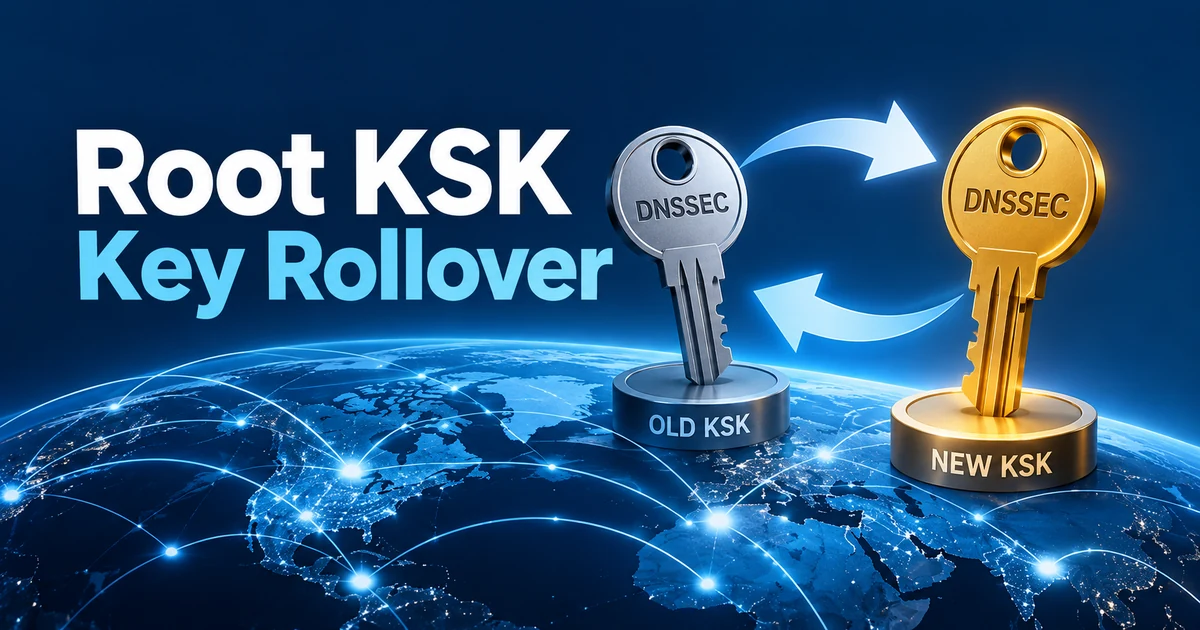
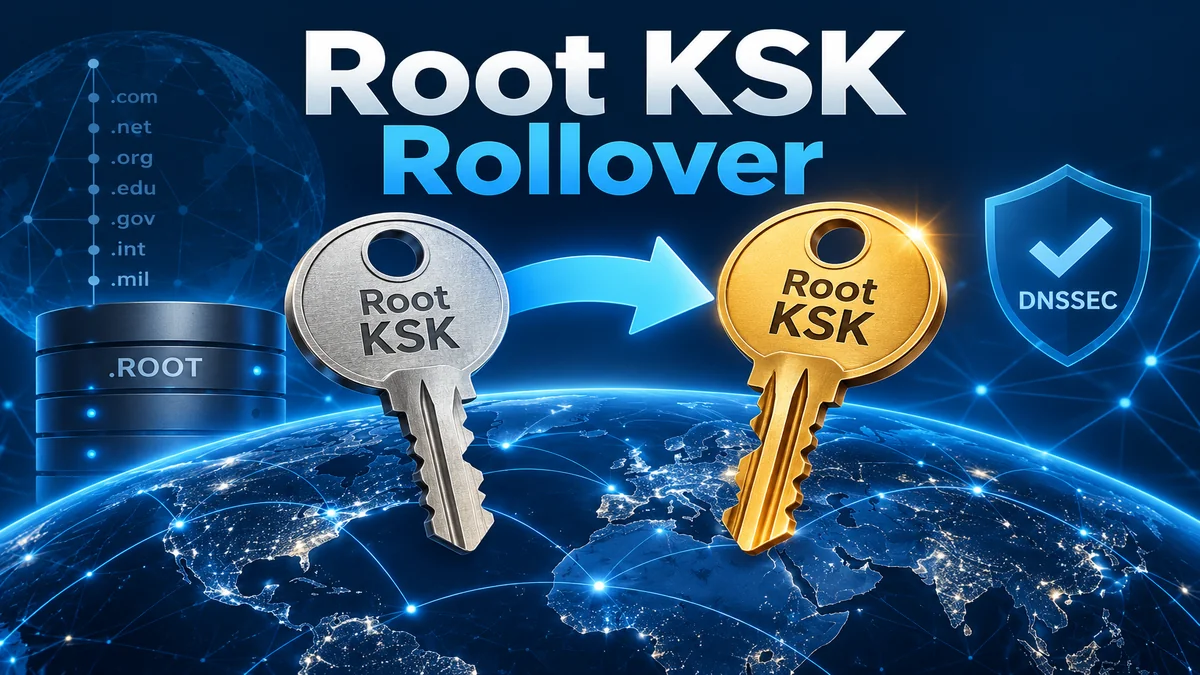
On Sunday, October 11, 2026, the DNS root zone started signing its keys with a new key-signing key, known as KSK-2024. That key is the starting point for every DNSSEC validation on the Internet, and it has changed only once before, in October 2018.

For most networks the switch passed unnoticed: ICANN reported in July that more than 95 percent of reporting resolvers had already recognized the new key. For the rest it is anything but quiet. A validating resolver that doesn’t trust KSK-2024 can no longer validate anything, and every lookup through it fails.

The short version

If you host DNS, at CloudFloorDNS or anywhere else: nothing to do. Your zone’s keys and the DS record at your registry didn’t change.

If you run a resolver with DNSSEC validation turned on (an office DNS server, a firewall, a Pi-hole, an Unbound or BIND box): make sure it trusts the new key, key tag 38696. Resolvers can keep using a cached copy of the root’s old key set for up to 48 hours, so one that isn’t ready may only be failing now. The check below takes about a minute.

What changed on October 11

DNSSEC works as a chain of signatures. A validating resolver starts from one key it already trusts, the root zone’s key-signing key, which is configured in the resolver as a trust anchor. That key vouches for the rest of the root zone’s keys, the root vouches for each top-level domain, and each top-level domain vouches for the domains under it.

1 · Trust anchor

Built into or configured on your resolver. Since October 11 it has to include KSK-2024, key tag 38696.

2 · Root zone

The root’s key set is now signed only by KSK-2024. Its predecessor, KSK-2017 (key tag 20326), no longer signs it.

3 · Top-level domain

The root vouches for .com, .net and every other signed TLD through DS records. Unchanged.

4 · Your domain

Your TLD vouches for your zone’s keys through the DS record your registrar published. Unchanged.

A resolver whose only trust anchor is KSK-2017 can no longer verify the root’s key set, so it can’t verify anything beneath it either. It doesn’t quietly fall back to resolving without DNSSEC. It fails every lookup, for signed and unsigned domains alike.

When What happened
July 2010 The root zone is signed with DNSSEC for the first time, using KSK-2010.
October 2018 The first rollover: KSK-2017 replaces KSK-2010.
January 11, 2025 KSK-2024 is published in the root zone alongside KSK-2017. Resolvers that update their anchors automatically (RFC 5011) start trusting it after watching it for 30 days.
October 11, 2026 The root’s key set is signed only by KSK-2024.
2027 ICANN plans to revoke KSK-2017 and remove it from the root zone.

Who’s affected, and who isn’t

Not affected: authoritative DNS

The zones you host, signed or unsigned, at CloudFloorDNS or anywhere else. Authoritative servers don’t validate anything, and your own keys and DS records didn’t change. No action needed.

Possibly affected: validating resolvers

Any recursive resolver with DNSSEC validation turned on. Large public and ISP resolvers prepared well ahead. The risk sits with resolvers someone manages by hand, or that nobody manages at all.

The usual suspects:

  • Resolvers that couldn’t save the new key. Automatic updates need write access to the trust anchor file. A read-only filesystem or the wrong permissions stops the update without much fuss.
  • Static trust anchors. A key pasted into a configuration file, such as BIND’s old trusted-keys or a static-key entry, never updates itself.
  • dnsmasq and Pi-hole with DNSSEC turned on. They read the root key from fixed trust-anchor= lines in their configuration.
  • Firewalls, routers and other appliances that validate DNS with a key list baked into their firmware.
  • Old images and long-offline machines. A VM template, container image or restored backup that only knows KSK-2017 can’t learn the new key through DNS any more, because the old key no longer signs anything.
  • Windows Server DNS, but only if someone added a trust anchor for the root. Without one, it doesn’t validate the root’s chain and wasn’t affected.

What it looks like when it breaks

Everything fails at once. A validating resolver that doesn’t trust KSK-2024 answers SERVFAIL for every name, signed or not, so it looks as if the Internet is down. Devices with a second resolver configured may limp along on it, which can make the problem look slow or intermittent rather than total.

Check a resolver in a minute

The root’s keys are now signed only by KSK-2024, so the test is simple: a resolver that can validate a signed domain trusts the new key (with one caveat for this week, below). Run these from any machine with dig, replacing 192.0.2.53 with your resolver’s address:

# Ask for a DNSSEC-signed name; look at the status and for "ad" in the flags
dig @192.0.2.53 icann.org A +dnssec | grep -E 'status:|flags:'

# If that returns SERVFAIL, ask again with validation switched off
dig @192.0.2.53 icann.org A +cd | grep 'status:'
What you see What it means
NOERROR with ad in the flags It validates DNSSEC and trusts KSK-2024. You’re done.
NOERROR without ad It doesn’t validate DNSSEC, so the rollover didn’t affect it.
SERVFAIL, but NOERROR with +cd Validation is failing, almost certainly because of the trust anchor. See the fixes below.
SERVFAIL even with +cd Not a DNSSEC problem. Check the resolver’s connectivity and upstream servers.

One caveat this week

Resolvers keep the root’s key set in cache for up to 48 hours, so one that doesn’t trust KSK-2024 can keep working on its cached copy until that copy expires. From Wednesday, October 14, a passing test is conclusive. Until then, also check the trust anchor directly using the table below.

To look at the trust anchors themselves, check for key tag 38696:

Resolver Where to look What you want to see
BIND 9 rndc managed-keys status keyid: 38696 with a “trusted since” date
Unbound grep 38696 /var/lib/unbound/root.key (the path is set by auto-trust-anchor-file) A matching line marked VALID
PowerDNS Recursor rec_control get-tas An entry for the root (.) with key tag 38696
Windows Server DNS PowerShell: Get-DnsServerTrustAnchor -Name . Nothing listed (the server doesn’t validate against the root), or key tag 38696 in the Valid state
dnsmasq / Pi-hole The trust-anchor= lines in the dnsmasq configuration A line beginning trust-anchor=.,38696

For anything else, including appliances, the dig test above is the reliable check.

Fixing a resolver that’s failing

  • Update the software or firmware first. Current releases of the major resolvers include KSK-2024, and an update is usually the cleanest fix.
  • Unbound: run unbound-anchor -a /var/lib/unbound/root.key (use your own file path). It fetches the current anchor from IANA’s published file and verifies it. Many distributions already run it whenever Unbound starts, so a restart may be all it takes.
  • PowerDNS Recursor: it doesn’t follow root key changes on its own, because it has no RFC 5011 support. It uses the root key built into the release unless dnssec.trustanchorfile in its configuration points to a trust anchor file, such as /usr/share/dns/root.key from the dns-root-data package on Debian and its derivatives. A root key in that file overrides the built-in one, so a stale file can break even an up-to-date recursor. Check both:

    # Root keys the running recursor trusts (look for 38696)
    rec_control get-tas
    
    # If dnssec.trustanchorfile is set, check the file too (use your path)
    grep 38696 /usr/share/dns/root.key

    If 38696 is missing, update pdns-recursor and dns-root-data, or replace the file with IANA’s current anchors. Then restart the recursor so it loads the file right away; otherwise it only re-reads the file every 24 hours.

  • BIND: replace any static anchor in named.conf by hand. If you use dnssec-validation auto;, make sure the keys built into your BIND version include 38696 (upgrade if they don’t), then run rndc managed-keys destroy so BIND reloads its trust anchors from them.
  • dnsmasq and Pi-hole: update to a release that includes the new anchor, or add a trust-anchor= line for key tag 38696 using the DS values in IANA’s root anchors file.
  • Appliances: apply the vendor’s firmware update. If there isn’t one, turn validation off on the device and let it forward to a validating resolver you control.
  • Make the fix stick. Give the resolver write access to its trust anchor file so the next rollover happens automatically.
  • Turning validation off is a stopgap, not a fix. If you have to do it to get people working, turn it back on once the trust anchor is right.

If your DNS is hosted with CloudFloorDNS

Nothing changed for your zones. If you sign them with our one-click DNSSEC, we manage your zone’s keys, and the root’s key change touches neither them nor the DS record at your registry. Unsigned zones are unaffected too.

Where it may show up is support. If someone tells you this week that your site, along with everything else, stopped loading on one network while it still works over mobile data, ask what resolver that network uses. A resolver that fails on the new key breaks every domain, not just yours.

And if your zones aren’t signed yet, they aren’t part of the chain of trust this rollover protects. CloudFloorDNS Managed DNS offers one-click DNSSEC signing, with the key management handled for you.

What happens next

The rollover isn’t finished. In 2027, ICANN plans to revoke KSK-2017 and remove it from the root zone. Resolvers that already trust KSK-2024 need nothing more; the revocation simply tells resolvers that track the root’s keys automatically to stop trusting the old one.

This won’t be the last root key change, either. Keep automatic trust anchor updates working and resolver software current, and the next one should pass without anyone noticing.

Frequently asked questions

Do I need to change my DS records or re-sign my zones?

No. The rollover changed the key at the very top of the chain. Your zone’s keys, and the DS record that links your zone to its top-level domain, are separate and didn’t change.

We don’t use DNSSEC. Are we affected?

Not as a domain owner. But if your network’s resolver validates DNSSEC, and many do by default, it needed the new key to keep resolving anything at all, including domains that aren’t signed.

Can I see the change for myself?

Yes. Run dig . DNSKEY +dnssec +short | awk '$1=="DNSKEY" {print $7}'. It prints the key tag of the key that signs the root’s key set: 20326 before October 11, 38696 since.

Will this happen again?

Yes. The root key is designed to be replaced over time. Resolvers that update their trust anchors automatically, and can write to their trust anchor file, handle it without help.

Related

DNSSEC without the key management.

CloudFloorDNS signs your zones with one click and handles the keys, on a DDoS-protected Anycast network backed by a 100% uptime SLA and more than 25 years of DNS operations.

Questions about DNSSEC or the root key change? Email support@cloudfloordns.com or sales@cloudfloordns.com, or call +1 781 373 5823.

Product names mentioned are trademarks of their respective owners. CloudFloorDNS is not affiliated with ICANN or IANA. Dates and plans reflect ICANN’s published information as of October 2026.

How to Proxy Only www Through Cloudflare While Keeping CloudFloorDNS as Your DNS

Cloudflare’s reverse proxy is a popular way to put a CDN, a web application firewall and DDoS protection in front of a website. The catch is the onboarding: Cloudflare’s standard setup asks you to move your nameservers, which hands over your entire DNS zone — mail, verification records, VPN and API hostnames included — just to protect one website.

You don’t have to. On its Business and Enterprise plans, Cloudflare supports a CNAME setup (its documentation also calls it a partial setup): your authoritative DNS stays where it is, and you point only the hostnames you want proxied at Cloudflare. This guide walks through doing that for www, with CloudFloorDNS staying in charge of everything else.

The short version

Add your domain to Cloudflare on a Business or Enterprise plan and convert it to a CNAME setup. Prove ownership with a TXT record at CloudFloorDNS, create a proxied www record in Cloudflare and get its certificate validated, then turn www at CloudFloorDNS into a CNAME pointing at www.example.com.cdn.cloudflare.net. Your nameservers never change.

Why keep your DNS at CloudFloorDNS?

Cloudflare is good at what it does, and so is a dedicated DNS provider. Splitting the jobs gets you a few things an all-Cloudflare setup can’t:

  • Everything else keeps resolving from the network you chose for it. MX, SPF, DKIM, DMARC, VPN, VoIP and API records never pass through Cloudflare.
  • You keep your DNS tooling. DNS Failover, GeoDNS, Secondary DNS, one-click DNSSEC and our API keep working for everything you don’t send to Cloudflare.
  • The off switch isn’t inside the thing you’re switching off. If Cloudflare’s proxy has a bad day, you can send visitors straight to your server with one record change at CloudFloorDNS — more on that below.
  • Leaving is easy. Dropping Cloudflare later is a single DNS edit, not a nameserver migration.

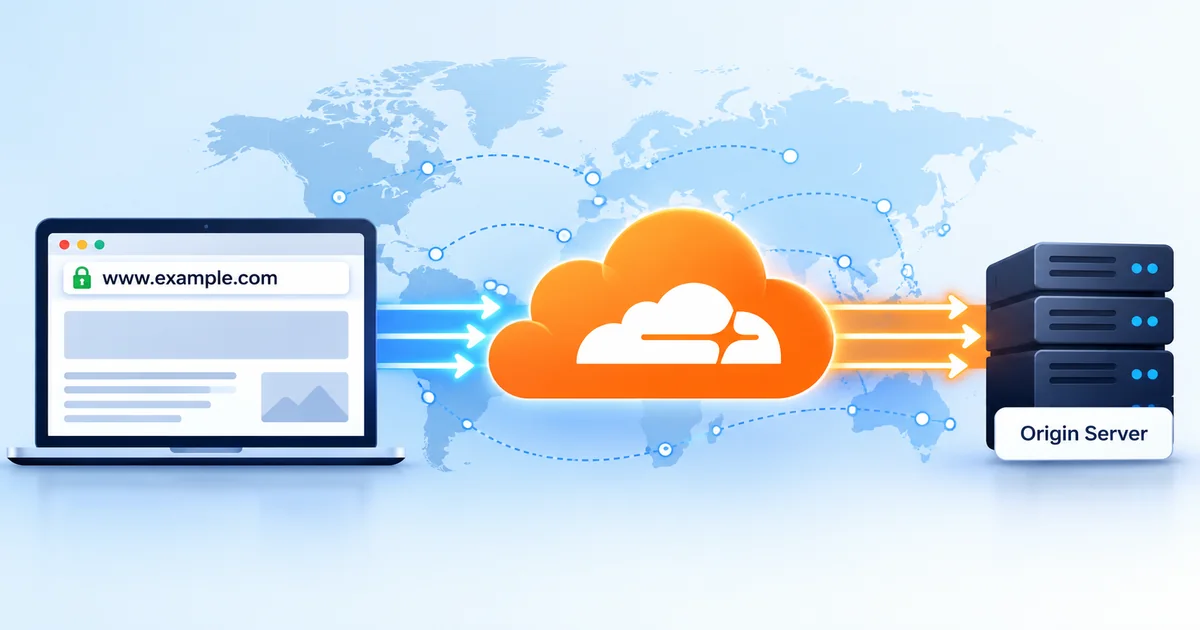
How a Cloudflare CNAME setup works

1 · Lookup

A visitor’s resolver asks CloudFloorDNS for www.example.com. We answer with a CNAME to www.example.com.cdn.cloudflare.net.

2 · Cloudflare edge

That name resolves to Cloudflare’s anycast network, where the request meets the cache, the WAF and Cloudflare’s DDoS protection.

3 · Your server

Anything Cloudflare can’t serve from cache is fetched from your origin, at the address you give Cloudflare in Step 4.

Everything else

The bare domain, mail and every other hostname are answered by CloudFloorDNS as usual and go direct. Cloudflare never sees them.

Things worth knowing before you start

The details a sales page usually leaves out:

It needs Cloudflare Business or Enterprise.

The CNAME setup isn’t offered on Free or Pro — the conversion option simply doesn’t appear. Cloudflare lists Business at $200/month billed annually or $250/month billed monthly (current plans).

The bare domain can’t be a CNAME.

DNS doesn’t allow a CNAME at the zone apex, so example.com can’t point at Cloudflare the way www does. You’ll send it to www instead; Step 8 covers the options.

Only what you point at Cloudflare is proxied.

Cloudflare handles exactly the hostnames you CNAME to it. That includes DNS itself: Cloudflare’s DNS-layer DDoS protection only applies when it runs your nameservers, so here your DNS stays on CloudFloorDNS’s DDoS-protected network.

Your origin address moves into Cloudflare.

After the switch, the www record in Cloudflare’s dashboard decides where traffic goes. When you move servers, update it there, not at CloudFloorDNS.

Some records are permanent.

Cloudflare’s cloudflare-verify TXT record has to stay in your zone for as long as you use the setup, and so does the _acme-challenge CNAME if you choose delegated certificate validation in Step 5.

Cloudflare Registrar domains are excluded.

Domains registered at Cloudflare can’t use a CNAME setup. Registered with us or with any other registrar? You’re fine.

Step-by-step: proxy www through Cloudflare

Throughout this guide, example.com stands in for your domain and 203.0.113.10 for your web server’s IP address. Each step is labeled with where you’ll be working.

1
At CloudFloorDNS

Note your current www record and lower its TTL

Open the zone for example.com in the CloudFloorDNS control panel and find the www record. Write down its value: that’s your origin, and it’s also your way back. Then lower its TTL to 600 seconds (10 minutes) and wait at least as long as the old TTL before you continue, so the change in Step 7 takes effect quickly.

If www is already a CNAME to a hosting provider (something like yoursite.hostingco.net), note that hostname instead. You’ll use it as the origin in Step 4.

2
In Cloudflare

Add the domain and convert it to a CNAME setup

Add example.com to your Cloudflare account and choose the Business (or Enterprise) plan. Cloudflare scans your existing records and then tells you to change your nameservers. Ignore the nameserver instructions.

On the domain’s Overview page, select Convert to CNAME DNS Setup and confirm with Convert. Cloudflare then shows a Verification TXT Record. Copy it; if you lose it, it’s also listed on the DNS Records page.

3
At CloudFloorDNS

Prove you own the domain

Add the verification record to your zone:

Name Type Data TTL
cloudflare-verify TXT The value Cloudflare shows you, e.g. 966215192-518620144 3600

Type just cloudflare-verify in the name column; the panel adds your domain for you. Cloudflare checks for the record and emails you when the zone is active, which can take up to a few hours. To confirm the record is being served:

dig +short TXT cloudflare-verify.example.com

Leave this record in place permanently. Cloudflare uses it to keep confirming you control the zone.

4
In Cloudflare

Create the proxied www record

Go to DNS → Records and make sure there’s a record for www pointing at your origin, with the proxy turned on (orange cloud, Proxied):

Type Name Content Proxy status
A www 203.0.113.10 Proxied
AAAA (only if your server has IPv6) www 2001:db8::10 Proxied

If your host gives you a hostname rather than an IP address, create a proxied CNAME for www pointing at that hostname instead. Don’t point it at anything that resolves back through Cloudflare, such as your bare domain.

Then delete everything else the scan imported. Cloudflare isn’t answering DNS for your domain in this setup, so those copies do nothing for visitors, and if a proxied CNAME ever points at one of them, Cloudflare uses its own stale copy instead of asking CloudFloorDNS. Keep this zone to the hostnames you proxy.

5
In Cloudflare and at CloudFloorDNS

Get the edge certificate issued before you switch

Cloudflare includes a free Universal SSL certificate, but on a CNAME setup it can’t validate the certificate automatically until traffic is already flowing through Cloudflare — unless you add validation records at your DNS provider first. Switch DNS before the certificate is active and HTTPS visitors can see certificate errors until it completes; Cloudflare’s own documentation says HTTP validation is only for sites that can tolerate a few minutes of downtime. For a live site, validate through DNS first. There are two ways:

Recommended for live sitesAdvanced certificate with delegated validation

Add Advanced Certificate Manager (listed at $10/month) and order an advanced certificate for example.com and *.example.com, choosing TXT as the validation method. Then, on SSL/TLS → Edge Certificates, find DCV Delegation for Partial Zones, copy the validation URL and add one record at CloudFloorDNS:

Name Type Data
_acme-challenge CNAME example.com. followed by the validation URL Cloudflare shows, ending in a dot

From then on Cloudflare validates and renews on its own, and the wildcard covers any other hostname you proxy later. Two things to know: remove any existing _acme-challenge TXT records first, because they block delegation; and since only one provider can hold the delegation, DNS-based certificate validation for the same names elsewhere (a certbot DNS plugin on your server, for example) stops working. HTTP-based validation isn’t affected.

No extra costUniversal SSL, validated with a TXT record

Check SSL/TLS → Edge Certificates. If a pending Universal certificate for www lists a certificate validation TXT name and value, add that TXT record at CloudFloorDNS (the name will look like _acme-challenge.www). If it’s set to a different method, switch it to TXT; for Universal certificates Cloudflare only allows that through its API. You’ll need your zone ID (on the Overview page) and an API token with the SSL and Certificates: Edit permission for the zone:

CF_API_TOKEN="your-api-token"
ZONE_ID="your-zone-id"
API="https://api.cloudflare.com/client/v4/zones/$ZONE_ID"

# 1. Find the Universal certificate pack that covers www
curl -s "$API/ssl/certificate_packs?status=all" \
  -H "Authorization: Bearer $CF_API_TOKEN" \
  | jq '.result[] | {id, type, hosts, status}'

# 2. Switch that pack to TXT validation
CERT_PACK_ID="id-from-step-1"
curl -s -X PATCH "$API/ssl/verification/$CERT_PACK_ID" \
  -H "Authorization: Bearer $CF_API_TOKEN" \
  -H "Content-Type: application/json" \
  --data '{"validation_method":"txt"}'

Once the certificate shows Active, you can delete the TXT record. At renewal time (30 days before expiry) Cloudflare tries HTTP validation automatically; if that can’t complete, it falls back to TXT and you’ll need to add fresh values from Edge Certificates. The delegated route above avoids that chore entirely.

If no certificate is listed at all, Cloudflare issues it after traffic starts arriving. In that case, make the Step 7 switch at a quiet hour and expect a few minutes of certificate errors for HTTPS visitors.

6
In Cloudflare

Use Full (strict) and test before you switch

Under SSL/TLS → Overview, make sure the encryption mode is Full (strict), so Cloudflare connects to your server over HTTPS and checks its certificate. If the zone uses Automatic SSL/TLS, it picks the most secure mode your origin supports; choose Custom to set it yourself. Avoid Flexible: it leaves the Cloudflare-to-server leg unencrypted and causes redirect loops on sites that already force HTTPS.

You can now send a request through Cloudflare without touching DNS:

# Pin www.example.com to a Cloudflare edge address for this one request
CF_IP=$(dig +short www.example.com.cdn.cloudflare.net | head -n1)
curl -sI --resolve www.example.com:443:$CF_IP https://www.example.com \
  | grep -iE '^(HTTP|server|cf-ray)'

You’re looking for a normal status code, server: cloudflare and a cf-ray header. A TLS error means the edge certificate isn’t active yet (on the quiet-hour route from Step 5, add -k to test everything else). A 5xx error means Cloudflare can’t reach your server, so check the address from Step 4 and your firewall.

7
At CloudFloorDNS

Point www at Cloudflare

Change the www record from its A/AAAA value into a CNAME:

Name Type Data TTL
www CNAME www.example.com.cdn.cloudflare.net. 600

Keep the trailing dot: the target is outside your zone, so it’s entered as a full name ending in a dot. A CNAME can’t share its name with other records, so remove anything else at www too, such as an AAAA record or an old TXT verification record.

Make it one edit, not two.

Turn the existing www row into the CNAME (or add the CNAME and remove the old records in the same save) rather than deleting first and coming back later. A resolver that asks while www doesn’t exist can cache “no such name” for your zone’s negative-caching time.

Within roughly the TTL you set in Step 1, visitors to www are flowing through Cloudflare.

8
At CloudFloorDNS

Send the bare domain to www

Because example.com can’t be a CNAME, decide what happens when someone types it. In order of preference:

  • Redirect it at CloudFloorDNS. Add an REDIRECT:// record with the name left blank and https://www.example.com as the data. Our forwarding servers answer for the bare domain and send visitors to www, so your server’s IP doesn’t appear on the bare domain at all. An aux value of 10 keeps the path (example.com/pricing → www.example.com/pricing); once you’ve tested it, 12 makes it a permanent 301. For visitors who type https:// in front of the bare domain, the forwarder also needs a certificate for it: our Secure Branding and Forwarding plans include automatic Let’s Encrypt certificates, or ask support what your plan covers.
  • Proxy it through Cloudflare too. Cloudflare can proxy the apex in a CNAME setup when your DNS provider can flatten it, which is what an ALIAS record does. Add an ALIAS record with the name left blank pointing to example.com.cdn.cloudflare.net., add a proxied example.com record in Cloudflare, and create a Redirect Rule there that sends it to www. Make sure your edge certificate covers example.com as well.
  • Redirect on your own server. Keep the apex A record pointing at your server and redirect to www there. It’s the simplest option, but it publishes your server’s IP, sends bare-domain visitors around Cloudflare, and stops working if you lock your server down to Cloudflare’s addresses in Step 10.
9
From any terminal

Verify everything

# Ask your authoritative nameservers directly
NS=$(dig +short NS example.com | head -n1)
dig +short www.example.com CNAME @$NS   # expect www.example.com.cdn.cloudflare.net.
dig +short MX example.com @$NS          # unchanged

# Requests to www should come back from Cloudflare
curl -sI https://www.example.com | grep -iE '^(server|cf-ray)'

# The bare domain should redirect to www
curl -sI https://example.com | grep -i '^location'

Then check mail flow and any other hostnames you care about. They should behave exactly as before, because nothing about them changed.

10
On your server

Lock down the origin and log real visitor IPs

Cloudflare only protects traffic that goes through it. Anyone who learns your server’s address can still reach it directly, so finish with three checks:

  • Accept web traffic only from Cloudflare. Restrict ports 80 and 443 to Cloudflare’s published IP ranges, or turn on Authenticated Origin Pulls so your server only accepts connections that present Cloudflare’s client certificate.
  • Look for records that give the address away. Hostnames such as ftp, cpanel or direct that point at the same server publish its IP. Move those services or accept the exposure knowingly.
  • Restore visitor IPs in your logs. Your server now sees Cloudflare’s addresses. Cloudflare passes the original visitor IP in the CF-Connecting-IP header; configure mod_remoteip (Apache) or the real_ip module (nginx) to trust that header from Cloudflare’s ranges only.

Your escape hatch when Cloudflare has a bad day

This is the quiet advantage of keeping DNS at CloudFloorDNS. On November 18, 2025, Cloudflare’s network failed to deliver core traffic for roughly three hours, and for parts of the incident most customers couldn’t log in to the Cloudflare dashboard (Cloudflare’s postmortem). When your nameservers are at Cloudflare, the controls you’d use to route visitors around it are part of the same platform. With CloudFloorDNS, it’s one record:

Situation Name Type Data
Normal www CNAME www.example.com.cdn.cloudflare.net.
Cloudflare outage www A 203.0.113.10

For that switch to work when you need it:

  • Your server needs a publicly trusted certificate, such as one from Let’s Encrypt. A Cloudflare Origin CA certificate is only trusted by Cloudflare, so browsers would reject it the moment you bypass.
  • Your firewall has to let visitors in. If you limited ports 80 and 443 to Cloudflare in Step 10, keep a ready-made rule to open them.
  • Keep the www TTL modest. Somewhere around 10 to 30 minutes balances DNS query volume against how quickly the switch takes hold.
  • Your server will be on its own, with no CDN cache and no Cloudflare WAF until you switch back, so make sure it can carry the load.

Rather not make that change by hand in the middle of the night? Our DNS Failover service can monitor the site and switch records for you; ask us about setting it up for a Cloudflare-fronted hostname.

Records at a glance

When you’re done, this is where everything lives:

Where Name Type Value Notes
CloudFloorDNS cloudflare-verify TXT From Cloudflare Keep permanently
CloudFloorDNS www CNAME www.example.com.cdn.cloudflare.net. Replaces the old A/AAAA
CloudFloorDNS _acme-challenge CNAME example.com. plus Cloudflare’s validation URL Delegated validation only; keep permanently
CloudFloorDNS _acme-challenge.www TXT From Cloudflare Universal + TXT only; delete once issued
CloudFloorDNS (blank) REDIRECT:// or ALIAS https://www.example.com or example.com.cdn.cloudflare.net. See Step 8
CloudFloorDNS MX, SPF, DKIM, DMARC, everything else — Unchanged Never touches Cloudflare
Cloudflare www A / AAAA, proxied 203.0.113.10 Your origin; update it here when you move servers

Frequently asked questions

Does my email go through Cloudflare?

No. MX, SPF, DKIM and DMARC records stay at CloudFloorDNS and resolve directly. Only hostnames you CNAME to Cloudflare are proxied.

Can I proxy other hostnames later?

Yes. Repeat Steps 4 through 7 for each one (shop or app, say): add a proxied record in Cloudflare, make sure the certificate covers it, then CNAME it to shop.example.com.cdn.cloudflare.net. at CloudFloorDNS. The wildcard advanced certificate from Step 5 covers new subdomains automatically.

What happens to DNSSEC?

Nothing changes. Your zone stays signed at CloudFloorDNS, and the www CNAME is signed along with everything else. Cloudflare doesn’t need your keys or a DS record in a CNAME setup.

I’m on Cloudflare Free or Pro. What are my options?

Cloudflare only offers the CNAME setup on Business and Enterprise, so on Free or Pro the proxy comes with moving your nameservers. If you go that way, plan for redundancy: a classic secondary behind Cloudflare depends on Cloudflare’s outgoing zone transfers, which it limits to Enterprise. We can talk you through a dual-primary alternative.

How do I undo it?

Change www at CloudFloorDNS back to an A record pointing at your server. Once the TTL passes, traffic goes direct again, and you can remove the domain from Cloudflare along with the cloudflare-verify and any _acme-challenge records.

Related guides

Keep your DNS independent. Put Cloudflare where it helps.

CloudFloorDNS is run by a team with more than 25 years in DNS, on a DDoS-protected network backed by a 100% uptime SLA. Keep your zone with us, proxy the hostnames that benefit, and keep control of everything else.

Questions about a Cloudflare CNAME setup? Email support@cloudfloordns.com or sales@cloudfloordns.com, or call +1 781 373 5823.

Cloudflare is a trademark of Cloudflare, Inc. CloudFloorDNS is not affiliated with, sponsored by or endorsed by Cloudflare. Plan names, prices and dashboard steps reflect Cloudflare’s published documentation as of October 2026 and may change; check Cloudflare’s docs before you start.

Super Intelligent DNS with CloudFloorDNS

Ordinary DNS is a phone book. Ask it for www.yourcompany.com and every visitor gets the same address, every time, whether that server is healthy, overloaded, or on the other side of the planet. Super Intelligent DNS is our name for DNS that checks before it answers: it knows which of your servers are up, where each visitor is coming from, and which server will serve them best.

“Intelligent” gets attached to a lot of products right now, so this post stays concrete: how the decision is made, what happens when a server dies at 2 a.m., how we compare with Route 53, Cloudflare, NS1 and Azure, and the trade-offs a sales page usually leaves out. All of it runs on our network today.

What makes DNS intelligent?

A plain DNS record answers one question: what is the address? Super Intelligent DNS asks four more first.

Health
Is the server up?

Netmon tests each server from up to seven locations, using the protocol your users use: HTTPS for a website, SIP for a phone system, SMTP for mail.

Location
Where is the visitor?

Geo DNS Director maps each query to a country or a region you define, using the visitor’s own subnet when the resolver shares it.

Load
Which server is best?

Load balancing spreads visitors across a pool of servers by rotation, by weight, by geography or by measured latency.

Recovery
What if it isn’t up?

When three or more monitoring nodes agree a server has failed, DNS Failover moves its traffic to your backup in as little as 60 seconds.

None of these ideas is new. The intelligence is in combining them, so each answer reflects the live state of your infrastructure rather than whatever someone typed into a zone file last spring. The industry calls this global server load balancing (GSLB) or DNS traffic steering.

What happens inside a single lookup

Here’s the path one query takes, from the moment a visitor’s resolver asks for your hostname.

1

The query reaches the nearest node. Our dual-stack, DDoS-protected anycast network has 15+ points of presence on four continents.

2

We work out where the visitor is. We use the visitor’s subnet if the resolver sent an EDNS Client Subnet hint, or the resolver’s own address if not, and match it to a country or one of your region groups.

3

We pick that region’s pool. For example, Europe gets your London and Frankfurt servers, North America gets Virginia and Dallas, and everyone else gets your default pool.

4

Failed servers are already out. Netmon has been testing every pool member all along, and any server that three or more monitoring nodes agree is down has already been switched out. The answer never waits on a live test.

5

We choose among the healthy servers by round-robin, by weight or by latency, depending on how you’ve set up the pool.

6

The answer goes out with a short TTL, so resolvers check back soon and the next change, a failure or a recovery, reaches visitors quickly.

Nobody has to be awake for any of it. That’s the point.

What it looks like in practice

Your main site goes down overnight

Netmon checks your web server every minute. When three or more monitoring nodes confirm the failure, the record switches to your standby server or a maintenance page, and Netmon alerts you by email or SMS. Nobody has to log in to make it happen.

Overseas customers say the site is slow

Put a server in Europe or Asia and let Geo DNS Director send visitors there by country while everyone else stays on your main site. Geo pools support failover too, so if the overseas server goes down, its visitors can be sent to a working server instead of an error.

You’re rolling out a new server

Add it to the pool with a small weight so it takes, say, one visitor in ten. Watch your logs, then raise the weight. If it starts failing health checks, it drops out of the pool on its own.

Your phone system has to stay up

Geo DNS Director can serve location-specific SRV records, so softphones and SIP trunks register with the nearest gateway, and Netmon’s SIP checks can fail a dead gateway over to a working one. Our VoIP failover page has the details.

Under the hood

For the engineers, here’s each building block and the numbers behind it.

Building block What it does Details
Anycast DNS network Answers from the node closest to the visitor 15+ PoPs on four continents, IPv4 and IPv6 at every node, built-in DDoS protection, 100% uptime SLA
Geo DNS Director Chooses answers by visitor location Country or custom region groups, EDNS Client Subnet, A, CNAME and SRV records, plus geo URL and path forwarding
Netmon monitoring Tests every server, continuously 20+ test types including HTTP(S), TCP and UDP connect, ping, SSH, SIP, SMTP, IMAP, POP3, DNS and SSL expiry; every 10 seconds to every hour, from up to 7 monitoring locations, depending on plan
DNS Failover Swaps failed servers out of the answer A, CNAME and ALIAS records; acts when 3 or more monitoring nodes agree; in as little as 60 seconds
DNS Load Balancing Spreads traffic across a pool Round-robin (free on every plan), weighted, geographic and latency-based; Netmon adds and removes pool members

Why we wait for a quorum

One monitoring node can be fooled by a routing problem between it and your server, and failing over on a false alarm is an outage of its own. Requiring three or more nodes to agree stops one bad network path from moving your traffic. The big platforms make the same call in their own way: Route 53 marks an endpoint unhealthy when 18% or fewer of its checkers say it’s healthy, and Cloudflare goes by a majority of regions.

Nearest isn’t always fastest

A server 500 miles away on a congested link can lose to one 2,000 miles away on a clean one. That’s why our pools can balance on measured server latency, not just geography, and why Geo DNS Director can fail a pool over on latency as well as on downtime.

Location accuracy depends on the resolver

We see the visitor’s resolver, not the visitor, and ISP resolvers usually sit close to their customers. Google Public DNS also passes a shortened copy of the visitor’s subnet (EDNS Client Subnet) to nameservers that support it, as ours do. Cloudflare’s 1.1.1.1 deliberately doesn’t, for privacy, so its users are placed by the 1.1.1.1 node that asked, which is normally nearby. That’s true for every GeoDNS provider, not just us, and it’s why country and region rules work better than trying to be city-precise.

Setting it up

1

Create your account and add your zone

Sign up at panel.cloudfloordns.com, or send us your zones and we’ll import them. Steered hostnames must be answered by our nameservers, so point your domain at CloudFloorDNS at your registrar once your records are in place.

2

Add a Netmon check for every server

Match the test to the service: HTTPS against a real page for a website (a ping only proves the machine is on), SIP for phones, SMTP or IMAP for mail. One minute is a sensible interval.

3

Build your pools

On each hostname you want to steer, create a failover pair or a load-balanced pool and attach each member’s Netmon check. Give bigger servers bigger weights.

4

Add geography

In Geo DNS Director, map countries or groups of countries to pools, and always set a default pool for everyone else.

5

Set TTLs on purpose

Use 60 to 300 seconds on steered records, and leave records that never move at their usual longer values.

6

Test it before you need it

Query our nameservers directly and simulate visitors from other countries. Then stop the web service on a test server (not the whole machine) and watch the answer change.

# What are we answering right now?
dig +short www.example.com @<your-cloudfloordns-nameserver>

# Simulate a visitor in the UK (EDNS Client Subnet)
dig +short www.example.com @<your-cloudfloordns-nameserver> +subnet=81.2.69.0/24

# Confirm the TTL resolvers will cache
dig www.example.com @<your-cloudfloordns-nameserver> +noall +answer

What it costs

There’s no separate price tag. The pieces are built into our Managed DNS plans:

  • Round-robin load balancing is free on every plan.
  • DNS Failover is an option on the $8/month Developer plan and included from Bronze ($50/month, two one-minute failovers) up to Platinum ($300/month, eight).
  • GeoDNS is an option on Developer and Bronze, with one GeoDNS host included on Silver ($80/month), two on Gold ($120/month) and four on Platinum.
  • Standalone monitoring for other servers and services is free for one hourly check, with paid Netmon plans from $5/month. The $60/month Enterprise monitoring plan checks every 10 seconds from all seven locations.
  • Larger portfolios get custom yearly pricing. Ask us for a quote.

How it compares

Every major cloud platform sells some form of DNS traffic steering. Here’s how the best-known options line up for a typical setup: a few hostnames, two or three servers each, with health checks and geographic routing.

Provider Steering methods Health checks Pricing (list) Worth knowing
CloudFloorDNS Geo (country or custom regions, with EDNS Client Subnet), failover, round-robin, weighted, latency; geo SRV and URL forwarding 20+ test types; every 10 s to 1 h, depending on plan; 3 or more monitoring nodes must agree before failover Flat monthly plans: failover included from $50/mo, GeoDNS hosts from $80/mo, round-robin free Pure DNS, so no proxy in your traffic path; works with any host, cloud or registrar
AWS Route 53 Failover, geolocation, geoproximity, latency (by AWS Region), weighted, IP-based, multivalue; Traffic Flow for chained policies Every 10 s or 30 s; unhealthy when 18% or fewer of checkers report healthy Pay per use: $0.50 per zone/mo, $0.70 per million geo queries, $0.75/mo per non-AWS health check plus $2/mo per optional feature, $50/mo per Traffic Flow policy record Very capable, but costs grow with queries, checks and features. Simplest when your servers already live in AWS
Cloudflare Load Balancing Failover order, weighted random, geo, dynamic (latency), proximity, least outstanding requests HTTP(S), TCP, ICMP, UDP-ICMP, SMTP; 60 s by default, faster checks depend on plan; all-region checks are Enterprise-only Add-on starting at $5/mo, rising with the options you add Load balancers live inside a Cloudflare zone; keeping your DNS elsewhere needs a CNAME setup (Business or Enterprise) or a secondary setup
IBM NS1 Connect Filter chains (geo, ASN, health, weighted and more); Pulsar real-user-measurement steering Monitors included per plan: 2 on Essentials, 2 to 100 on Standard Essentials from $99/mo (1 filter chain), Standard from $349/mo, Premium by quote; Pulsar is a paid add-on Highly programmable and aimed at large enterprises; entry plans cap filter chains and monitors
Azure Traffic Manager Priority, weighted, performance, geographic, multivalue, subnet; nested profiles to combine methods HTTP, HTTPS, TCP; every 30 s, or 10 s with fast probing; HTTPS probes don’t validate the certificate Pay per use: $0.54 per million queries, $0.54/mo per external endpoint check, plus $2/mo each for fast or HTTPS probing Reached by CNAME to a trafficmanager.net name, so using it on an apex domain means hosting that domain in Azure DNS
List prices from each provider’s public pricing and documentation pages, October 2026, before taxes, discounts and support plans.

The short version: AWS and Azure make sense when everything already runs there, NS1 when you need deep programmability and have an enterprise budget, and Cloudflare when you already proxy your sites through it. If you want steering at the DNS layer that works with any host, cloud or registrar, at a flat monthly price, with people who pick up the phone, that’s what CloudFloorDNS is built for.

Things worth knowing before you turn it on

DNS steering is only as fast as caching allows. We can switch a record in about a minute, but resolvers that cached the old answer keep it until its TTL runs out, and some applications hold on to answers even longer. Keep steered TTLs short and expect a small tail of stragglers after any change.

  • Test what users actually use. A server can answer ping while its application throws errors. Point HTTPS checks at a page that touches your database.
  • Make sure the backup can carry the load. Failing over to half the capacity, or to yesterdays data, swaps one problem for another.
  • Plan the trip back. Know what has to be true before the primary takes traffic again, and test the return as well as the failover.
  • Zone transfers copy records, not decisions. If you also run a secondary DNS provider (here’s why you might), it serves your zone’s static records, not our geo and failover logic, so set those static values to a sensible default.

Frequently asked questions

Is Super Intelligent DNS a separate product?

No. It’s Geo DNS Director, DNS Failover, Load Balancing and Netmon monitoring working together on our anycast network. You switch on the pieces you need, on the hostnames that need them.

Do I have to move my DNS to CloudFloorDNS?

The hostnames you steer have to be answered by our nameservers. Your domain can stay at its current registrar, and we’ll import your existing zones for you.

How fast is failover, really?

As little as 60 seconds after three or more monitoring nodes confirm a failure, plus the time resolvers take to drop their cached copy. With a 60-second TTL, most visitors reach the backup within a few minutes.

Is this AI?

No. Every decision follows rules you set and can read: health checks, location, weights and measured latency. When traffic moves, you can see exactly why.

Make your DNS think before it answers

Start with a free account and put a Netmon check on your most important server, or send us your domain list and we’ll import your zones and help you build your first geo and failover pools.

Prefer to talk it through? Call +1 781 373 5823 or email sales@cloudfloordns.com. Existing customers can reach support@cloudfloordns.com.

Related reading: Why CloudFloorDNS for Managed DNS, Website & Infrastructure Monitoring Guide and Why Should I Use Secondary DNS?

CloudFloorDNS is an independent company and is not affiliated with Amazon Web Services, Cloudflare, IBM or Microsoft. Route 53, Cloudflare, NS1 and Azure Traffic Manager are trademarks of their respective owners. Competitor features and list prices come from each provider’s public pricing and documentation pages as of October 2026 and change often, so confirm current terms with the provider before you buy.

Root KSK Rollover on October 11, 2026: Who Needs to Act (and Who Doesn’t)

On Sunday, October 11, 2026, the key at the very top of the DNS changes. The root zone will start signing its key set with a new Key Signing Key, KSK-2024 (key tag 38696), and stop using the key it has relied on since 2018. It’s only the second time the root key has ever been replaced.

For most people, nothing will happen. But any DNSSEC-validating resolver that doesn’t trust the new key will stop resolving everything (every website, mail server and API) within about two days. Here’s who needs to check, how to check in a few minutes, and what to do if something breaks. The short version for our customers: if your domains are hosted with CloudFloorDNS, there is nothing to change on your zones.

At a glance

  • When: Sunday, October 11, 2026. Any problems show up over the following 48 hours, as resolvers’ cached copies of the old key set expire.
  • What changes: The root’s key set will be signed only by KSK-2024 (key tag 38696). KSK-2017 (key tag 20326) stops signing.
  • Who must check: Anyone running their own DNSSEC-validating resolver: BIND, Unbound, PowerDNS Recursor, Knot Resolver, Windows Server DNS with trust anchors, dnsmasq or Pi-hole, or a firewall with DNSSEC validation switched on.
  • Who doesn’t: Domain owners. Your zones, DNSSEC keys and DS records stay exactly as they are, wherever they’re hosted.

What actually changes on October 11

DNSSEC is a chain of signatures. Your domain’s keys are vouched for by its TLD (.com, .org, .us and so on), the TLD’s keys are vouched for by the root, and the root’s own keys are signed by one key at the top: the root Key Signing Key, or KSK. Every validating resolver carries a copy of that key, called a trust anchor, and checks every signed answer back to it.

Trust anchor · changing October 11
The root zone ( . )
Its key set is signed by the root KSK. Every validating resolver keeps a copy of this key.
↓ vouches for, with a DS record
The TLD ( .com, .org, .us … )
Signed with the registry’s own keys. Not changing.
↓ vouches for, with a DS record
Your domain ( example.com )
Signed with your zone’s keys, if you use DNSSEC. Not changing.

Replace the key at the top and every validating resolver on the internet needs the new one. That’s why ICANN published KSK-2024 in the root zone on January 11, 2025, nearly two years ahead of time. Resolvers that update their trust anchors automatically (the RFC 5011 process) have been able to learn it since February 2025.

Outgoing key Incoming key
Name KSK-2017 KSK-2024
Key tag 20326 38696
Algorithm RSA/SHA-256 (8) RSA/SHA-256 (8)
In the root zone since July 11, 2017 January 11, 2025
Signs the root key set October 11, 2018 to October 11, 2026 From October 11, 2026
What happens next Revoked, then removed, in early 2027 Becomes the only root KSK

If you ever need to add the new key by hand, this is its DS record. Check it against IANA’s published trust anchors before relying on it. Trust anchors shouldn’t come from a blog post, including this one.

. IN DS 38696 8 2 683D2D0ACB8C9B712A1948B27F741219298D0A450D612C483AF444A4C0FB2B16

The timeline

Date What happens
July 15, 2010 The root zone is signed with DNSSEC for the first time, under KSK-2010.
October 11, 2018 The first root KSK rollover, from KSK-2010 to KSK-2017. It was planned for 2017 and postponed a year because too many resolvers weren’t ready.
January 11, 2025 KSK-2024 is published in the root zone alongside KSK-2017.
February 2025 Resolvers that update automatically finish their 30-day waiting period and start trusting KSK-2024.
Sunday, October 11, 2026 KSK-2024 becomes the only key signing the root key set.
October 11 to 13, 2026 Cached copies of the old key set expire (their TTL is 48 hours). Resolvers without KSK-2024 start failing.
Early 2027 KSK-2017 is revoked, then removed from the root zone.
2027 to 2030 ICANN has proposed moving the root KSK from RSA to ECDSA P-256 in a separate, multi-year algorithm rollover.

Who needs to do something

Only software that validates DNSSEC answers uses the root key. In practice that mostly means recursive resolvers: the servers that look up names on behalf of your computers and phones. Authoritative DNS, where your zones live, never touches the root trust anchor.

If you… Affected? What to do
Host your domains with CloudFloorDNS (or any DNS provider) No Nothing. Your zones are served exactly the same way before and after.
Have DNSSEC-signed zones No Nothing. Your keys and the DS records at your registrar don’t change.
Use your ISP’s resolvers or a public one (Google 8.8.8.8, Cloudflare 1.1.1.1, Quad9 9.9.9.9) Very unlikely Nothing. Large operators have had nearly two years to prepare.
Run your own validating resolver (BIND, Unbound, PowerDNS Recursor, Knot Resolver, Windows Server DNS) Check now Confirm that key tag 38696 is trusted. Steps below.
Have DNSSEC validation switched on in a firewall, router or appliance (pfSense, OPNsense, Pi-hole and others) Check now Update the firmware or package. Some ship a fixed key list and never update it on their own.
Run a resolver in a container, a golden image or a VM restored from an old snapshot Highest risk Rebuild from current software and give it persistent, writable key storage.

The case that catches people out: resolvers that never stay up for 30 days

Automatic updates (RFC 5011) only work if a resolver runs long enough to watch the new key for 30 days and can save what it learned to disk. A container that starts fresh on every deploy, or a VM rebuilt from an old image, only knows the keys built into its software version. If that version predates KSK-2024, it will work fine on Saturday and fail by Tuesday.

How to check a resolver in about five minutes

1

Run two quick tests

First, ask the resolver for dnssec-failed.org, a domain that’s broken on purpose. Replace 192.0.2.53 with your resolver’s address:

dig @192.0.2.53 dnssec-failed.org A

If the reply says status: SERVFAIL, something in the path validates DNSSEC (this resolver or one it forwards to), so keep going. If you get an IP address back, nothing validates and the rollover won’t affect it. On Windows, Resolve-DnsName dnssec-failed.org -Server 192.0.2.53 should return a server failure.

Second, ask whether it trusts the new key. BIND, Unbound and Knot Resolver answer RFC 8509 “sentinel” queries by default, and Cloudflare’s 1.1.1.1 added them on September 24:

dig @192.0.2.53 root-key-sentinel-is-ta-38696.dnstest.dev A
dig @192.0.2.53 root-key-sentinel-not-ta-38696.dnstest.dev A

An answer to the first and SERVFAIL on the second means it trusts KSK-2024. The reverse means it doesn’t, and it will fail after October 11. Answers to both mean the resolver doesn’t support sentinels (or doesn’t validate), so use step 2.

2

Confirm key tag 38696 in the configuration

The tests show what the resolver does today. Its trust anchor store tells you whether that survives a restart. Look for 38696 marked as trusted or valid:

BIND 9

rndc managed-keys status
# look for "keyid: 38696" followed by "trusted since"

Unbound (also the resolver inside pfSense and OPNsense)

grep 38696 /var/lib/unbound/root.key
# look for "id = 38696" and ";;state=2 [  VALID  ]"
# the path varies by OS: it's auto-trust-anchor-file in unbound.conf

PowerDNS Recursor

rec_control get-tas
# look for a line containing 38696

Recursor doesn’t roll keys on its own. Version 5.2.0 and later have KSK-2024 built in, but root trust anchors set in your own configuration override the built-in ones, so check both.

Windows Server DNS (PowerShell)

Get-DnsServerTrustAnchor -Name .
# look for key tag 38696 with state Valid
# no root trust anchors at all means this server isn't validating

dnsmasq, Pi-hole and many small routers

grep -r "trust-anchor" /etc/dnsmasq.conf /etc/dnsmasq.d /etc/pihole 2>/dev/null
# you need a line containing 38696

dnsmasq never updates its keys by itself. If 38696 is missing, add it (see “If something breaks” below).

Knot Resolver updates the root key automatically as long as its root.keys file is writable. Run trust_anchors.summary() on its control socket to see what it currently trusts.

3

Make sure it can keep learning

  • Use automatic trust anchors, not static ones: dnssec-validation auto; in BIND, and auto-trust-anchor-file rather than trust-anchor-file in Unbound.
  • Make sure the resolver can write to its key storage (BIND’s managed-keys directory, Unbound’s root.key). ICANN calls this out specifically.
  • In containers, keep that storage on a persistent volume and build from a current image.
  • While you’re in there, make sure TCP on port 53 isn’t blocked. DNSSEC answers are often too big for a single UDP packet.
4

Watch it from October 11 to 13

Trouble won’t start at a set minute. It shows up as each resolver’s cached copy of the root keys (48-hour TTL) expires, which could easily be Monday morning. If users say “nothing loads,” compare a normal query with one that skips validation using +cd:

dig @192.0.2.53 example.com A        # SERVFAIL?
dig @192.0.2.53 example.com A +cd    # works with checking disabled?

If normal queries fail for every domain but +cd works, it’s a trust anchor problem. If your resolver supports Extended DNS Errors, dig also prints an EDE line that names the DNSSEC error.

If something breaks

ICANN’s advice is the same for every resolver: restore service first, then fix the key. Temporarily turn off DNSSEC validation, or add a negative trust anchor for the root (RFC 7646), and lookups work again right away. Then install KSK-2024 and turn validation back on. Don’t leave it off.

Unbound: fetch the current root anchor from IANA, then restart

sudo -u unbound unbound-anchor -a /var/lib/unbound/root.key
sudo systemctl restart unbound

Windows Server DNS: pull the current root trust anchors from IANA

Add-DnsServerTrustAnchor -Root

PowerDNS Recursor: add it at runtime, then make it permanent in your configuration or upgrade to 5.2.0 or later

rec_control add-ta . 38696 8 2 683D2D0ACB8C9B712A1948B27F741219298D0A450D612C483AF444A4C0FB2B16

dnsmasq and Pi-hole: add this line to the dnsmasq configuration, then restart

trust-anchor=.,38696,8,2,683D2D0ACB8C9B712A1948B27F741219298D0A450D612C483AF444A4C0FB2B16

BIND: upgrade to a current release, whose built-in bind.keys includes KSK-2024, and use dnssec-validation auto;.

A reminder from May: what a DNSSEC failure looks like

On May 5, 2026, Germany’s .de registry hit a bug during a routine key rollover. DENIC’s signing software generated a separate key pair for each of its three hardware security modules instead of one shared pair, all with the same key tag, so only about a third of the zone’s signatures could be verified. For roughly three hours, people behind validating resolvers increasingly couldn’t reach .de sites, from amazon.de to bahn.de.

Three details from DENIC’s final report and Cloudflare’s write-up are worth knowing before October 11:

  • It wasn’t only signed domains. The broken signatures included the records that prove a .de domain isn’t signed, so unsigned .de domains failed too.
  • It got worse gradually. Cached answers kept things working at first, and failures climbed as TTLs expired. A missed root key will play out the same way over its 48-hour window.
  • The alarms fired, but nobody acted on them. DENIC’s validation tools spotted the errors, but the notifications weren’t processed in time. Monitoring only helps if the alert reaches a person. Our monitoring guide covers how to set that up.

Cloudflare restored .de on 1.1.1.1 by temporarily treating the zone as unsigned, the same “negative trust anchor” lever ICANN suggests as a stopgap for the root.

What this means if you’re a CloudFloorDNS customer

Nothing to do

Your zones

Our authoritative servers answer exactly the same way before and after October 11. If your zones are DNSSEC-signed, your keys and DS records stay as they are.

Check this week

Your resolvers

If you or your IT provider run validating resolvers for an office or for clients, work through the four steps above before Sunday the 11th.

Worth setting up

Your monitoring

CloudFloorDNS Netmon runs DNS, HTTP(S), SMTP and other checks from up to seven locations and alerts by email, SMS or webhook, so you know quickly whether your names still resolve and your services still answer.

Thinking about signing your own zones? DNSSEC is included with our Gold, Platinum and Custom Managed DNS plans.

What comes after October 11

  • Early 2027: KSK-2017 is revoked, then removed from the root zone. Resolvers that update automatically handle this on their own.
  • Certificates now depend on DNSSEC. Since March 15, 2026, public certificate authorities must validate DNSSEC when they check your CAA and domain-validation records (CA/Browser Forum ballot SC-085v2). If your zone is signed and a signature breaks, certificate renewals stop.
  • A new algorithm for the root. ICANN has proposed moving the root KSK from RSA to ECDSA P-256, with the work running from 2027 to 2030.
  • Post-quantum DNSSEC is being tested. On September 10, 2026, Cloudflare’s 1.1.1.1 began validating ML-DSA-44 signatures, which are about 38 times larger than today’s ECDSA signatures.

None of this is a reason to avoid DNSSEC. It’s a reason to run it with people who watch it closely.

Quick answers

Will my website or email stop working on October 11?

Almost certainly not. Your zones don’t change. The only people affected are users behind a validating resolver that missed the new key, and for them everything fails, not just your site. The big public resolvers have had nearly two years to prepare.

Do I need to change my DS records or DNSSEC keys?

No. The rollover changes only the key at the very top of the chain. The DS record at your registrar and your zone’s own keys stay exactly as they are.

How many resolvers aren’t ready?

Nobody knows precisely. ICANN reports that more than 95% of the resolvers that report their trust anchors have adopted KSK-2024. APNIC’s Geoff Huston measured far lower numbers using a different method, and puts the gap down to measurement uncertainty. About 35% of the world’s internet users sit behind validating resolvers, so even a small miss reaches a lot of people. Check your own rather than assume.

Why change the root key at all?

Cryptographic keys shouldn’t live forever, and the only way to keep a rollover process reliable is to use it. The first root rollover was in 2018. This is the second, and ICANN is already planning the next change.

Questions about the rollover?

CloudFloorDNS has run authoritative DNS for more than 25 years on a global anycast network. If your zones are with us, you’re covered on October 11. If you run resolvers for your office or your clients and aren’t sure what your test results mean, send them to support@cloudfloordns.com and we’ll help you read them.

Prefer to talk? Call +1 781 373 5823 or email sales@cloudfloordns.com.

CloudFloorDNS is an independent company and is not affiliated with ICANN, IANA, Verisign, DENIC, Google, Cloudflare, Inc., Quad9, Microsoft or the makers of the resolver software mentioned here. Dates, figures and commands come from public documentation as of October 1, 2026 and may change; check your vendor’s documentation before making changes. Trademarks belong to their respective owners.

Why CloudFloorDNS for Managed DNS

Every visit to your website, every email delivered to your domain, and every API call your customers make starts with a DNS lookup. When DNS is slow, everything feels slow. When DNS is down, everything is down. CloudFloorDNS has run authoritative DNS for more than 25 years, and this post lays out, with independent numbers where we have them, what you get when you make us your managed DNS provider.

Create a Free AccountJump to the API

1. Independently measured uptime, quality, and speed

We’d rather show you someone else’s measurements than our own marketing. DNSPerf tests authoritative DNS providers every minute from more than 200 locations worldwide and publishes the results. Here is where CloudFloorDNS stands among the 37 providers they track (last 30 days):

99.95%

Uptime, #6 of 37 worldwide

99.94%

Quality, #8 of 37 worldwide

16 ms

Avg. query speed, North America

19 ms

Avg. query speed, Europe

On uptime, that puts us ahead of Cloudflare, Amazon Route 53, and Google Cloud DNS (99.89%, 99.89%, and 99.72% over the same period). On quality, DNSPerf’s measure of how consistently a provider’s nameservers all answer correctly, we’re ahead of NS1, UltraDNS, and Route 53.

A note on reading these numbers

A few of the very largest networks answer a few milliseconds faster, and we won’t pretend otherwise. But recursive resolvers cache your records for the length of their TTL, so most of your visitors never wait on an authoritative lookup at all. What they will notice is an outage. That’s why we put reliability first, and why uptime and quality are the numbers we’re proudest of.

2. A global anycast network built for DNS

Our nameservers are announced from 15+ points of presence on four continents using anycast, so every query is routed to the nearest healthy node automatically. If a node or an entire region has a problem, traffic shifts to the next-closest location without anyone touching a thing.

  • 100% uptime SLA on our DNS network.
  • DDoS-aware by design: built-in protection and the spare capacity to absorb attack traffic.
  • Dual stack everywhere: IPv4 and IPv6 on every DNS and monitoring node.
  • One-click DNSSEC to sign your zones and protect them from spoofing.
  • Primary and secondary DNS with AXFR/IXFR, TSIG, and NOTIFY, so we can be your only provider or one of two.
  • Patented technology: our DNS Failover and GeoDNS load balancing are covered by US patent #20130297596.

3. Monitoring built in, not bolted on

Most DNS providers stop at answering queries. CloudFloorDNS includes Netmon, our monitoring platform, in the same account and the same panel. It watches the services behind your DNS records and, when something fails, it can change those records for you.

19+ test types

HTTP(S), ping, SMTP, POP, IMAP, FTP, SSH, DNS, TCP and UDP connect, SIP/VoIP, Cisco Expressway, SSL certificate expiration, and more.

Checks from multiple continents

Tests run from up to seven global locations, as often as every 10 seconds, so a local network blip isn’t mistaken for an outage.

Automatic DNS failover

When a check fails, Netmon can swap to a backup IP or CNAME, redirect to another URL, or serve a custom maintenance page, then switch back on recovery.

Alerts where you work

Email, SMS, webhooks, and syslog, with alert profiles and blackout windows so maintenance doesn’t page anyone.

4. DNS query statistics you can actually use

Your DNS traffic says a lot about your business: where your users are, which services they use, and when something unusual is happening. CloudFloorDNS gives you detailed query statistics for every zone, in the panel and through the API:

  • By time: hourly, daily, and date-range views to spot trends and traffic spikes.
  • By record: see which hostnames get the most queries, and which ones nobody uses anymore.
  • By country: understand where your audience is before you plan GeoDNS or a new region.
  • Account usage reports: track query volume against your plan so there are no surprises.

A sudden jump in queries for one record, or traffic from a country you don’t serve, is often the first sign of a misconfiguration or an attack. Having it in front of you means you find out early.

5. A management panel secured like it matters

Whoever controls your DNS controls your website, your email, and your certificates. The CloudFloorDNS panel is built around that fact.

Feature What it does for you
Single sign-on (SSO) SAML sign-in through your identity provider, including an Okta integration with SCIM user provisioning. When someone leaves, disabling them in your IdP removes their DNS access too.
Two-factor authentication (2FA) A second factor on every login, so a stolen password alone can’t reach your zones.
Groups and per-domain permissions Organize domains into groups and give each user access only to the domains and actions they need. Ideal for agencies, MSPs, and teams.
Account audit logs A record of who changed what and when, for troubleshooting and compliance.
Domain locks Update, delete, and transfer locks on registered domains to guard against hijacking.
Transfer controls TSIG-signed zone transfers and the option to restrict transfers to approved servers only.

6. A full-featured API for everything in your account

Anything you can do in the panel, you can automate. The CloudFloorDNS REST API is documented with an interactive OpenAPI reference and covers far more than DNS records:

Area What you can automate
DNS zones and records Create, update, and delete zones and records, including bulk updates and deletes; edit SOA; export zone files; add secondary zones and force zone transfers; convert between primary and secondary; manage DNSSEC and TSIG keys.
Query statistics Pull hourly, daily, date-range, per-record, and per-country statistics plus account usage reports into your own dashboards.
Monitoring and failover Add and edit Netmon tests, read status and logs, pause or resume tests and groups, force up/down or a re-test, enable each failover type, and manage alert profiles.
Branding and certificates Set up branded domain forwarding to an origin or URL, with HTTPS certificates (including wildcards) issued and renewed automatically through Let’s Encrypt, or upload and update your own certificate.
Domain registration Check availability and pricing, register, transfer, and renew domains; set auto-renew and registry locks; retrieve EPP codes; manage email and URL forwarding.
Account and access Manage groups and user permissions, read audit logs and transactions, and control SSO status.

Getting started takes one request. Authenticate with your API username and key over HTTPS:

# List every record in a zone
curl -u "USERNAME:API_KEY" \
  https://apiv3.mtgsy.net/api/v1/dns/zone/example.com/record

# Add an A record
curl -u "USERNAME:API_KEY" -X POST \
  -H "Content-Type: application/json" \
  -d '{"name":"www","type":"A","data":"203.0.113.10","aux":"0","ttl":3600}' \
  https://apiv3.mtgsy.net/api/v1/dns/zone/example.com/record

Using certbot? The certbot-dns-cloudfloordns plugin completes DNS-01 challenges against your CloudFloorDNS zones, so wildcard certificates renew themselves.

7. People who answer the phone

CloudFloorDNS is a specialist DNS company, not a cloud giant with a DNS product on the side. Support is staffed 24/7/365 by phone, email, and helpdesk, and the people who answer are the people who run the network. When something is wrong with your zone at 2 a.m., you talk to a DNS engineer.

Things worth knowing before you choose

We’re not the absolute fastest

A handful of hyperscale networks answer a few milliseconds quicker worldwide. If raw speed is your only criterion, they’ll edge us out. If uptime, monitoring, and support matter too, we’re a strong fit.

Features vary by plan

API access, failover counts, GeoDNS, DNSSEC, and monitoring intervals depend on the plan you choose. Our pricing page spells it out, and we’re happy to size a plan with you.

Ready to put your DNS on a network that’s measured, monitored, and supported by engineers?

Start with a free account, or send us your domain list and we’ll import your zones for you. Call +1 781 373 5823 or email sales@cloudfloordns.com.

Create a Free AccountManaged DNS plans

Performance figures are from DNSPerf’s public authoritative DNS provider rankings (raw performance, uptime, and quality), last 30 days as of September 24, 2026. DNSPerf is operated by DigiCert PerfOps and is not affiliated with CloudFloorDNS; results change hourly. Trademarks belong to their respective owners.

Related: Our anycast DNS network · Netmon monitoring plans · What is DNS failover? · Secondary DNS

A guide to Backup Cloudflare : Cloudflare and CloudFloorDNS as Secondary

For Cloudflare customers

You don’t have to leave Cloudflare to stop depending on it alone. Running CloudFloorDNS as a backup (secondary) authoritative DNS provider means that if Cloudflare’s DNS has a bad day, resolvers simply ask our nameservers instead and your domain keeps answering. This guide walks through the setup step by step, including the one registrar situation that stops it cold.

See the setup stepsIs Cloudflare your registrar?

Why add a second DNS provider?

One DNS provider is one failure domain, no matter how big it is. When your only authoritative DNS stops answering, whether from a bad config push, a software bug, or an attack, every service on your domain goes dark with it: website, email, APIs, VPN. With both providers listed as nameservers, recursive resolvers automatically retry the other set if one doesn’t answer. There’s nothing to flip during an outage, and nobody has to be awake.

Special note: is Cloudflare your domain registrar?

If your domain is registered with Cloudflare, it must be transferred to another registrar before you can add a backup DNS provider.

Domains registered through Cloudflare Registrar are required to use Cloudflare’s nameservers. Cloudflare’s policy does not allow any other provider’s nameservers in the delegation, so there is no way to list CloudFloorDNS alongside Cloudflare while the domain is registered there. Cloudflare’s own documentation states that to use a different DNS provider, you have to transfer the domain away from Cloudflare.

This only affects where the domain is registered. You can keep Cloudflare for DNS, CDN, WAF, and everything else. Most other registrars, including CloudFloorDNS domain registration, support multiple sets of nameservers without any trouble.

  • Not sure who your registrar is? Run whois example.com | grep -i registrar. If it says Cloudflare, Inc., this applies to you.
  • Transferring out is standard: in the Cloudflare dashboard, unlock the domain and copy the authorization (EPP) code, then start the transfer at your new registrar. It completes when you approve it, or automatically after five days.
  • Watch the 60-day rule: a domain can’t be transferred if it was registered, transferred, or had its registrant details changed in the last 60 days.
  • Keep Cloudflare’s nameservers during the transfer. Don’t change delegation mid-transfer. Once the domain lands at the new registrar, continue with step 7 below.

Moving the domain to us? We’ll walk you through the transfer so your existing nameservers stay in place the whole time: support@cloudfloordns.com

Pick your setup: two ways to run CloudFloorDNS beside Cloudflare

Which one you use depends on your Cloudflare plan. Cloudflare only offers outgoing zone transfers (Cloudflare acting as primary for another provider) on Enterprise plans. If you’re on Free, Pro, or Business, Option B gets you the same resilience with a sync step.

Option A: Cloudflare primary, CloudFloorDNS secondary Option B: Dual primary, synced
Cloudflare plan Enterprise (outgoing zone transfers enabled by your Cloudflare account team) Any plan
How records get to us AXFR / IXFR zone transfers, signed with TSIG Zone file exported from Cloudflare, imported into CloudFloorDNS, then kept in sync via API
When you change a record Cloudflare sends a NOTIFY and we pull the change within seconds, automatically Your sync job (or you) pushes the same change to us
Where you edit records Cloudflare only Cloudflare, with CloudFloorDNS kept identical
Best for Enterprise zones that change often Smaller zones, or zones that rarely change

Either way, the end state is the same: your domain is delegated to both Cloudflare’s and CloudFloorDNS’s nameservers, and both answer with identical data.

Setup steps

The rule that makes this safe is simple: never add a nameserver to your delegation until it is already answering correctly for your zone. Every step below builds toward that.

1

Check where your domain is registered

If your registrar is Cloudflare, stop here and transfer the domain to another registrar first (see the special note above). Everything else on this page depends on being able to list more than one provider’s nameservers, and Cloudflare Registrar doesn’t allow it.

# Who is the registrar?
whois example.com | grep -i "registrar:"

# Which nameservers are delegated today?
dig NS example.com +short
2

Sign up and add your zone to CloudFloorDNS

Create an account and choose a plan, then add the domain in the control panel. The panel shows the nameservers assigned to your zone and our transfer IP addresses; keep both handy.

Option A (Enterprise): add the domain as a Secondary zone and enter Cloudflare’s transfer address, 172.65.64.6, as the primary (master) server. Cloudflare sends NOTIFY messages from 104.30.167.163, 104.30.167.173, and 2a09:bac0:1000:c47::/64.

Option B (any plan): in Cloudflare, open DNS → Records → Import and Export and export the zone file. Add the domain in CloudFloorDNS as a primary zone and import the file, or send it to support and we’ll import it and send back a record report.

3

Connect the two providers

Option A (Enterprise):

  1. Create a TSIG key (recommended). Use the same name, algorithm (for example hmac-sha256), and secret on both sides. The name must match exactly or transfers will fail.
  2. Create a peer in your Cloudflare account’s DNS Settings, under DNS Zone Transfers. Enter the CloudFloorDNS IP from our panel, port 53, and link the TSIG key.
  3. Link the peer to your zone, then enable outgoing zone transfers in the zone’s DNS settings. Cloudflare sends a NOTIFY right away and we pull the full zone.

Option B (any plan): set up a way to keep the zones identical. For zones that rarely change, updating both dashboards is enough. For anything busier, use a scheduled job that reads your records from the Cloudflare API and writes them to the CloudFloorDNS API. We’re happy to help you set one up.

Proxied (orange-cloud) records: a Cloudflare export contains your origin IP addresses. Publishing those from a second provider would send visitors around Cloudflare’s proxy, WAF, and cache, and would expose your origin. For proxied hostnames, publish the Cloudflare edge addresses that Cloudflare’s nameservers currently return instead. Option A handles this for you automatically.

4

Verify we answer exactly like Cloudflare

Query our nameservers directly and compare against Cloudflare’s. The SOA serials should match (Option A), and every record you care about should return the same answer. Nothing is live on our side yet, so take your time.

# Use one of the two nameservers Cloudflare assigned to your zone
dig @ada.ns.cloudflare.com example.com SOA +short
dig @ns1.cloudfloordns.com example.com SOA +short

# Spot-check the records that matter most
dig @ns1.cloudfloordns.com example.com A +short
dig @ns1.cloudfloordns.com example.com MX +short
dig @ns1.cloudfloordns.com example.com TXT +short
dig @ns1.cloudfloordns.com www.example.com A +short
5

Tell Cloudflare about the second provider

In the Cloudflare zone, add NS records at the apex (@) for each CloudFloorDNS nameserver. By default Cloudflare ignores apex NS records, so also turn on Multi-provider DNS in the zone’s DNS settings. With it enabled, Cloudflare returns both sets of nameservers in its answers and keeps the zone active when your registrar lists nameservers from another provider.

On our side, the zone’s NS records list both Cloudflare’s and our nameservers, so both providers publish the same NS set.

Can’t find Multi-provider DNS in your dashboard? Ask Cloudflare support whether it’s available on your plan before going further. Without it, Cloudflare may not keep the zone active once other providers’ nameservers appear at the registrar.

6

If you use DNSSEC, set up multi-signer first

A signed zone served by two providers needs both providers’ keys published in the zone and both DS records at the registrar, a setup known as multi-signer DNSSEC (RFC 8901). Cloudflare supports it, and it has to be in place before you change delegation; otherwise validating resolvers will reject answers from whichever provider they can’t verify. Talk to us before this step and we’ll plan the key exchange with you. If your zone isn’t signed today, skip this step.

7

Add CloudFloorDNS nameservers at your registrar, alongside Cloudflare’s

At your registrar, add our nameservers to the list. Don’t remove Cloudflare’s. Once the change is published, the registry hands out both sets and resolvers use whichever answers. Confirm it at the source:

# Ask the .com registry what it delegates (use your TLD's servers for other TLDs)
dig NS example.com @a.gtld-servers.net +norec

# Both providers should now show in the answer
dig NS example.com +short

That’s it. From here on, keep editing records in Cloudflare as you always have.

What Cloudflare sends us, and what it doesn’t

Cloudflare publishes how outgoing zone transfers treat its special record types. Most of it works in your favor, but a few records don’t transfer at all, and it’s better to know that now.

In your Cloudflare zone What CloudFloorDNS serves (Option A) What to do
Proxied (orange-cloud) A / AAAA / CNAME Two A and two AAAA records pointing at Cloudflare’s edge Nothing. Traffic still goes through Cloudflare’s proxy and your origin stays hidden.
DNS-only CNAME at the apex (flattened) The resolved IP addresses Nothing, but note these are a snapshot refreshed on each transfer.
DNS-only CNAME on a subdomain The CNAME itself (or flattened IPs if “flatten all CNAMEs” is on) Nothing.
CAA records Not transferred If you use CAA to restrict certificate issuance, tell us and we’ll help you match them.
Certificate-validation TXT records Not transferred Usually fine. These belong to Cloudflare and are only needed briefly.
DNS-only Load Balancing records Not transferred Proxied load balancers transfer normally. For DNS-only ones, ask us about DNS Failover as the equivalent.

Source: Cloudflare’s published documentation on outgoing zone transfers, as of September 2026.

Things worth knowing before you start

Backup DNS protects DNS, not Cloudflare’s proxy

If Cloudflare’s nameservers stop answering, we keep your domain resolving. Proxied hostnames still resolve to Cloudflare’s edge, though, so if the proxy itself is down, those sites are down too. DNS-only records (mail, VPN, APIs pointed straight at your servers) get the full benefit.

Cloudflare Registrar is a hard stop

We can’t work around it and neither can Cloudflare support. Domains registered with Cloudflare must use only Cloudflare’s nameservers, so the domain has to move to another registrar before a backup provider can be added.

Automatic sync needs Cloudflare Enterprise

Zone transfers out of Cloudflare are an Enterprise feature. On other plans Option B works well, but you or a scheduled job has to keep both zones identical. A backup that’s out of date gives inconsistent answers, which is worse than no backup.

DNSSEC takes a little more planning

Signed zones need multi-signer DNSSEC across both providers before the second set of nameservers goes live. It’s well understood and we’ve done it before, but it’s a step you can’t skip.

Send us a domain that’s on Cloudflare today. We’ll tell you which setup fits and get the backup running.

Secondary DNS starts at $40 a month for 10 domains. If your domain is registered with Cloudflare, we’ll help you move the registration too, with no change to your DNS during the transfer. Call +1 781 373 5823 or email sales@cloudfloordns.com.

Create a Free AccountSecondary DNS plans

CloudFloorDNS is an independent company and is not affiliated with Cloudflare, Inc. Cloudflare features, plan availability, and policies referenced on this page come from Cloudflare’s public documentation as of September 2026 and may change; please confirm current terms with Cloudflare directly. Trademarks belong to their respective owners.

Related: Secondary DNS with Cloudflare as your primary · Secondary DNS overview & pricing · Why use secondary DNS?

Website & Infrastructure Monitoring: A Complete Guide to Preventing Downtime

Website & Infrastructure Monitoring: A Complete Guide to Preventing Downtime

Every minute of downtime costs money. For e-commerce sites, that figure can reach thousands of dollars per hour. On SaaS platforms, it means broken customer trust and churned subscriptions and enterprises running mission-critical applications, unplanned outages can cascade into compliance violations. SLA breaches, and reputational damage that takes months to repair.

Yet despite these stakes, too many organizations still operate in reactive mode—learning about outages from angry customers instead of automated alerts, and scrambling to diagnose problems without baseline performance data to guide them.

The reality of modern digital infrastructure is that complexity has outpaced visibility. Your business likely depends on a web of interconnected services: websites, APIs, email servers, VoIP systems, SSL certificates with expiration dates, and backend services distributed across cloud providers and on-premise hardware. Any one of these components can fail independently, and when they do, the clock starts ticking.

The Shift from Reactive to Proactive

Proactive monitoring flips the script. Instead of waiting for failures to surface through customer complaints or revenue dips, you gain real-time observability into the health and performance of every critical endpoint. You know within seconds—not hours—when something goes wrong. More importantly, you can identify degradation patterns before they escalate into full outages.

At CloudfloorDNS, we’ve spent over 25 years helping organizations keep their digital infrastructure online with our managed DNS, failover, and GeoDNS services. Our Netmon monitoring platform extends that same commitment to reliability across your entire stack—from HTTP endpoints and mail servers to VoIP systems and SSL certificate expiration tracking.

Whether you’re managing a single business-critical website or overseeing a complex multi-site enterprise, this guide covers everything you need to know—from the true cost of downtime to choosing the right monitoring intervals for your infrastructure.


The True Cost of Downtime

Cost of Downtime

Industry research consistently places the average cost of IT downtime between $5,600 and $9,000 per minute for mid-size enterprises, with figures climbing significantly higher for financial services, healthcare, and e-commerce during peak periods. But the direct revenue loss is only part of the equation.

Consider the compounding effects: when your website goes down, search engine crawlers may encounter errors that negatively impact your rankings. Customer support teams get flooded with tickets, pulling resources from other priorities. Sales teams lose leads that were mid-funnel. And for B2B SaaS companies, outages can trigger SLA credit obligations that eat directly into margins.

The reactive approach—waiting until something breaks—virtually guarantees you’ll experience the maximum impact from every incident. By the time a customer reports an issue, they’ve already had a negative experience. By the time your team triages the alert, investigates the cause, and implements a fix, minutes have turned into hours. Proactive monitoring compresses this timeline dramatically, often catching issues before users are affected at all.

Key Services You Should Be Monitoring

Services You Should Be Monitoring

Modern infrastructure monitoring must extend far beyond simple ping checks. Your monitoring strategy should cover every layer of your stack and every protocol your business depends on.

Web and API endpoints require HTTP/HTTPS monitoring that validates not just availability but response content and status codes. A server returning 200 OK with an error page is still a failure. Email infrastructure—SMTP for sending, POP3 and IMAP for retrieval—is often overlooked until critical transactional emails stop flowing. Network connectivity checks via ICMP ping, TCP connect, and UDP connect tests verify basic reachability across your infrastructure.

For organizations running unified communications, SIP/VoIP monitoring and Cisco Expressway checks ensure your phone systems stay operational. DNS monitoring validates that your authoritative name servers are responding correctly—a single point of failure that can take down everything else. And increasingly critical: SSL certificate expiration tracking, because an expired certificate will trigger browser warnings that effectively take your site offline even when the underlying infrastructure is healthy.

CloudfloorDNS Netmon supports all of these protocols—HTTP(S), Ping, SMTP, POP, IMAP, FTP, Telnet, SSH, DNS, TCP Connect, UDP Connect, SIP/VOIP, Cisco Expressway, and SSL Certificate Expiration—giving you comprehensive visibility from a single platform.

How Monitoring Integrates with DNS Failover

Monitoring becomes exponentially more powerful when paired with automated remediation. This is where the integration between monitoring and DNS failover transforms observability from a passive reporting tool into an active defense system.

Here’s how it works: your monitoring system continuously checks the health of your primary servers from multiple geographic locations. When a threshold is breached—say, three consecutive failed checks from two or more locations—the system can automatically update your DNS records to point traffic to a backup server, secondary ISP, or failover CNAME/ALIAS. This happens in seconds, often before users notice any disruption.

CloudfloorDNS has offered DNS Failover for years, with monitoring intervals as fast as 10 seconds and support for failover to backup IPs, secondary ISPs, CNAMEs, or ALIAS records. The Netmon monitoring platform uses this same battle-tested global monitoring network, with 20+ detection methods and the ability to trigger automated failover with webhooks or syslog events based on the conditions you define. For organizations running active-passive or active-active architectures, this integration is the difference between a brief blip and a prolonged outage.

Choosing the Right Monitoring Cadence

Not all services require the same level of scrutiny, and monitoring frequency should reflect both the criticality of the service and the speed at which problems need to be detected.

Mission-critical, revenue-generating systems—your primary website, payment processing APIs, authentication services—warrant the fastest monitoring intervals available. At the Enterprise tier, Netmon checks every 10 seconds from 7 global locations, meaning you’ll know about an issue within moments of it occurring. This cadence is appropriate for services where even 60 seconds of downtime has measurable business impact.

Important but less time-sensitive services—internal tools, staging environments, secondary mail servers—can typically operate with 1-minute to 5-minute check intervals. This reduces noise and alert fatigue while still providing reasonable detection times.

Background infrastructure and compliance checks—SSL certificate expiration, DNS propagation verification, backup system heartbeats—may only need hourly checks. The goal here is validation rather than rapid incident detection.

The key is matching your monitoring investment to your risk tolerance. Netmon plans range from hourly checks on the Free tier up to 10-second intervals on Enterprise, allowing you to right-size monitoring for each service in your portfolio.

Real-World Scenarios: Monitoring in Action

Real-World Scenarios

Scenario 1: The Silent SSL Expiration A marketing agency managing 40+ client websites had SSL certificates scattered across multiple providers with varying renewal dates. When one certificate expired on a Friday evening, the client’s e-commerce site displayed security warnings all weekend—costing an estimated $12,000 in lost sales. With SSL expiration monitoring, they now receive alerts 30, 14, and 7 days before any certificate expires, with escalating notifications as deadlines approach.

Scenario 2: The ISP Failover That Saved a Product Launch A SaaS company scheduled a major product launch with coordinated PR and a live demo for press. Two hours before the event, their primary ISP experienced a regional outage. Because they had DNS Failover configured with 10-second monitoring, traffic automatically shifted to their backup connection within 30 seconds. The launch proceeded without interruption, and most of the team didn’t even know there had been an issue until reviewing logs afterward.

Scenario 3: The SMTP Server Nobody Was Watching An e-commerce platform noticed a gradual decline in email open rates over several weeks. Investigation revealed their SMTP relay had been intermittently failing, causing 15-20% of transactional emails—order confirmations, shipping notifications, password resets—to silently fail. SMTP monitoring with content validation would have caught the issue on day one, not week six.

These scenarios share a common thread: the organizations involved had the technical capability to prevent or rapidly mitigate the issue, but lacked the visibility to act in time. Monitoring provides that visibility.


Getting Started with CloudfloorDNS Netmon

Monitoring Plans Monitoring Plans
Contact Us Contact Us

Whether you need basic uptime awareness for a single website or enterprise-grade observability across a complex multi-site infrastructure, CloudfloorDNS Netmon offers a monitoring tier that fits your requirements.

Our plans start with a free tier for basic monitoring needs and scale up to Enterprise with 10-second check intervals, 50 monitors, 6 months of log retention, API access, and webhook/syslog integration for connecting to your existing alerting and incident management workflows.

Ready to move from reactive firefighting to proactive infrastructure management? Explore our monitoring plans or contact our team to discuss your specific requirements.

Cloudflare Got You Down? | CloudFloorDNS can help

The Critical Role of Secondary DNS (and Why CloudFloorDNS Has You Covered)

When Cloudflare experiences an outage or service disruption, thousands of organizations feel the ripple effects instantly. Websites become unreachable, critical APIs stop responding, customer portals fail to load, and mission-critical applications can grind to a halt. Cloudflare is one of the largest DNS and security platforms in the world, but even the biggest providers are not immune to downtime, network saturation, or regional interruptions.

This reality is pushing more businesses to adopt Secondary DNS — a high-resilience strategy designed to preserve uptime even when a primary DNS provider encounters issues. For organizations relying heavily on Cloudflare, implementing a Secondary DNS service is no longer a luxury; it is a safeguard that ensures your digital presence remains accessible when your primary provider falters.

Secondary DNS works by syncing a duplicate set of DNS records from your primary server to a secondary one. If your primary DNS goes down—due to an outage, attack, or maintenance—the secondary server steps in to handle queries. Providers like CloudFloorDNS make this process seamless with their robust Secondary DNS services.


Why Cloudflare Outages Hit Hard

Cloudflare operates a global, performance-optimized Anycast network, but DNS remains a single point of failure if it is solely dependent on one provider. When Cloudflare experiences issues such as:

  • Large-scale DDoS attacks

  • Routing disruptions

  • Configuration errors

  • Regional network instability

  • Software bugs or propagation delays

…organizations relying exclusively on Cloudflare DNS may suddenly become unreachable, regardless of how resilient their hosting or infrastructure may be.

This is where a properly configured Secondary DNS strategy makes the difference between total outage and uninterrupted availability.


What Is Secondary DNS and Why Does It Matter?

Secondary DNS creates a geographically distributed, independent copy of your primary DNS zone on another provider’s Anycast network. If Cloudflare is impacted, DNS resolvers can automatically query the secondary provider, keeping your domains online.

Key benefits include:

1. True DNS Redundancy

No single DNS platform is invincible. Secondary DNS distributes risk across two independent global networks, eliminating a single point of failure.

2. Faster Global Resolution

Using two Anycast networks can improve response times, reduce lookup latencies, and increase resiliency during traffic spikes or attacks.

3. Independent Infrastructure

If Cloudflare experiences outages or propagation delays, the Secondary DNS provider continues to serve valid DNS records to all global resolvers.

4. Zero Change to Your Existing Setup

Secondary DNS works behind the scenes. Your existing Cloudflare configuration stays intact while zone transfers keep the backup perfectly synchronized.


Why CloudFloorDNS Is the Ideal Secondary DNS for Cloudflare

CloudFloorDNS offers a robust, enterprise-ready Secondary DNS platform engineered specifically for DNS continuity and resilience. With over 20 years of DNS uptime performance and a proven Anycast network spanning North America, Europe, Asia, and beyond, CloudFloorDNS ensures your domain remains reachable even when Cloudflare isn’t.

1. Anycast Network with Global Reach

CloudFloorDNS operates a distributed Anycast DNS network designed to deliver fast, reliable responses across continents — a true complement to Cloudflare’s infrastructure.

2. Automated Zone Transfers (AXFR/IXFR)

Your Cloudflare DNS zone is automatically mirrored to CloudFloorDNS, ensuring both platforms serve the same up-to-date records at all times.

3. 100% Uptime SLA

CloudFloorDNS maintains a long-standing track record of DNS availability with a 100% uptime SLA, giving your business the resilience it needs.

4. API-Driven DNS Automation

Perfect for enterprises, SaaS platforms, and DevOps teams that require large-scale automation and reliable zone synchronization.

5. Rapid Deployment with Zero Downtime

Secondary DNS with CloudFloorDNS can be implemented quickly, without interrupting your existing Cloudflare setup or service.

6. Affordable Protection for Any Business Size

From SMBs to global enterprises, Secondary DNS from CloudFloorDNS is cost-effective, easy to deploy, and engineered for long-term stability.


Real-World Impact: Protecting Your Brand and Revenue

DNS downtime doesn’t just break websites — it affects:

  • Online revenue

  • Customer trust

  • Infrastructure availability

  • Secure authentication services

  • API access

  • Brand reputation

Secondary DNS ensures that even during widespread outages, your domain remains online and fully operational. For companies that cannot afford downtime — SaaS providers, financial services, healthcare applications, e-commerce platforms, municipal services, and enterprise IT departments — the redundancy is essential.


Cloudflare Is Excellent. But Redundancy Is Better.

Cloudflare remains one of the most powerful DNS and security providers in the world — but no provider is perfect. Outages happen, and dependency on a single DNS platform introduces unnecessary risk.

A Secondary DNS service from CloudFloorDNS is the simplest and most effective solution to ensure you remain online, resilient, and protected — no matter what happens across the internet.

Setting up CloudFloorDNS as a secondary with Cloudflare is easy. See here: https://www.cloudfloordns.com/secondary-dns-cloudflare/


Why CloudFloorDNS Stands Out

CloudFloorDNS Secondary DNS Benefits:

  • 🌐 Global Anycast Network (15+ PoPs worldwide)

  • ⚙️ Automatic AXFR/IXFR Zone Transfers

  • 📈 100% Uptime SLA

  • 🔒 Enterprise-class resilience

  • ⚡ Ultra-fast deployment

  • 🧩 Fully compatible with Cloudflare DNS

  • 🚀 Protect your domain from Cloudflare outages.


Final Thoughts

If Cloudflare has you worried — or if you’ve already felt the pain of widespread disruptions — now is the time to implement a smart DNS redundancy strategy. Secondary DNS is the modern insurance policy for digital presence, and CloudFloorDNS delivers it with world-class reliability, rapid onboarding, and advanced automation.

Providers like CloudFloorDNS make this process seamless with their robust Secondary DNS services.

Implement CloudFloorDNS Secondary DNS today.
100% uptime. Zero downtime onboarding.

Your DNS stays online. Always.

Why Should I Use Secondary DNS? | CloudFloorDNS Explains

Why Should I Use Secondary DNS? A Must-Know for Businesses


What is Secondary DNS and Why Does It Matter?

If your business relies on an online presence—whether it’s a website, email, or app—your DNS (Domain Name System) is the backbone that keeps everything running. But what happens if your primary DNS fails? That’s where Secondary DNS comes in. It’s a backup system that ensures your domains stay accessible, even when the unexpected strikes. So, why should you use Secondary DNS? Let’s dive into the key reasons it’s a game-changer for reliability, performance, and security.

Secondary DNS works by syncing a duplicate set of DNS records from your primary server to a secondary one. If your primary DNS goes down—due to an outage, attack, or maintenance—the secondary server steps in to handle queries. Providers like CloudFloorDNS make this process seamless with their robust Secondary DNS services.

Top Reasons to Use Secondary DNS

1. Unmatched Reliability with Redundancy

Downtime is a business’s worst nightmare. A single point of failure in your DNS setup can knock your website offline, disrupt email, or halt customer transactions. Secondary DNS adds a layer of redundancy—meaning if your primary server fails, the secondary one takes over instantly. With CloudFloorDNS DNS Failover, you get automated protection to keep your services live 24/7.

2. Better Performance Through Load Balancing

High-traffic websites can overload a single DNS server, slowing down response times or even causing outages. Secondary DNS helps distribute query loads across multiple servers, improving speed and stability. CloudFloorDNS leverages an Anycast network to route traffic efficiently, ensuring users get fast responses no matter where they are.

3. Protection Against DDoS Attacks

DNS servers are prime targets for Distributed Denial of Service (DDoS) attacks, which can flood your system and take it offline. With Secondary DNS spread across different networks—like CloudFloorDNS’s global infrastructure—it’s harder for attackers to cripple your DNS. This added resilience keeps your business safe and operational.

4. Global Reach with Geographic Redundancy

For businesses with a worldwide audience, Secondary DNS can improve performance by placing servers closer to users. This reduces latency and ensures a smooth experience. CloudFloorDNS’s Managed DNS uses a global Anycast network across four continents, delivering top-notch speed and reliability wherever your customers are.

5. Simplified Maintenance and Updates

Need to update your primary DNS server? Secondary DNS lets you switch traffic to the backup during maintenance, avoiding disruptions. CloudFloorDNS’s Secondary DNS syncs automatically with your primary server, so your records stay current without extra effort.

Who Needs Secondary DNS?

Secondary DNS isn’t just for tech giants—it’s a smart move for any business that values uptime. E-commerce stores, global enterprises, and even small businesses with growing traffic can benefit. If you’ve ever lost sales due to downtime or worried about cyber threats, Secondary DNS is your safety net. Curious if it’s right for you? Get a custom quote from CloudFloorDNS to find out.

Why Choose CloudFloorDNS for Secondary DNS?

Not all Secondary DNS solutions are created equal. CloudFloorDNS stands out with over 25 years of DNS expertise and a proven track record. Their Secondary DNS service offers:

  • Instant replication of your DNS zones to their global Anycast network.
  • Compatibility with major providers like Dyn, Cloudflare, and NS1.
  • Advanced features like DNSSEC for security and detailed analytics.
  • A powerful API to automate and integrate DNS management.

Whether you’re backing up your primary DNS or adding resilience, CloudFloorDNS has you covered. Explore their Secondary DNS options to see how they can fit your needs.

How to Get Started with Secondary DNS

Setting up Secondary DNS is easier than you think. Start by assessing your current DNS setup—do you experience slowdowns or outages? Then, choose a provider that aligns with your goals. CloudFloorDNS makes it simple: their team can help you migrate zones, configure backups, and optimize performance. Visit CloudFloorDNS Resources for guides and support to get going.

Conclusion: Don’t Risk Downtime—Use Secondary DNS

Why should you use Secondary DNS? Because it’s an affordable, effective way to ensure your business stays online, fast, and secure. From preventing downtime to boosting performance and thwarting attacks, it’s a no-brainer for any organization with an online presence. With CloudFloorDNS, you’re not just getting a backup—you’re getting a partner in building a stronger digital foundation.

Ready to take the next step? Contact CloudFloorDNS today or leave a comment below with your questions about Secondary DNS!

What is Enterprise DNS? A Complete Guide for Businesses

What is Enterprise DNS? A Complete Guide for Businesses

Understanding Enterprise DNS

In today’s digital world, businesses rely heavily on fast, secure, and reliable online operations. At the heart of this lies Enterprise DNS—a powerful system designed to meet the complex needs of large organizations. But what exactly is Enterprise DNS, and why should your business care? In this guide, we’ll break it down and explore how services like those from CloudFloorDNS can supercharge your network performance.

Enterprise DNS is an advanced Domain Name System tailored for businesses with extensive networks, multiple domains, or global operations. Unlike standard DNS, which simply translates domain names (like www.example.com) into IP addresses, Enterprise DNS offers enhanced features such as load balancing, traffic management, and high availability to ensure seamless online experiences.

How Does Enterprise DNS Work?

The Domain Name System (DNS) acts like the internet’s phonebook, directing users to the right servers. For enterprises, this process scales up significantly. Enterprise DNS uses a global network of servers—often leveraging Anycast DNS technology—to route traffic efficiently. This means faster load times, reduced latency, and improved uptime, even during peak usage or outages.

For example, CloudFloorDNS Enterprise DNS employs an Anycast network to deliver lightning-fast responses and a 100% uptime guarantee, making it a top choice for businesses needing reliability.

Key Benefits of Enterprise DNS

  • Speed and Performance: With features like Anycast routing, Enterprise DNS reduces latency by connecting users to the nearest server, boosting website speed—a critical factor for user satisfaction and SEO rankings.
  • Reliability: Advanced failover solutions ensure your services stay online, even if a server goes down. Check out CloudFloorDNS DNS Failover for automated uptime protection.
  • Scalability: Whether you manage ten domains or thousands, Enterprise DNS scales effortlessly to handle growing traffic and complex setups.
  • Security: Enhanced features like DNSSEC protect against cyber threats, keeping your business and customers safe.
  • Global Reach: GeoDNS capabilities direct users to location-specific servers, optimizing performance worldwide.
  • Powerful API: Powerful APIs aid in automation for speed and scale and enable seamless integrations with tools and workflow.

Why Your Business Needs Enterprise DNS

For small websites, basic DNS might suffice. But for enterprises—think e-commerce giants, multinational corporations, or companies with multiple locations—standard DNS falls short. Slow resolution times, single points of failure, and limited traffic management can hurt your bottom line.

Enterprise DNS addresses these challenges head-on. It’s not just about keeping your website up; it’s about delivering a fast, secure, and consistent experience to users everywhere. Plus, faster DNS resolution can improve your search engine rankings, as site speed is a key SEO factor.

CloudFloorDNS: Your Enterprise DNS Solution

Looking for a trusted provider? CloudFloorDNS offers a suite of managed DNS services built for enterprises. From Managed DNS to DNS Load Balancing, their solutions ensure top-tier performance and reliability.

With over 25 years in the DNS industry, CloudFloorDNS combines expertise with cutting-edge technology. Their easy-to-use interface, detailed analytics, and robust API make managing your DNS a breeze—whether you’re a tech novice or a seasoned IT pro.

Getting Started with Enterprise DNS

Ready to upgrade your DNS game? Start by evaluating your current setup. Are your load times sluggish? Do you experience downtime? If so, it’s time to explore Enterprise DNS options.

Visit CloudFloorDNS to request a custom quote tailored to your business needs. Their team can guide you through setup, from migrating domains to configuring advanced features like failover and load balancing.

Unleashing the Power of Managed DNS

Conclusion

Enterprise DNS isn’t just a technical upgrade—it’s a strategic investment in your business’s online success. By ensuring speed, reliability, and security, it empowers you to serve customers better and stay ahead of the competition. With providers like CloudFloorDNS, you get the tools and support to make it happen.

Have questions about Enterprise DNS? Drop a comment below or explore more at CloudFloorDNS Resources. Your business deserves the best—don’t settle for less!