


CloudFloor DNS Logo
CloudFloorDNS Icon

What is DNS Failover & does it work?

What is DNS Failover & does it work?

What is DNS Failover and does it really work?

DNS Failover is cloud-based authoritative DNS & monitoring service that moves DNS records to a backup IP or CNAME when an outage occurs. Simply put, Failover utilizing DNS is a low cost, rapid deployment DNS & monitoring service that provides more uptime for any digital business

Failover services have been around a long time and they work well. It’s been a popular internet service offering for managed DNS providers since first debuted by TZO (Tzolkin corp) back in 2001 with the AutoFailover DNS service.

The components of a Failover solution

Failover is powered by two main components, global network monitoring coupled with a managed DNS platform. Failing over DNS simply can’t be accomplished properly without monitoring from multiple remote locations. The monitoring node’s must gather data to make intelligent decisions based on the protocol and responses from the host or IP being monitored. The failover of DNS happens when more than one node detects an outage or unresponsive host or IP address. This outage triggers the failover rules, automatically changing the hosts selected in the DNS zonefile to the CNAME or IP of the backup. The diagram shown below shows how this is accomplished with a single web server.
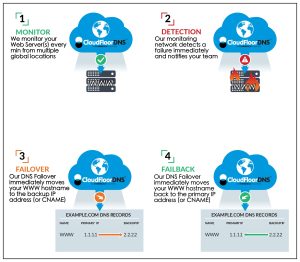
DNS Failover service will monitor and failover DNS when your Web Server goes offline

Failover services require a fast, reliable DNS with a very low TTL (typically 30 seconds) or DNS cache time. A low TTL allows recursive DNS servers around the globe to ensure a fresh lookup on the DNS record every 30 seconds.

When monitoring endpoints detect a “down” host and if more than two are down, the ruleset for that failover test is activated. In this HTTP web server example, DNS record for www.example.com is moved to the backup IP set in the rules.

How DNS Failover is setup – step by step:

  1. Determine what needs to be monitored – ie. What pain point is being solved? ISP down, or a server going down? This determines what to monitor and what protocol to use. In all cases, Monitor at the most granular level – for a WWW server, use HTTP/S as the monitoring protocol
  2. What DNS records do you want to failover? Moving a Web server? Failover the www subdomain and possibly the root domain, depending on your DNS setup
  3. Move DNS to CloudFloorDNS Anycast DNS platform – Anycast DNS network is fast, reliable and provides a low TTL option for DNS failover. A low TTL allows DNS records to be more nimble – other DNS servers will not to cache these records for more than 30 seconds
  4. Monitor the server, ISP or device from at least three or more locations globally.
  5. Set Notification up to send emails to your team on a failure – send SMS or email notifications
  6. Setup Failover rules to move DNS on failure – The failover ruleset edits the DNS hostnames and backup CNAME or IP. Failover just one hostname or multiple hostnames/backup IP’s
  7. Determine the failover method – Failover and failback when the primary comes up, or Failover-StayOver where it will failover but manually failback

Can Failover help your online business add uptime?

Yes! Failover service is low cost at around $50/month and will immediately help protect against downtime from ISP outages, server failures, and power outages

ISP Failover – Failover for Two Internet Connections

ISP Failover changes the DNS for on-prem hosted servers and apps when the primary ISP goes down. Most businesses host some type of on-premise servers such as VPN, databases, remote desktop, etc. An ISP outage will take these on-prem servers offline and can cause massive disruption in day-to-day operations

Adding another ISP connection with an advanced firewall router will solve these issues, but these routers won’t move the authoritative DNS. Business routers/firewalls such as Sonicwall, Forinet, Juniper, Sophos, Barracuda, Checkpoint, Cisco will automatically failover the routing/hardware side of things, but DO NOT control or failover the authoritative DNS.

How does ISP failover work?

When the primary ISP goes down, the failover service detects, notifies and activates the failover ruleset to move selected subdomains to the backup ISP. The service can move one DNS record, or multiple records during an outage with no difference in price. Move VPN, WWW, FTP, OWA for example – all with one failover test!
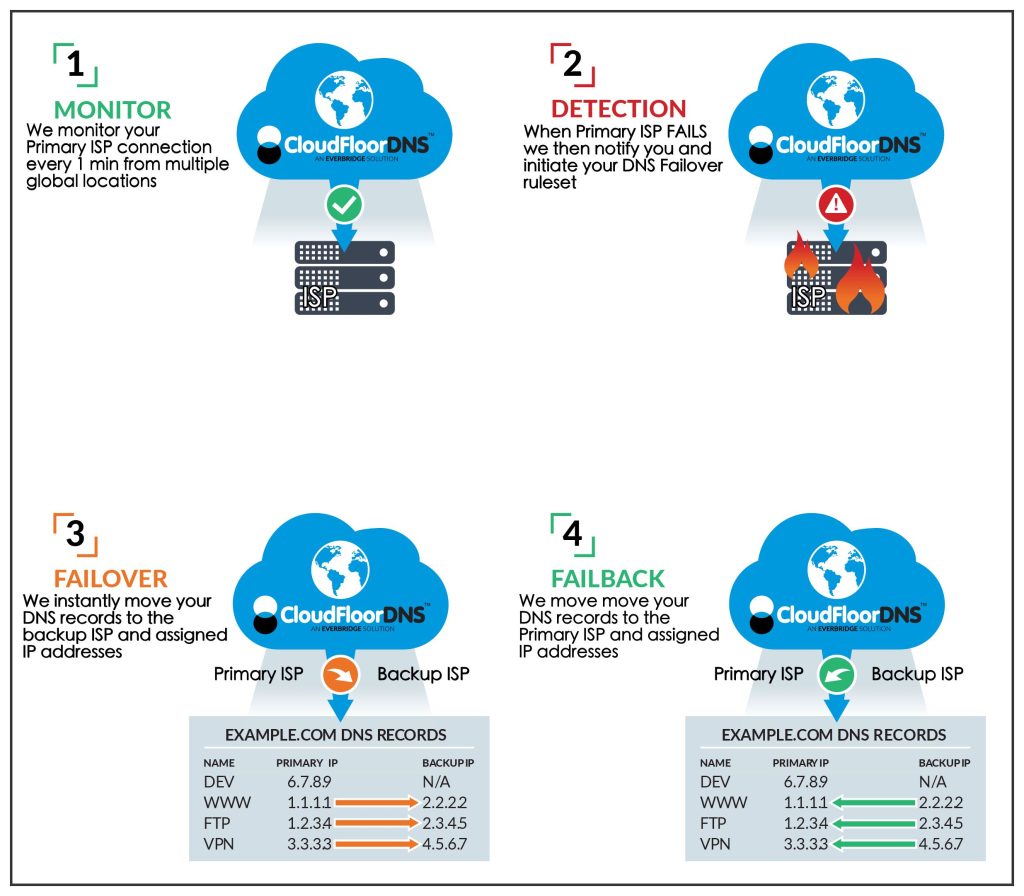
ISP Failover monitors your ISP and moves DNS to a backup ISP
ISP Failover can monitor your primary ISP connection and when it fails, it can move your DNS to the backup IP segment on your secondary ISP

Failover with GEO Load Balancing (GSLB Failover)

Almost all global organizations have multiple office locations with VPN’s for network access. For example: Example corp has US, EU & APAC offices with VPN concentrator’s. Corp IT provides employees a single domain VPN.EXAMPLE.COM for VPN connectivity. Using GSLB services will geo load balance & failover VPN when any one or more of the node’s go down. Utilizing GEO DNS, the DNS response will send any user to the closest VPN concentrator. Connecting to the closest endpoint immediately lowers latency, increasing speed for faster network connectivity. When one of the VPN nodes go down, failover will remove the node from the DNS load balancing group and add back in when it comes up again.

Monitoring & Failing over DNS adds server uptime – at a low cost

Adding failover services provides a simple, low cost reliable way to keep online apps & servers available. Failover can be an easily deployed, low cost choice when it comes to disaster recovery on a budget. Since deployment is done via authoritative DNS, it can be activated in a very short time when compared to a hardware solution. Learn more about our CloudFloorDNS Failover solutions or contact us to get a quote

Migrating your DNS from DYN

Migrating your DNS away from Dyn

Migrating your DNS away from Dyn? We can help!

Dyn has long been the darling of Managed DNS services since their inception almost 20 years ago. Oracle had purchased their booming Managed DNS business in 2016 and not too long after that announced the closure and migration path to Oracle Cloud Infrastructure.

As you can guess, many folks simply did not want to migrate their DNS to Oracle Cloud and this triggered a mass exodus that has been going on since 2018. Oracle pushed the closure date a few times but set a hard and fast shutdown date of May 31, 2023. As we approach that date many more domains are moving off the Dyn platform and there isn’t much time left to leave or move to Oracle.

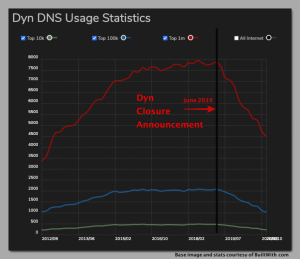
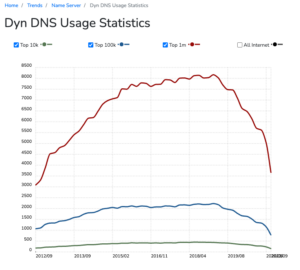
As you can see from the below graph on BuiltWith – this shows the exodus – some have moved to Oracle cloud, but many have selected other managed DNS providers such as CloudFloorDNS and others. Selecting your Managed DNS provider and where to migrate your DNS is probably one of the most important decisions you can make in regards to your digital business.

Dyn DNS Usage Statistics

It’s not every day that we move DNS around from one provider to another, so getting some expert assistance is of high importance. When it comes to DNS, an outage on your primary domain or any domain in production can be catastrophic. One dot out of place or fat fingering could cause a serious outage and expensive downtime, so best to let the experts check your work and assist you in ensuring everything is setup properly before you flip the final switch.

When migrating your DNS away from Dyn, here’s a list of things to do to make your DNS migration go as smoothly as possible:

  1. Contact our DNS experts and get a quoteOur pricing at CloudFloorDNS is based on a few metrics similar to that of Dyn and other managed DNS providers. In order to provide an accurate price, our DNS experts need to understand what you have in your account at Dyn and what you are “consuming” for DNS queries. Typically this includes but is not limited to:
    • What is the total number of DNS zones or domains at Dyn?
    • How many Queries Per Second you average over the past 3 months, 6 months?
    • Do you use any advanced services such as GEO DNS, DNS Failover, Traffic Manager?
    • Any extra support options such as a Gold support plan?

    This above data will help CloudFloorDNS provide a custom quote if an online package isn’t available that suits your needs

  2. Gather all your domains with DNS hosted at Dyn, review where they are registered. This is where you make the final change and you must have these login details for each registrar to switch DNS providers. Put this info aside as you’ll need it near the end of this DNS migration process
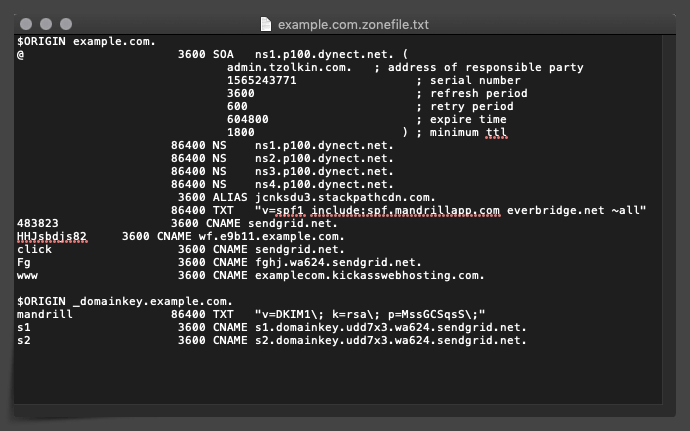
  3. Login to your Dynect portal and export all your DNS zone files to a BIND style zone (txt) file. Gather a list of your WebHop (web forwarding), any Alias Records you use (CNAME at Root) and if you have DNS failover, GEO DNS or other Dyn services, get screenshots and details about each. These details will help CloudFloorDNS migrate your DNS and replicate these services accurately during the setup staging process

    Dyn managed DNS
    An example of a Bind style zonefile exported from Dyn managed DNS
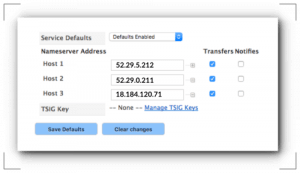
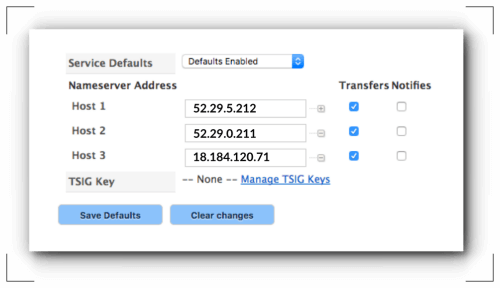
  4. Purchase a CloudFloorDNS service and at Dyn, add in the AXFR IP’s from CloudFloorDNS to allow secondary DNS import. Importing the zones from Dyn is the best way to go, it avoids human error and talks machine to machine allowing us to pull down all the the zones at Dyn and associated DNS records. This process takes all of about 5 minutes total to import zones into your CloudFloorDNS account

    Adding the CloudFloorDNS IP’s to help import DNS zones from Dynect
    Adding the CloudFloorDNS IP’s to help import DNS zones from Dynect
  5. Place a Freeze on any updates or changes at Dyn during the move. It’s important that you put a hold or at least keep track of any changes at Dyn after you start importing into the CloudFloorDNS platform. Once the AXFR connection is shut off (it’s only used to import) the changes won’t be replicated. If you do make any changes at Dyn once the moving/staging process is started at CloudFloorDNS, you can simply add the new records before you cutover DNS for good
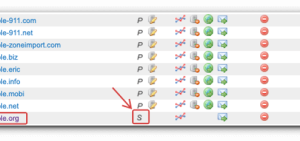
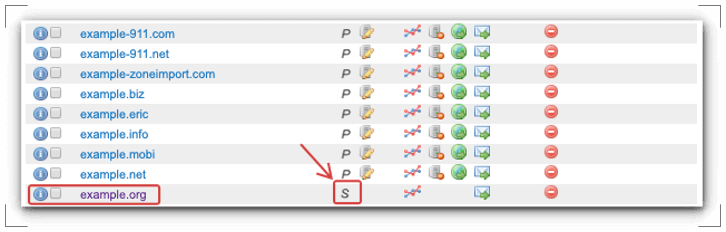
  6. Convert your DNS Zones to Primary at CloudFloorDNS. Now that your zones are imported, you immediately want to convert the zones from Secondary to Primary. In the domain list, you simply click on the “S” icon on each domain and click “convert to primary”. This does NOT impact your live DNS still at DYN, it merely imports and you can begin the staging process to get ready to move your DNS away from Dyn. Once all your domains are converted to primary, you will see a “P” icon in the list of domains instead of “S” for secondary

    Converting the domain to Primary after importing the zone file from Dynect using Secondary DNS AXFR
    Converting the domain to Primary after importing the zone file from Dynect using Secondary DNS AXFR
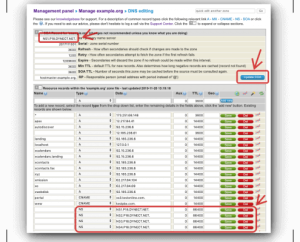
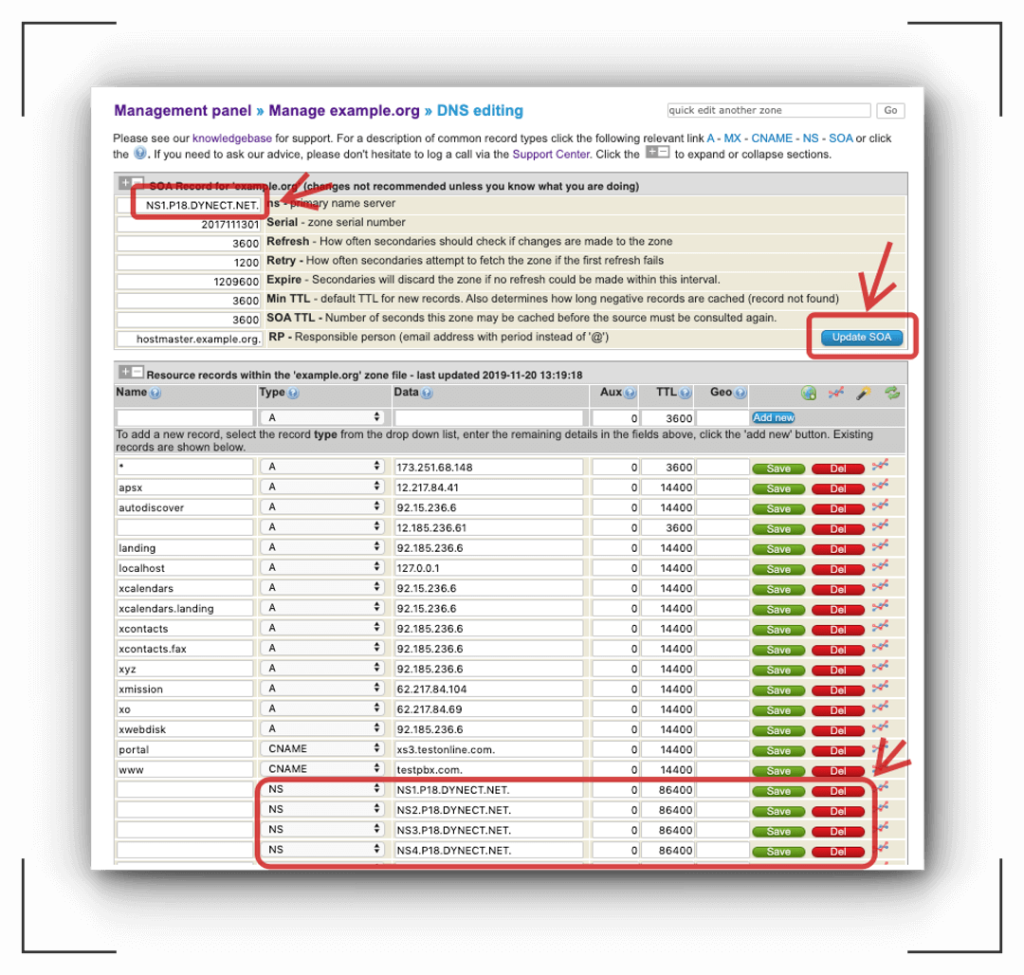
  7. Use the Bulk tools to find and replace all the Nameserver (NS) records and SOA from Dynect and replace them with CloudFloorDNS NS and SOA. The CloudFloorDNS platform has some handy DNS tools for making bulk changes quick and easy. Simply do a Find and Replace to swap out the NS records from Dynect to the assigned nameservers at CloudFloorDNS. Also swap out the SOA hostnames on each domain. You can find your assigned nameservers and SOA server under the My Account page dashboard when you login to the CloudFloorDNS control panel
  8. Convert your Webhop and ALIAS records – Dyn set’s their webhop records to a set of IP’s that are specific to Dyn. You need to replace these IP’s with a REDIRECT:// record type available on the CloudFloorDNS platform that replicates the Dyn Webhop. Do this for each zone that you have Webhop setup. Convert any ALIAS records you have to the CloudFloorDNS ALIAS type. Since all Managed DNS providers perform ALIAS records differently, the import will show 0.0.0.0 on the ALIAS records in your zones. Replace them with the ALIAS record type on our platform
  9. Review each zone visually, checking SOA, NS to ensure they are setup and ready on the CFDNS nameservers. Review all other records visually and also check them with dig directly at the old and new nameservers to ensure 100% accuracy. Once you have the base DNS setup and ready, you can then setup any DNS Failover, GEO DNS and other advanced services. Ask CloudFloorDNS to also review your setup to ensure 100% compatibility and accuracy before you make the move. This gives you an extra set of eyes on the zones and account setup to ensure a smooth cutover

    Reviewing the SOA and the Nameservers when moving DNS from Dyn to CloudFloorDNS
    Reviewing the SOA and the Nameservers when moving DNS from Dyn to CloudFloorDNS
  10. Change DNS from Dynect to CFDNS nameservers at your registrar. For each zone you are moving to CloudFloorDNS, go to the registrar where the domain is registered and change the DNS from DYNECT nameservers to CloudFloorDNS nameservers. That’s it for the hard part, once you make the DNS changes CloudFloorDNS will start picking up DNS queries and resolving as cache expires from Dyn. You’ll have zero downtime and within a day or so all DNS queries will no longer be hitting Dyn and you should be 100% cutover
  11. Test and Check your changes using external DNS testing tools – External DNS testing tools can give you great visibility on DNS propagation around the world. These tools help you see the actual DNS changes to ensure your new DNS provider is now serving your DNS. We suggest tools like WhatsMyDNS.netDNSChecker.Org and DNSPerf.com for their DNS propagation and testing tools.Leave your Dyn account open for at least a week or two to ensure you have everything migrated properly. If you take these steps and plan ahead, making a DNS move away from Dyn to CloudFloorDNS will be a breeze.

What is DNS Failover?

DNS Failover is a cloud-based service that leverages remote monitoring coupled with Anycast DNS services. It’s designed to add uptime and prevent outages by failing over a hostname to a backup IP or CNAME.

Failover is powered by two separate services: Server or application monitoring and a DNS platform. The DNS must have a low TTL that can handle automatic DNS Failover based on the intelligent monitoring decisions.

Failover is accomplished by multiple monitoring points using different networks in various geographical locations. The monitoring must have intelligent decision-making to prevent false positives or failover could happen when it isn’t needed.

Failover is initiated when the monitoring “brain” determines that more than one of the monitoring agents can’t reach the IP or hostname being monitored. This kicks off the failover rules and DNS will automatically change the CNAME or IP address to the backup address.

The DNS service within DNS failover should be a fast & reliable that offers a very low TTL (also known as DNS cache time). The TTL should be set at half of the time of the test interval. For example, if we are testing a web server every 1 minute, the DNS for the www.example.com record should be set to a 30-second TTL. This allows recursive servers around the globe to ensure a fresh lookup on the www record every 30 seconds.

When the monitoring endpoints detect a “down” host, our Netmon monitoring platform collects all location reports and if more than 3 are down we action the ruleset for that failover test. In this HTTP web server example, we will move the DNS record for www.example.com to the backup IP Address set in the rules.

How DNS Failover works – step by step

  1. Setup your DNS on a provider that offers DNS Failover – Move DNS to CloudFloorDNS Anycast DNS platform that offers a low TTL option for DNS failover. If you stay at a provider such as GoDaddy, or another basic DNS provider, you would only be able to use CNAME Failover options and CNAME your DNS to CloudFloorDNS
  2. Determine what needs to be monitored – ie. What pain point do you want to solve? Is the issue with your ISP going down, or a server going down? This determines what you want to monitor and what protocol to use
  3. Determine what service you want to failover – If it’s a Web server, you would want to failover the www subdomain and possible the root domain and what IP address or CNAME is for the backup
  4. Begin Monitoring target – Start monitoring from 3 or more locations globally and ensure all monitors are actively monitoring and determine the target is UP
  5. Setup Notifications – Set Notification up to send emails to your team. Setup DNS Failover rules when the monitor fails. This ruleset tells the DNS what hostname and what backup CNAME / IP to move to on failure. You can select just one hostname or multiple hostnames/backup IP’s
  6. Failover or Fail-Back? Determine if your failover should Failover and Fail-back when the primary comes up, or Failover-StayOver where it will failover but you will have to manually fail-back
  7. Set it and forget it – DNS Failover will notify you when your target fails and will instantly failover your selected hosts to backup IP/CNAME. If you have Fail-Back set – it’ll notify you and failback to the primary IP/CNAME
Figure 1 – How DNS Failover works in conjunction with Server Monitoring

Can DNS Failover help your online business?

Most likely it can! Below are few use case scenarios to help you determine if DNS failover can help your servers & applications run faster, stay up and provide more uptime for your online business. If you are still running your online business on a DNS without any uptime SLA, it’s highly suggested you move immediately to a reputable DNS provider that offers a 100% uptime SLA

ISP Failover for Two Internet Connections

In the example of ISP Failover, you can apply the same monitoring platform, but you should set ICMP/PING as the protocol and ping the gateway of the primary ISP every 1 minute. When the primary ISP goes down, CloudFloorDNS will activate the failover ruleset and instantly move all your selected subdomains for your on-premise servers & apps to the backup ISP. There is no difference in price if you move one subdomain or multiple. You can move VPN, WWW, FTP, OWA for example – all with one failover test, or just WWW

GSLB Failover with GEO Load Balancing

Many global organizations with multiple locations have many different VPN nodes for their employees to get on network. For example, there could be three in the US, one in the UK, and two more in EU and APAC respectively. To make it easy, the company provides a single domain VPN.EXAMPLE.COM to their employees – CloudFloorDNS can geographically load balance and failover the 3 locations should one go down or become unavailable. Using GEO DNS, CloudFloorDNS can detect end-user location, and provide the DNS answer to the closest VPN in their region. Offering this type of service provides greater uptime, drastically lowers latency and will make their connection faster. When they travel, it’ll send them to the nearest VPN geographically. If one or multiple VPN nodes go down, DNS failover can remove the failed node(s) from the VPN load balancing group and add them back in when they come back up

VOIP Failover for VOIP

VOIP Failover can do all the above, although it’s specifically designed to monitor the SIP OPTIONS protocol. It adds a high availability option for disaster recovery by having a second backup VOIP server in another geographic location. The servers can be load balanced or the primary can be monitored and upon failure, move the SIP.Example.com hostname to the backup SIP server

About the CloudFloorDNS Netmon Monitoring Platform

The CloudFloorDNS Netmon Monitoring platform has 7 global locations with over 20 methods to select when setting up your failover test. If you are monitoring a web server, you would select http/https protocol. When monitoring an ISP connection, you would use ICMP/PING protocol. Other methods include TCP/UDP, SIP, FTP, SSH and others

DNS Failover is an easy way to add more uptime to any of your online services, and best of all it’s low cost coming around $50 per month and that includes Anycast DNS.

Learn more about our CloudFloorDNS DNS Failover solutions or contact us to get a quote
DNS Outages at Register.com and Network Solutions

Massive DNS issues wreak havoc with Register.com and Network Solutions customers

Yesterday was a tough day for many customers with Register.com and Network Solutions. We received many calls, emails and pleas for help as their customers were offline, seemingly due to a massive DNS issue from our investigations. Both register.com and network solutions are owned by newly created Newfold Digital. Newfold Digital is a new name but has many recognizable brands in the “fold” – namely Register.com, Web.com, Network Solutions.com, Endurance International (hostgator, bluehost, domain.com)

Our techs and sales team fielded many inquiries on moving DNS, how to move DNS away from Register.com and Network Solutions and get them back online. We helped as many register.com and netsol customers move/migrate their DNS to our Anycast DNS platform, but many were left out in the cold and were confused on what the issue actually was. This was due to the vague message repeated over and over by both Network Solutions and Register.com on their Twitter accounts. It was pretty clear their DNS was not responding properly but that wasn’t made clear so many customers were simply in the dark as to the issue and waited it out

The big issue is keeping DNS for any business domain at your registrar (where you ordered and renew your domain name registration). Why is this so bad you ask?

Well, this is a fairly simple reason but there are many finer points that I’ll touch on below, but the main reason is this – they are Domain name providers first and foremost – they sell domains and their DNS comes with the domain name. Most domain providers offer a very basic DNS, no real DNS features are available and most definitely DNS support will be lacking at best. They aren’t a DNS provider selling domains, so this means lesser investment in DNS vs. a true Managed DNS provider such as ourselves – CloudFloorDNS. CloudFloorDNS provides DNS as our primary service, offering a Service Level Agreement that says we will be up and operating at a certain performance level. We know how important DNS is to your domain, it’s literally the foundation of anything online you do with your domain, so downtime and no SLA offered is absolutely unacceptable. DOWNTIME IS A BUSINESS ISSUE! Anything other than 100% uptime SLA is simply unacceptable in today’s DNS market, and anything with NO SLA, you should run and run fast.

Here are just some of the advantages to moving to a true Managed DNS provider such as CloudFloorDNS:

  1. You’ll get a focus on your DNS and much increased DNS speed, performance
    Faster DNS means faster website, faster VPN, faster everything.
  2. You get Anycast DNS Reliability, backed by a 100% Uptime SLA
    Anycast DNS technology coupled with a large global network means reliability for you
  3. Access to lower TLL settings, Faster updates in DNS
    TTL or DNS cache settings are key for DNS changes. Lower TTL is better for records that need to be changed often
  4. Expert DNS Support – Folks that understand and know DNS
    Have a question or problem? Our DNS experts are here to help on Phone or email
  5. Exporting and Importing DNS Zones for backup and easier migration
    Easily import or export any DNS zonefile for moving or on-boarding, or for backup
  6. Ability to Import DNS via txt or zone transfers
    AXFR import means an easy move from one provider to CloudFloorDNS
  7. Access to Secondary DNS features for a backup DNS
    Secondary DNS helps spread the risk to another secondary or tertiary provider
  8. Access to DNS Load Balancing
    Want to add another server to balance the load? Turn on Round-Robin Load Balancing for free
  9. Access to a DNS & DOMAIN API
    Use the API to easily integrate DNS and Domain functions into your platform or service
  10. Access to DNS Failover, ISP and Datacenter Failover
    Easily upgrade your account to add Server Monitoring and DNS Failover
  11. Access to GEO DNS, Traffic Director options
    Easily upgrade your account to add GEO DNS Traffic Management
  12. Access to Enterprise level 24/7/365 phone and email support with dedicated engineer
    Our Premium Support offerings give you the best possible support for your operations
  13. Access to DNS Professional Services – get consulting help from our DNS infrastructure engineers
    Need help with your infrastructure and DNS beyond the scope of our support? We can help!
  14. Stats on all aspects of DNS such as Popular hosts, record type, geographic distribution and more
    Get insight on your DNS zones and how they are being queried with our detailed stats
  15. DNS change notifications – any DNS updates are logged and you get notified
    Help prevent unauthorized changes by getting an email notification anytime your DNS is changed
  16. and many more benefits….

DNS is a critical technology that plays a huge part in your online business being up and available to your customers and prospective customers. Don’t take your DNS for granted and leave it at your registrar, investigate your options, look at Managed DNS providers and make room for this in your budget. Our starter Anycast DNS plan for a single domain comes in at only $8 a month, and at only $50 a month you can get our Bronze Anycast DNS plan (includes Failover). Either of these options are a very small price to pay for the uptime insurance that they provide.

Interested? Learn more about our DNS Failover and BRONZE Anycast DNS plan to easily get started with a more robust, business-focused DNS for your online endeavors

ISP Failover – Your On-Prem Uptime Insurance Policy

ISP Failover

For most small to medium businesses, there are almost always some on-prem (on premise, or in-building) services hosted at “HQ” or at some satellite offices. Many of these services are commonly used for remote employees or external customers and both need to be up and running to run the business. In many cases these on-prem hosted services are VPN, OWA (Outlook Web Access), WWW, FTP, ADFS, Databases, sales tools etc.

The biggest issue with hosting these above on-prem services using a single ISP is downtime. Downtime is expensive – and just a single VPN outage can knock your remote employees offline and put a stop to your business. Hosting your Website on-prem too? Well, you are now losing sales and both your remote employees and customers are all calling your helpdesk and in-house IT to figure out what’s going on. It’s a downward spiral from here and can cost much more than money. Don’t forget about the intangible effects from angry customers, damage to your brand and reputation and so much more. So yeah, we can say that downtime is expensive in more ways than one!

Using only a single ISP to host your on-prem services is like playing the lottery – it may never go down for an extended period, or Murphy’s law would have a car hit a telephone pole up the street and snap it in half. This causes your ISP to be knocked out for 12+ hours during the business season of the year. An ice storm can knock out power for even longer, 10 days or more is possible, just ask New Englanders or more recently, some Texans.

As you can see from the above scenario’s, downtime is the main reason many small to medium businesses add a second ISP into the building. Having dual ISP’s and the appropriate dual WAN hardware (Sonicwall, Cisco, Fortinet and others) will automatically fail over ISP1 to ISP2 in the event of a failure on the primary ISP connection.

Oh No Mr Roboto

One big problem with this scenario is your DNS for these domains and services do not failover – only your hardware switches over automatically. Unless you have DNS Failover, your DNS stays at the old IP address until your DNS administrator or IT guy makes the changes. If this happens in the middle of the night or on a weekend, or worse vacation time with the family, it could take quite a while to get this changed over.

The second big issue with this is the DNS provider that’s hosting the domain these services are attached to. Most registrar or “vanilla DNS” providers do not offer low cache times or what’s known as TTL or Time to Live. Every DNS record has this setting, and if you have an IP address that never goes down and never needs to move, this can be set high, even 14400 or higher.

The need to be fast & nimble

Let’s say your provider doesn’t let you set a TTL below 30 minutes or 1800 seconds. Now now matter how fast you make the update, it could take someone 30 more minutes to get the new IP address since DNS servers “cache” or remember these records from the previous IP.

Managed DNS providers like CloudFloorDNS and others offer a very low TTL setting, typically 30 seconds. By setting your VPN.Example.com record to 30 seconds, this means that a DNS server won’t cache this for longer than 30 seconds before it comes back to us to request the IP address again. So combining this low TTL with Monitoring from multiple locations (Our Netmon Monitoring platform) and DNS Failover and you have the missing piece of the puzzle to flip over your hostnames for you automatically! When your Primary ISP comes back up, you can even have the DNS Failover move everything back and notify you.

Our ISP Failover service allows you to monitor an IP or hostname and we would PING your gateway of your Primary ISP every 1 minute from several locations, a minimum of 3 geographically distributed locations on different networks to send these PINGS. Each monitor location reports back to the master and when 2 or more go down, we’ll initiate the failover rules that YOU set. Each failover “test” can attach itself to 1 DNS zone, so let’s say Example.com is hosted on our DNS and you want to enable Failover for that domain

You host VPN, WWW, and OWA on-prem on example.com and need to failover to the backup ISP IP range when ISP1 goes down. You setup the failover test and it provides access to the zonefile to select what hostnames you want to move on this failover exactly like the example below. There is no additional cost as long as the CNAME or A-Record lives within example.com that the test “attaches” to.

VPN.example.com primary is 1.1.1.1 and upon failure move to 2.2.2.1
WWW.example.com primary is 1.1.1.2 and failover to the IP of 2.2.2.2
OWA.example.com primary is 1.1.1.3 and failover to the IP of 2.2.2.3

See how easy it is? It’s a combination of the right DNS provider, monitoring and DNS failover technology that can help your on-prem services stay up and active for your employees and customers. At only $50 a month for our Bronze Anycast DNS plan (includes Failover) it’s a very small price to pay for the uptime insurance that it provides!

Interested? Learn more about our DNS Failover and BRONZE Anycast DNS plan that comes with DNS Failover / ISP Failover

Moving DNS away from Dyn

Dyn was once the king of Managed DNS – a pioneer in the industry, it carved out it’s place with a start in Dynamic DNS much like I did during my time creating TZO.com back in the late 90’s. Sadly the time has come for Dyn to close it’s doors since Oracle announced the end-of-life in June 2019. Although the initial deadline of May 2020 has been pushed out to May 2022, it’s still a good idea to explore the idea of moving your DNS away from Dyn should you not want to move to Oracle Cloud.

Moving DNS from Dyn
Data from BuiltWith showing the mass exodus of domains from the Dyn platform

It seems that many customers have already left – just look at the image below courtesy of BuiltWith.com. This image shows the mass exodus of domains being moved after the Dyn closure announcement – my guess is that many Dyn customers were not excited to make the move to a large software behemoth like Oracle. Maybe the feeling that they will get lost in the crowd? It’s tough to say, but as we approach the Dyn DNS final EOL (End of Life) date we can expect to see many more clients jumping ship.

Why move DNS away from Dyn sooner than later?

Moving DNS from one provider to another isn’t something we do everyday and can seem like a daunting task. One mistake in the migration can wreak havoc on your DNS, causing downtime, panic and even loss of jobs. That’s why we assign a DNS engineer to every new customer coming from Dyn, and we work closely with them to ensure that their DNS is imported and tested thoroughly before any final DNS move is executed. This import and staging isn’t something you get with every managed DNS company, and moving your DNS without a second set of professional DNS eyes could be catastrophic.

Preparing to move your DNS away from Dyn

1-Contact our DNS experts and get a quote. Our pricing at CloudFloorDNS is based on a few metrics similar to that of Dyn and other managed DNS providers. In order to provide an accurate price, our DNS experts need to understand what you have in your account at Dyn and what you are “consuming” for DNS queries. Typically this includes but is not limited to:

  • What is the total number of DNS zones or domains at Dyn?
  • How many Queries Per Second you average over the past 3 months?
  • Do you use any advanced services such as GEO DNS, DNS Failover, Traffic Manager?
  • Any extra support options such as a Gold support plan?

This above data will help CloudFloorDNS provide a custom quote if an online package isn’t available that suits your needs

2-Gather all your domains with DNS hosted at Dyn, review where they are registered. This is where you make the final change and you must have these login details for each registrar to switch DNS providers. Put this info aside as you’ll need it near the end of this DNS migration process

3-Login to your Dynect portal and export all your DNS zone files to a BIND style zone (txt) file. Gather a list of your WebHop (web forwarding), any Alias Records you use (CNAME at Root) and if you have DNS failover, GEO DNS or other Dyn services, get screenshots and details about each. These details will help CloudFloorDNS migrate your DNS and replicate these services accurately during the setup staging process

Bind style zonefile from Dyn
An example of a Bind style zonefile exported from Dyn managed DNS

4-Purchase a CloudFloorDNS service and at Dyn, add in the AXFR IP’s from CloudFloorDNS to allow secondary DNS import. Importing the zones from Dyn is the best way to go, it avoids human error and talks machine to machine allowing us to pull down all the the zones at Dyn and associated DNS records. This process takes all of about 5 minutes total to import zones into your CloudFloorDNS account

Adding in CFDNS IP's to allow for AXFR from Dyn
Adding the CloudFloorDNS IP’s to help import DNS zones from Dynect

5-Place a Freeze on any updates or changes at Dyn during the move. It’s important that you put a hold or at least keep track of any changes at Dyn after you start importing into the CloudFloorDNS platform. Once the AXFR connection is shut off (it’s only used to import) the changes won’t be replicated. If you do make any changes at Dyn once the moving/staging process is started at CloudFloorDNS, you can simply add the new records before you cutover DNS for good

6-Convert your DNS Zones to Primary at CloudFloorDNS. Now that your zones are imported, you immediately want to convert the zones from Secondary to Primary. In the domain list, you simply click on the “S” icon on each domain and click “convert to primary”. This does NOT impact your live DNS still at DYN, it merely imports and you can begin the staging process to get ready to move your DNS away from Dyn. Once all your domains are converted to primary, you will see a “P” icon in the list of domains instead of “S” for secondary

Migrating DNS from Dyn
Converting the domain to Primary after importing the zone file from Dynect using Secondary DNS AXFR

7-Use the Bulk tools to find and replace all the Nameserver (NS) records and SOA from Dynect and replace them with CloudFloorDNS NS and SOA. The CloudFloorDNS platform has some handy DNS tools for making bulk changes quick and easy. Simply do a Find and Replace to swap out the NS records from Dynect to the assigned nameservers at CloudFloorDNS. Also swap out the SOA hostnames on each domain. You can find your assigned nameservers and SOA server under the My Account page dashboard when you login to the CloudFloorDNS control panel

8-Convert your Webhop and ALIAS records – Dyn set’s their webhop records to a set of IP’s that are specific to Dyn. You need to replace these IP’s with a REDIRECT:// record type available on the CloudFloorDNS platform that replicates the Dyn Webhop. Do this for each zone that you have Webhop setup. Convert any ALIAS records you have to the CloudFloorDNS ALIAS type. Since all Managed DNS providers perform ALIAS records differently, the import will show 0.0.0.0 on the ALIAS records in your zones. Replace them with the ALIAS record type on our platform

9-Review each zone visually, checking SOA, NS to ensure they are setup and ready on the CFDNS nameservers.
Review all other records visually and also check them with dig directly at the old and new nameservers to ensure 100% accuracy. Once you have the base DNS setup and ready, you can then setup any DNS Failover, GEO DNS and other advanced services. Ask CloudFloorDNS to also review your setup to ensure 100% compatibility and accuracy before you make the move. This gives you an extra set of eyes on the zones and account setup to ensure a smooth cutover

Importing DNS zones from Dyn
Reviewing the SOA and the Nameservers when moving DNS from Dyn to CloudFloorDNS

10-Change DNS from Dynect to CFDNS nameservers at your registrar. For each zone you are moving to CloudFloorDNS, go to the registrar where the domain is registered and change the DNS from DYNECT nameservers to CloudFloorDNS nameservers. That’s it for the hard part, once you make the DNS changes CloudFloorDNS will start picking up DNS queries and resolving as cache expires from Dyn. You’ll have zero downtime and within a day or so all DNS queries will no longer be hitting Dyn and you should be 100% cutover.

Test and Check your changes using external DNS testing tools – External DNS testing tools can give you great visibility on DNS propagation around the world. These tools help you see the actual DNS changes to ensure your new DNS provider is now serving your DNS. We suggest tools like WhatsMyDNS.netDNSChecker.Org and DNSPerf.com for their DNS propagation and testing tools.

Leave your Dyn account open for at least a week or two to ensure you have everything migrated properly. If you take these steps and plan ahead, making a DNS move away from Dyn to CloudFloorDNS will be a breeze.

Moving your DNS to a new provider

Are you planning on moving your DNS to a new provider? Changing your DNS to a new company can seem scary but have no fear! Skip down to our steps on preparing to move DNS and actually making the move to a new DNS provider and this should help you understand what’s entailed.

It’s been just about 25 years since my career in IT turned into a career as a DNS provider. From the early days at TZO, a stint at Dyn and now CloudFloorDNS, there is one thing that stands out and that’s overall awareness. What I’m talking about is overall DNS Awareness – essentially understanding what DNS is, how DNS works, why DNS is important, and why it’s a critical Internet technology that you need to focus on if you care about the success of your online business.

Keep in mind we are talking about Authoritative DNS – where you would host a domain you own like Example.com and want to host a website, email server, Unified Communications, VOIP server, VPN, etc

Recursive DNS (OpenDNS, Google Public DNS) is another beast and Managed DNS providers focus on Authoritative DNS and that’s what we’ll be focusing on

It seemed that for many years, DNS as a whole has always been a mystery service that’s behind the scenes and very few knew what it was or really how it worked. Now that all seems to be changing and there is much more emphasis on the awareness of this critical technology that is literally the foundation to your online house/business. If DNS goes down, your online business goes down, plain and simple.

As more brick-and-mortar businesses move online they come to realize that any downtime is a serious business issue. As their online business grows, they become serious about uptime and DNS is a large portion of this stability. Cloud-based DNS can be deployed faster and at a fraction of the price of hardware, thus more interest in leveraging the cloud. This means more awareness and interest in DNS functionality such as low TTL and advanced services such as GEO DNS (geolocation of customers using DNS), Load Balancing and DNS Failover

Why move your Authoritative DNS?

When it comes to DNS providers, there are really two main types – Registrar / Web Hosting providers and Managed DNS / Enterprise DNS providers. Registrar or hosting providers typically only offer DNS because they have to – it supports their business model but typically doesn’t have the speed, reliability and features that Managed DNS providers offer. There’s a huge difference between the two, mainly in speed, reliability, functionality and support and most importantly, a SLA (service level agreement) for uptime. To break it down, here are just a few of the big benefits to moving to a managed DNS platform such as CloudFloorDNS and others:

SPEED – These days speed is of utmost importance and can help speed up your websites, apps and can also help you rank better in SEO. Let’s face it, these days everyone is impatient and fast DNS can get them to your website & apps faster, customers can checkout/order faster which increases customer satisfaction and sales benefit from all of these factors. Try DNSPerf.com for a list of Managed DNS providers and their global DNS speed

RELIABILITY – Probably the most critical aspect to DNS is being up and available. Managed DNS providers typically have large, globally distributed Anycast DNS platforms and DDoS mitigation in place and FOCUS on DNS as a whole, not on domain sales with DNS as an afterthought. Try DNSPerf.com for a list of Managed DNS providers and their global uptime

FEATURES – Managed DNS providers have a core focus on DNS and thus have many more features that businesses can leverage. Basic DNS features such as DNS Stats, API, low TTL, Bulk DNS updates, Secondary DNS, DNS Backups can make managing DNS faster and easier across many domains. Advanced Features such as GEO DNS can direct users to their closest and typically fastest server. DNS Failover can monitor a service, website or app and flip the DNS to a backup site/location if it fails and then move it back when it comes up. All of these types of features you will not find at GoDaddy, Reg123, Network Solutions and other basic DNS or “vanilla” DNS providers

SLA & SUPPORT – Having a Service Level Agreement (SLA) in place and the availability to get support via phone and email 24/7/365 is yet another plus. Businesses need to be available at all hours and downtime is unacceptable and there should be an insurance policy that provides thresholds for performance and availability

Prepping your DNS for a move to the new Managed DNS provider

Very Important: If you use a Web, CMS or other hosting provider for your DNS please check with them first before doing anything as they may not allow external DNS hosting! If this is the case, your website or app may stop working if you move your DNS away. If so, look for another host that allows external DNS hosting

1 – Contact your prospective new DNS provider and tell them what you want to move over, and most importantly what you want to do (your DNS wish list let’s say) Most Managed DNS providers will ask how many domains you have, and what types of services you may want to add such as GEO DNS, DNS Failover, Web Forwarding and other special offerings they may have. This will help them provide a custom price if a package isn’t immediately available that suits your needs

2 – Gather all your domains, review where they are registered since you’ll need logins for each. This is where you make the final change and you must have these details to switch DNS providers

3 – Login to your current DNS provider and gather all your DNS zone files – Export each zone file to a BIND style text file if you can, this should be able to be imported into your new provider. If you can’t export from your current DNS provider, copy and paste all the records into a txt file or at a minimum, take screenshots of everything and transpose those into a txt file

4 – Ask your current and new DNS provider about AXFR zone transfers. Zone transfers make it easier to export and import DNS and reduces human error when moving DNS

5 – Review any special services or DNS records you may be using or will be using in the future. This is important when selecting a new provider to ensure they are compatible. Are you using DNSSEC? Are you using CAA records? DKIM records? How many queries per month is your DNS using? How many DNS records do you have in each zone? Are you using ALIAS records or HTTP/Web Redirect at your current provider? What about any monitoring or failover? Do you have any special support contracts or custom services that will stop working when you move?

All of the above items are critical in preparing for your DNS move and will ultimately make the switch go much easier.

Making the move to a new provider – How to Move your DNS

Moving your DNS can seem like a daunting task to someone that doesn’t know it inside and out, but it’s actually not that difficult if you take logical steps and prepare properly. You must take proper care when moving since it literally controls your whole online business – one mistake can be catastrophic – so it’s imperative that you chose a provider that can host your DNS and assist or at least review your DNS before the migration is finalized

1 – Setup the account with the new host and import your DNS zones using AXFR or import them using the new provider import tool. If you must, create them manually

2 – Institute an immediate freeze of DNS changes, or keep track of all changes made after import so you can add them to the new provider before you go live. This is critical to have a process here or you could end up with your DNS records out of sync

3 – Change SOA and NS records from old DNS provider to new DNS provider according to the new provider’s instructions and nameserver assignment. If you are migrating many domains you can see if they have bulk DNS editing tools available. This means you can then do a Find and Replace across many zones making your DNS migration much easier

4 – Review each DNS zone manually – checking SOA, NS, reviewing each zone visually, paying attention to records such as HTTP or Web Redirects, ALIAS records, CAA, TXT records and CNAMES. Depending on the records, the new provider may do things differently, this is where migration assistance comes in handy since this ensures the new provider

5 – Perform comparison tests – these can be done where you review each record in each zone using DNS tools such as dig or nslookup. Ask your new provider if they have tools such as this or if they can run them against your DNS before you change over completely to ensure all records match in the new DNS provider’s system

6 – Schedule the migration with your new DNS provider – let them know you’ll be switching over to give them the heads up. Some DNS providers such as CloudFloorDNS can assign an engineer to review your DNS before you make the switch and be available for immediate support should any questions or problems arise during the switch

7 – Make the DNS changes at the registrar for each domain you are moving. If you have Example.com at GoDaddy and pay GoDaddy for domain renewals, you need to make the DNS changes there. Typically, the registrar where you make the final DNS change is at your registrar or whoever you pay every year to renew the domain. Your new provider will have assigned you a set of DNS servers that you used in step 2 above, you should have those handy to copy into the clipboard and then simply add in the new name servers and remove the old ones. DNS changes typically will update fairly quickly depending on how fast the registrar updates their database. In most cases, in just a few minutes you should see the changes taking place using some DNS testing tools

7 – Check your changes using external DNS testing tools – External DNS testing tools can give you great visibility on DNS propagation around the world. These tools help you see the actual DNS changes to ensure your new DNS provider is now serving your DNS. We suggest tools like WhatsMyDNS.netDNSChecker.Org and DNSPerf.com for their DNS propagation and testing tools.

That’s it in a nutshell – if you take these steps and plan ahead, making a DNS move to a new provider will be a breeze and you’ll have zero downtime and a whole new set of DNS expertise and features to help propel your online business toward future success.

Stay tuned for future posts about Moving your DNS to CloudFloorDNS from popular DNS providers such as GoDaddy, Dyn and others

Backup GoDaddy DNS with Secondary DNS

Backing up GoDaddy Premium DNS with Secondary DNS

Secondary DNS is a great way to avoid costly DNS outages and many organizations are moving toward a dual DNS infrastructure. GoDaddy has had their share of DNS outages in the past and no matter who your DNS provider is, it’s a good idea to setup a secondary DNS to help avoid outages

Setting up Secondary DNS is quick and takes less than 10 minutes. This article will highlight the basics on adding Secondary DNS and setting up the DNS to have both GoDaddy and CloudFloorDNS answering DNS requests.

Before you begin, you need a few things. You’ll need GoDaddy Premium services on each domain you want to backup DNS, and you’ll also need A CloudFloorDNS account and an Anycast DNS plan from CloudFloor

Enable Secondary DNS at GoDaddy

In order to enable Secondary DNS on a domain name at GoDaddy, you MUST be using the default GoDaddy name servers with your domain. If you are using EXTERNAL name servers (also known as custom name servers) you must RESET them back to GoDaddy name servers (Default option) for Secondary DNS to become an option on the selected domain name.

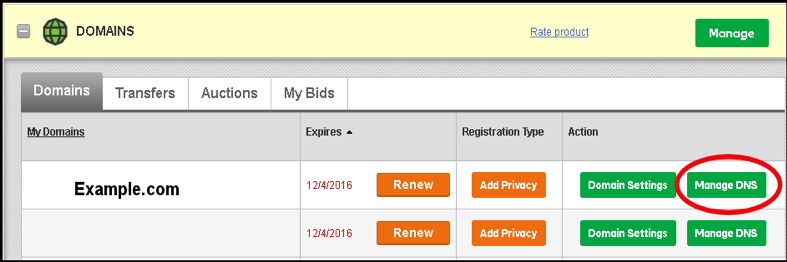
To enable Secondary DNS, Login to GoDaddy, and then on your product list next to Domains, click the Text Icon (Plus sign button) to expand the domain list

GoDaddy DNS

Click on the MANAGE DNS on the domain name you want to setup Secondary DNS on as shown below

GoDaddy Setup Secondary DNS

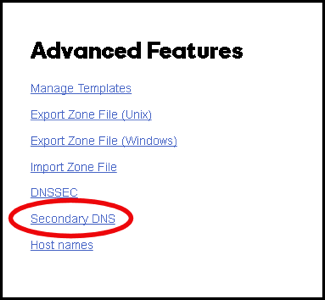
Scroll down and select Secondary DNS. If you don’t see this you may not have enabled Premium DNS enabled.

GoDaddy DNS Secondary DNS

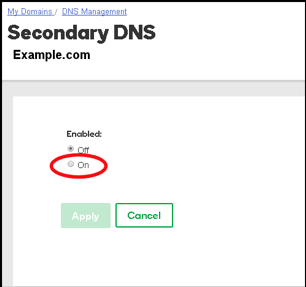
You’ll then see an option to turn on Secondary DNS. Click ON as shown below

Enable Secondary DNS at GoDaddy

Adding Secondary DNS at GoDaddy DNS

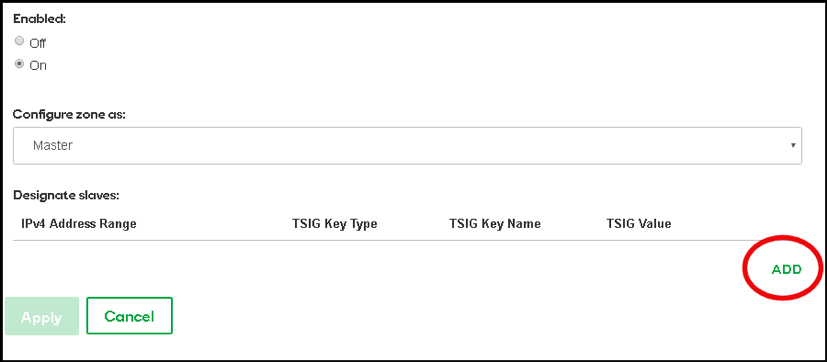
Once Secondary DNS is enabled, you’ll see the Master and Slave option. Select MASTER since we want GoDaddy as the master or primary DNS, and CloudfloorDNS will be the secondary or slave servers. You’ll then see the IP Address option and ADD in the bottom right. Click ADD and go to the next step

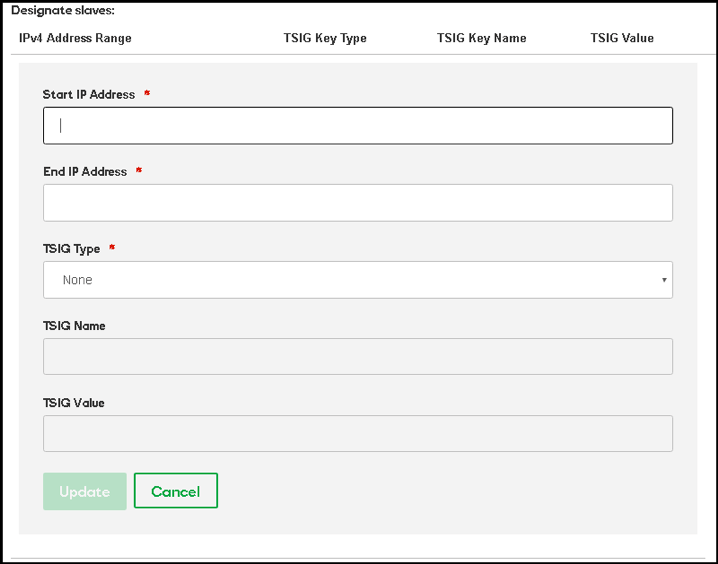
You’ll be presented with the screen below. We need to add in 2 IP Addresses here. This allows the CloudfloorDNS Secondary DNS servers to perform zone transfers from GoDaddy. You’ll then see the screen below. We want to enter in the IP’s of these four servers below. The Start and End IP address should be the same. Enter in each IP below, TSIG should be set to NONE and select UPDATE after each IP. The IP’s are: 52.29.5.212 , 109.73.72.164

Adding Secondary DNS IPs

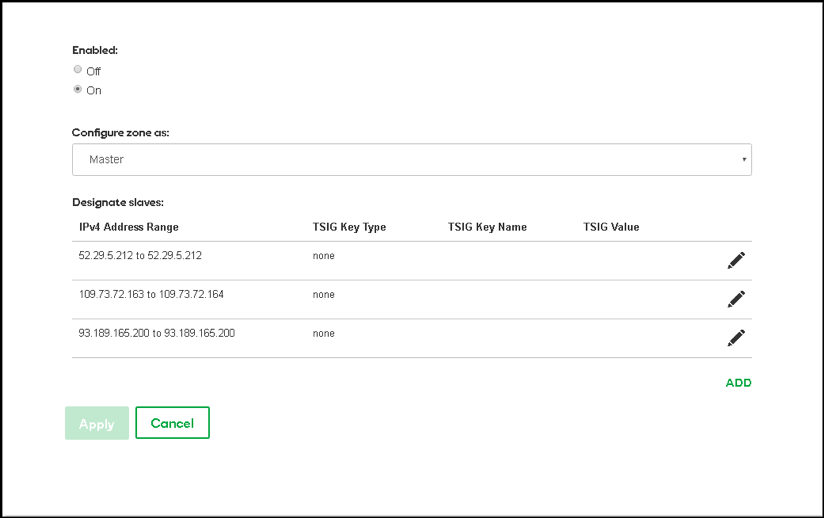
Once you’ve added in all the IP’s you’ll see them listed similar to the screenshot shown below

AXFR Ip's at GoDaddy DNS for Secondary DNS

That’s it on the GoDaddy side for now, we’ll come back to GoDaddy in the last few steps to add CloudfloorDNS to the delegation. Now we need to login to our CloudfloorDNS account at https://Panel.CloudfloorDNS.com

Add Secondary DNS on your CloudfloorDNS account

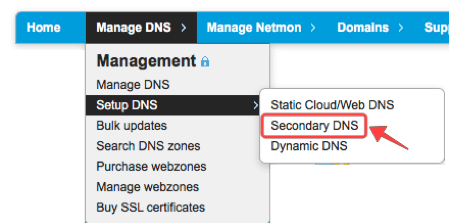
Login to CloudfloorDNS and select MANAGE DNS, SETUP DNS, SECONDARY DNS as shown in the screenshot below:

Setup Secondary DNS at CloudFloorDNS

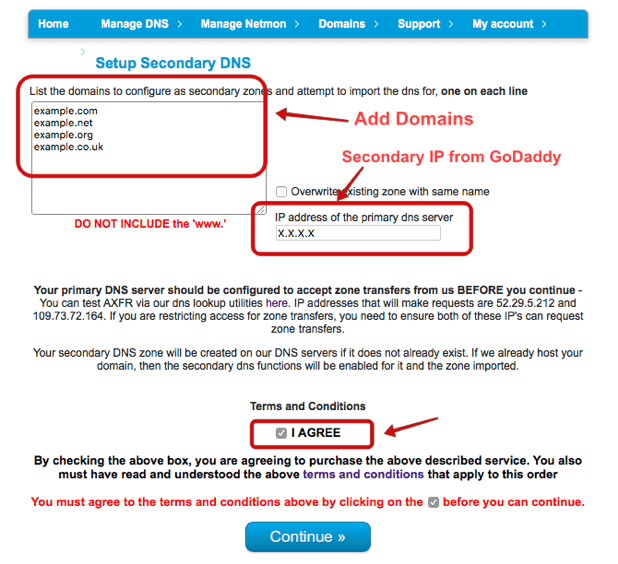
You now add your Domain name(s) that you’ll be using to setup Secondary DNS. Add them to the list as shown below. Enter domains one per line, or a single domain. You also need to enter the IP Address from GoDaddy where you’ll be pulling zone information from. GoDaddy has two servers for AXFR transfers, they are:
domaincontrol.com (72.167.238.111) & xfr04.domaincontrol.com (72.167.238.110)

To be sure you have the latest AXFR server IP’s from GoDaddy, see this article:
https://www.godaddy.com/help/enable-secondary-dns-with-godaddy-nameservers-as-masters-23910

Enter in either one of the IP’s where it asks for PRIMARY DNS SERVER as shown below. We used 72.167.238.111 and then clicked continue.

Adding Secondary DNS domains at CloudFloorDNS

You’ve now added the secondary zone and it’s ready to be replicated. Replication will take place immediately and every time you make a change at GoDaddy, it will send a NOTIFY and the Secondary DNS will be updated.

The last step in the process is to add CloudfloorDNS Anycast Name Servers into your public delegation for your domain. Login to GoDaddy, and then on your product list next to Domains, click the Text Icon (Plus sign button) to expand the domain list

GoDaddy DNS

Click on the MANAGE DNS on the domain name you setup for Secondary DNS earlier as shown below

GoDaddy Setup Secondary DNS

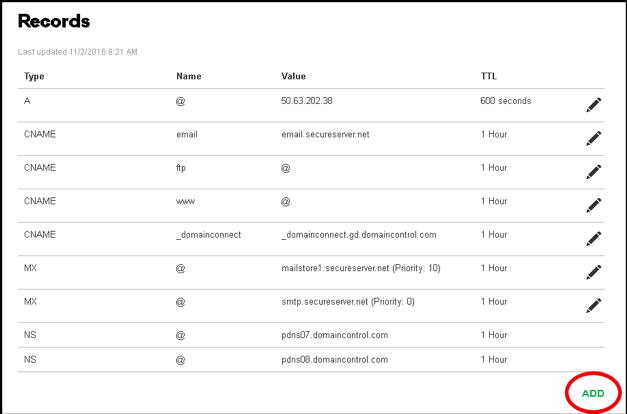
You’ll now see the DNS records for the domain name similar to the screenshot shown below. We want to Add some Name Server records so the secondary DNS starts working at CloudfloorDNS

GoDaddy Premium DNS Setup Secondary DNS

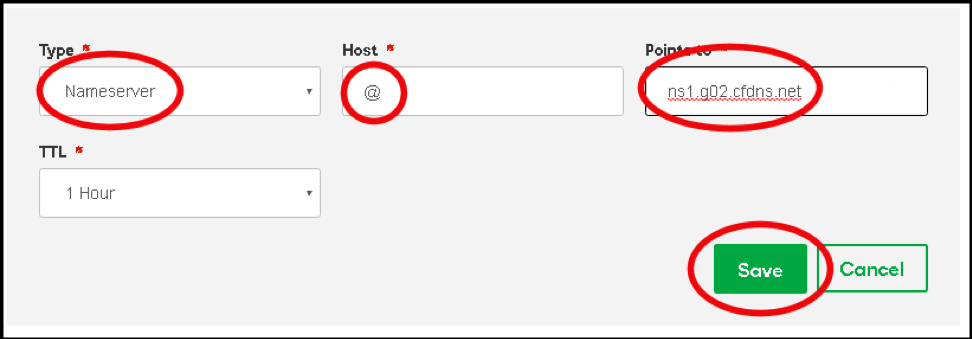
Click the Add button in the lower right corner and we want to add in each of the following name servers. This means we will have to do this four times. Please note your name servers may be different since CloudfloorDNS uses DNS pools for optimum performance

ns1.g02.cfdns.net
ns2.g02.cfdns.biz
ns3.g02.cfdns.info
ns4.g02.cfdns.co.uk

Enter in each server listed above as shown in the screenshot below. Set the Type to NAMSERVER, host should be the @ symbol, and enter the name server name and click the SAVE button. Do this once for each nameserver.

Add NS Records at GoDaddy Premium

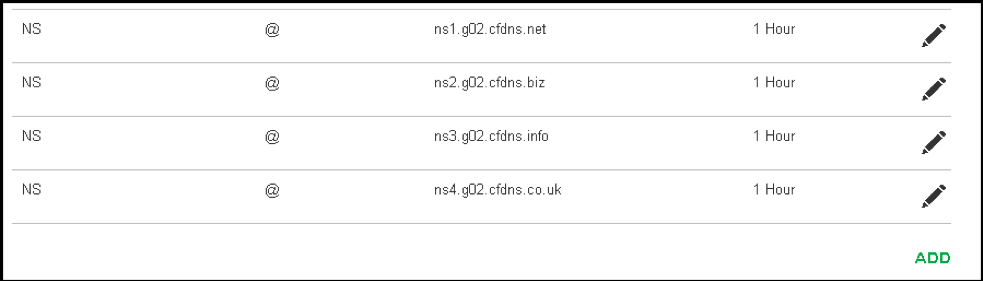
You should now see the name servers you added look similar to the screenshot below. Keep in mind your name server assignments may be different from the example below. Double check your entries and make any necessary changes. You should login to CloudfloorDNS once more and perform a manual zone update as described in earlier steps. This will ensure the data is replicated across properly.

GoDaddy DNS Servers

That’s it! You can now edit/update DNS at your Primary as you always have done and CloudFloorDNS will Synch automatically

CloudFloorDNS will now participate in the DNS answering process along with GoDaddy. Should there ever be an issue with GoDaddy and a DNS outage occurs, CloudFloorDNS will continue to answer. If your DNS provider offers DNS stats, you will see DNS queries drop at your Primary DNS provider and CloudfloorDNS will start to balance out the DNS Queries, taking approximately half of the DNS responses. You can check your stats and replication status under the Domain Management panel at any time.

Want to speed up your online operations? Start with DNS

Looking to Improve your Web Performance? Start with DNS

Start with DNS to improve your web performance

Many organizations are flocking to the cloud for their websites and hosted applications for increased performance. The cloud takes the chore out of provisioning servers and adds a layer of simplicity to scale out performance as the need escalates with just a few clicks. Having a large network of fast servers at the ready helps with scalability, but it’s only part of the equation to optimum web performance.

DNS is often overlooked when it comes to your Internet operations performance, yet it’s often one of the most critical components in the chain when squeezing out every ounce of speed. Every web page and app have resources and objects that are required to load for the page or app to be usable. Some web pages and apps can have hundreds of these, each one taking a few milliseconds to load. Each of these resources are typically hosted on your servers and thus need a DNS request to process each item. Slow DNS means slowdowns when fetching these resources, and the end result is slow page and app rendering.

Mix slow anything with today’s ever-impatient consumers and you have a problem. Today’s online visitors will wait for a second or two until they leave your site in search of the products or services they are looking for. Marketing research proves it – slow site means a loss of clients and revenue to faster, more convenient competition.

Since DNS is at the bottom of the commonly thought of technology chain when it comes to online operations, it makes sense to start there. Select a Managed DNS provider that offers a fast global Anycast DNS network along with advanced DNS services like DNS Load BalancingGEO DNS and DNS Failover. Anycast DNS will speed up your operations from the start, and advanced DNS services can greatly increase uptime, scalability and brand availability.

When it comes down to it, it’s all about maintaining the foundation of your Internet presence and that begins with DNS. DNS resides at the core of all online activities and without it the Internet wouldn’t exist as it does today. With a fast, consistent availability of your online presence you will continually maintain the loyalty and confidence of your current clients and satisfy future customers.

Have you checked your Web Performance lately? CloudfloorDNS can help you examine your current performance and provide solutions to instantly increase your DNS speed, reliability and flexibility.

Hurricanes, Floods and Natural Disasters and what they mean to your Online Business

Another Hurricane is on the way, what does that mean to your online business?

Evacuations are already underway in Southern Florida for incoming hurricane Michael and homes and businesses are fortifying their defenses to help protect them from the wrath of this storm. Many online businesses may not realize one of their data centers is in the path of the hurricane and can lose one of their valuable (and possibly primary) hosting locations. For most online organizations, losing a datacenter can wreak havoc with online operations causing email, websites, apps, vpn, phone system and more going belly up. That’s why it’s important to have a plan for disaster prevention/recovery with services that can keep things running smoothly.

Downtime and loss of service from an outage will put a massive dent in your books and can cost many thousands of dollars per minute depending on the size of the business. Avoiding these outages are impossible when it comes to natural disasters, so most business take action to migrate and balance to multiple data centers, avoid a single point of failure. Some of these techniques rely on good ol’ DNS – mainly load balancing and server monitoring/failover based on data center or server health. It’s also a plus that these DNS services are cloud-based and relatively low cost compared to an outage. DNS load balancing provides a simple and effective way of distributing load across multiple servers and data centers, reducing a total outage should one go down. Performance may be degraded, but you’ll still be online!

Adding on DNS failover with endpoint monitoring and now you have an automated platform that can detect server or data center health and automatically failover to a backup. Detecting health involves monitoring a server IP or data center gateway IP and if multiple locations report downtime, the failover is activated. Failover can also be activated on latency, so as a location becomes degraded, you can detect this and activate a failover scenario and removing the degraded host from the load balancing group. A simple, low cost and effective method to add performance and uptime in almost no time. It’s all done with the magic of DNS and best of all it can be deployed quickly and without hardware!